You are here:
Send Links in Messaging Sessions
To share a link with a customer in a messaging session, send an enhanced link messaging component, which includes a link title, URL, and image. Or, copy and paste the URL into the messaging field and send it.
Required Editions
| View supported editions. | |
 This article applies to:
|
Enhanced In-App Chat, Enhanced Web Chat v1, Enhanced Web Chat v2, Enhanced WhatsApp, Standard and Enhanced Facebook Messenger, Standard and Enhanced SMS, Enhanced Apple Messages for Business, Enhanced LINE, and Bring Your Own Channel |
| User Permissions Needed | |
|---|---|
| To send and receive messages in Enhanced Chat: | Enhanced Chat User permission set license AND Enhanced Chat Rep user permission |
| To send and receive messages in standard and enhanced messaging channels: | Messaging Agent |
If you paste a URL into the messaging field and send it, the customer can see a link preview or just the text of the URL. What they see depends on several factors, including the link requirements of the messaging app (Apple Messages for Business, Facebook Messenger, and so on) and the speed of the connection. To make sure that links appear in a rich format, consider creating enhanced link messaging components for frequently shared links.
In enhanced WhatsApp channels, enhanced link components are available only in the text format, so we recommend using the copy and paste method. Sending a URL in WhatsApp or in any enhanced Messaging channel typically auto-generates a link preview. If a Messaging or CCaaS partner supports link previews for your Bring Your Own Channel or Bring Your Own Channel for CCaaS messaging channel, paste a URL into the message field to send it as a rich link. You don’t need an enhanced link messaging component.
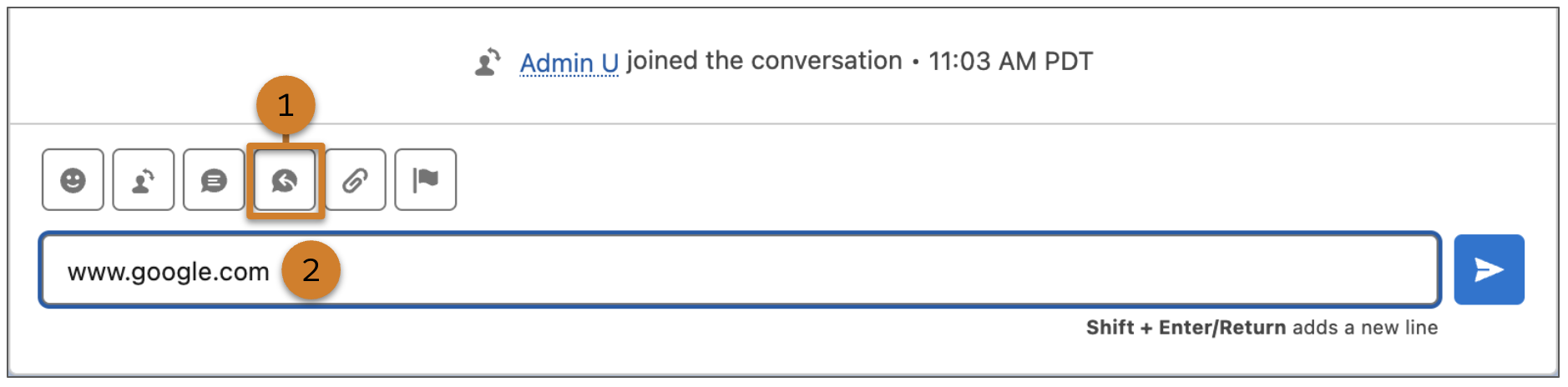
To share a link with a customer in a messaging session, perform either of these steps.
-
Send an enhanced link messaging component.
- Click the messaging component action under the messaging field (1).
- Find the enhanced link component and click Insert.
- Click the send icon.
-
Send a URL via the copy and paste method.
- Copy and paste the URL into the messaging field (2).
- Click the send icon.