
You are here:
Enhanced Messaging Channel Activation Checklist
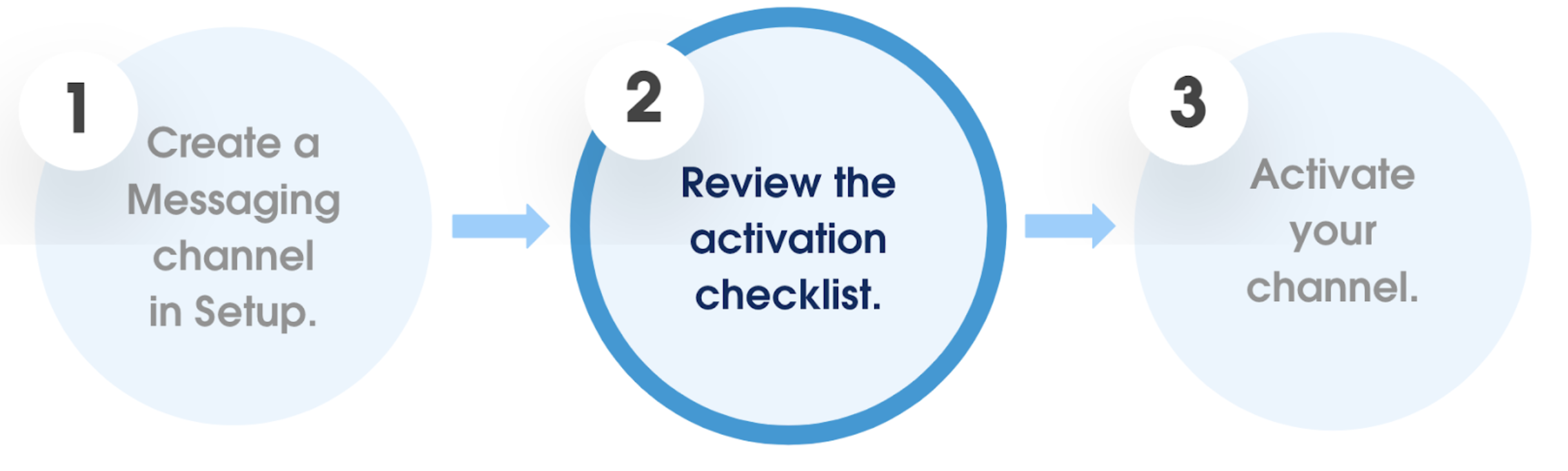
After you create or upgrade to an enhanced Facebook Messenger, Apple Messages for Business, WhatsApp, or LINE channel, you can’t yet message with customers in the channel. Run through this checklist to verify that your channel is ready for business. Then, activate the channel to start helping customers in your channel.
Required Editions
| View supported editions. | |
 This article applies to:
|
Enhanced WhatsApp, Enhanced SMS, Enhanced Facebook Messenger, Enhanced Apple Messages for Business, and Enhanced LINE channels |
 This article doesn’t apply to:
|
Enhanced In-App Chat, Standard and Enhanced SMS, Enhanced Web Chat v1, Enhanced Web Chat v2, Standard Facebook Messenger, and Bring Your Own Channel |
| Step | What’s Involved |
|---|---|
| (Required) Give users access to Messaging. | Assign users the Messaging permission set license and two permissions sets: one for service reps and one for Salesforce admins. |
| (Required) Set your message routing preferences. | In your channel settings in Setup, choose your routing type and select either an Omni-Channel flow and fallback queue (includes bot support) or a queue (no bot support). If you created a queue during channel creation, you’re all set. While you’re configuring routing, we recommend turning on enhanced Omni-Channel routing, which includes features such as an inbox-style view of work items. |
| (Required) Configure the Service Console. | Configure the Service Console and the Messaging Session record page so service reps can help customers in enhanced Messaging channels. Use different page layouts for standard and enhanced channels. |
| (Required) Customize your channel auto-responses and learn about the opt-in and opt-out experience. | Customize auto-responses for common scenarios in messaging sessions, and set keywords that customers can use to perform actions such as opting out of receiving messages. |
| (Required—LINE only) Complete the connection in LINE. | In the LINE Developers Console, provide an essential URL from Salesforce and update other settings. |
| (Recommended) Create messaging user records for existing customers so that service reps can initiate messaging sessions in your channel. | If you’re upgrading from a standard channel or migrating your number from an external business service provider, preserve existing customers’ consent preferences by creating messaging user records for them. Each record links the customer to your channel and contains their consent status: implicitly opted in, explicitly opted in, or opted out. |
| (Recommended) Create an enhanced bot. | Incorporate an enhanced bot into your support process to lighten the load on human service reps. Create a bot, and then reference it in an Omni-Channel flow to control which sessions are routed to it. |
| (Recommended—WhatsApp only) Set up automated messaging and copy message templates. | Create a flow that sends customers automated messages notifying them about product deliveries, case updates, or something else. Each notification message is based on an approved WhatsApp template. Optionally, copy templates from other WhatsApp Business accounts. For example, if you’re upgrading from a standard channel, copy the templates from your standard channel’s account. Templates can be copied before or after your enhanced channel is activated. |
| (Recommended) Create a library of interactive content for service reps and bots. | Help your team share and gather information faster by creating messaging components, which can be questions with clickable options, time selectors, or other formats. Service reps can send messaging components to customers during messaging sessions. |
Ready to activate your channel?
After you complete the items on this checklist, you can activate your channel to start receiving messages. On the Messaging Settings page, click your channel’s name. Then, click Activate Channel at the top of the page.
- Activating and Deactivating Messaging Channels
Several types of enhanced Messaging channels in Agentforce Service include the option to activate, deactivate, or refresh the channel. These options give you more control over when a channel goes live. Review tips for activating a channel, deactivating a channel, and refreshing a channel’s connection to an external messaging app such as WhatsApp.
