
You are here:
Considerations for Upgrading or Migrating to Enhanced WhatsApp
Review these considerations before you upgrade from a standard to an enhanced WhatsApp channel, or before you migrate a phone number from an external business service provider (BSP) to an enhanced WhatsApp channel.
Required Editions
| View supported editions. | |
 This article applies to:
|
Enhanced WhatsApp channels |
 This article doesn’t apply to:
|
Enhanced In-App Chat, Enhanced Web Chat v1, Enhanced Web Chat v2, Standard and Enhanced Facebook Messenger, Standard and Enhanced SMS, Enhanced Apple Messages for Business, Enhanced LINE, and Bring Your Own Channel |
How a Channel Upgrade or Migration Works
Here are the high-level steps of upgrading or migrating to an enhanced WhatsApp channel.
Step 1: Turn off two-step verification for your phone number so it can be transferred to a new enhanced channel. In an upgrade, you submit a request to Salesforce to turn it off for you. In a migration, you ask your original BSP to turn it off, or do it yourself in Meta Business Manager.
Step 2: Create your enhanced channel on the Messaging Settings page in Setup. During this process, create a new WhatsApp Business account (WABA) and business profile and select the phone number that you’re transferring.
Step 3: Customize your channel by completing the steps in the Enhanced Messaging Channel Activation Checklist.
Step 4: Activate your channel in Setup.
Key Differences Between Standard and Enhanced WhatsApp Channels
Standard WhatsApp channels were retired on Oct. 22, 2025. In enhanced WhatsApp channels:
- Service reps have more ways to gather and share information with customers. In standard WhatsApp channels, reps can share text, images, and PDFs only. In enhanced channels, reps can also share longer messages and larger files as well as voice messages, audio files, and videos. In addition, reps in enhanced channels can send several types of structured content, known as messaging components. Messaging component formats include questions with options, time selectors, and links.
- Service reps have more options when they can’t help a customer. Reps can end
sessions in both standard and enhanced WhatsApp channels, but they have several additional
options in enhanced channels. There, service reps can:
- Transfer an active messaging session to another rep, queue, or routing flow.
- Mark a messaging session inactive if the customer stops responding, freeing up the rep's capacity.
- More session statuses means more insight into messaging activity. Enhanced sessions include several extra session statuses, including Inactive, Consent, and Error. You can reference these session statuses when setting up reports and designing message routing logic.
- Service reps have more options in the Service Console. In the Enhanced Conversation component, service reps have access to a row of action buttons that let them send content such as quick text, messaging components, files, and emoji. Reps can also raise a flag to request help from a supervisor and exchange “whispered” messages with the supervisor that are captured in the session transcript.
- Service reps use a different quick action to start conversations. To initiate messaging sessions in enhanced WhatsApp channels, reps use the Send Message global action. In standard WhatsApp channels, reps use the Start Conversation quick action (beta). The Send Message action is available in the global action menu, which means reps can initiate a messaging session from any page in Salesforce.
- Automated outbound message notifications are sent in a different way. Automated message notifications are messages that are based on a WhatsApp message template and sent to customers via a flow at particular times—for example, when a case status changes or an order ships. In standard channels, Salesforce admins create their templates in Setup and use the Message Notification flow action to send the messages at particular times. In enhanced channels, admins create their templates in WhatsApp Business Manager, create notification messaging components that are linked to those templates, and then use the Send Conversation Messages flow action to send the messages.
For a side-by-side comparison of standard and enhanced WhatsApp channels, see Compare Messaging Channel Capabilities.
Transferred Data and Settings
Here’s what is and isn’t transferred during a channel upgrade or migration.
| Feature | Standard to Enhanced Channel | External BSP to Enhanced Channel |
|---|---|---|
| Phone number | Admin can transfer. The standard and enhanced WhatsApp channels are each associated with a different WABA. As part of the channel creation process, the number moves to the enhanced channel WABA. | Admin can transfer. The external BSP implementation and enhanced WhatsApp channel are each associated with a different WABA. As part of the channel creation process, the number moves to the enhanced channel WABA. |
| Conversation history | Not transferred. Messaging sessions from the standard channel remain available in your Salesforce org to users with permission. | Not transferred. |
| Channel auto-responses, such as opt-in prompts and keywords | Automatically transferred. However, enhanced channels include extra auto-responses, which you can customize during your upgrade. | Not transferred. |
| Messaging user consent preferences | Not transferred. We recommend bulk-creating messaging user records for your enhanced channel that include the consent status gathered in the standard channel. | Not transferred. |
| Message templates and automated message sending | Not transferred, but you can copy templates from your original WABA to your enhanced channel WABA. See Send Automated Messages in Enhanced Messaging Channels. | |
| Omni-Channel flow routing or queue and routing configuration | Not transferred, but admins can update the enhanced channel settings to reference the right flow or queue. We also recommend upgrading to enhanced Omni-Channel routing. | Not applicable. |
| Bot routing configuration | Not transferred. You can use only enhanced bots in enhanced WhatsApp channels, as opposed to standard bots. | Not applicable. |
| Sensitive data rules | Not transferred, but you can create replacement sensitive data rules for enhanced channels. | Not applicable. |
| Channel-object linking configuration | Automatically transferred, but we recommend upgrading to individual-object linking. | Not applicable. |
| Channel menu configuration | Automatically transferred, because the phone number remains the same. Check that your WhatsApp option in your channel menu uses the universal link format. | |
Conversation History
When a service rep is engaged in a messaging session, they see a continuous transcript of the messaging user’s conversations with your business that occurred in that channel. However, the transcript doesn’t show messages that were sent outside of the channel. These include messages that the messaging user exchanged with your business:
- In a standard WhatsApp channel
- When the phone number was associated with an external BSP
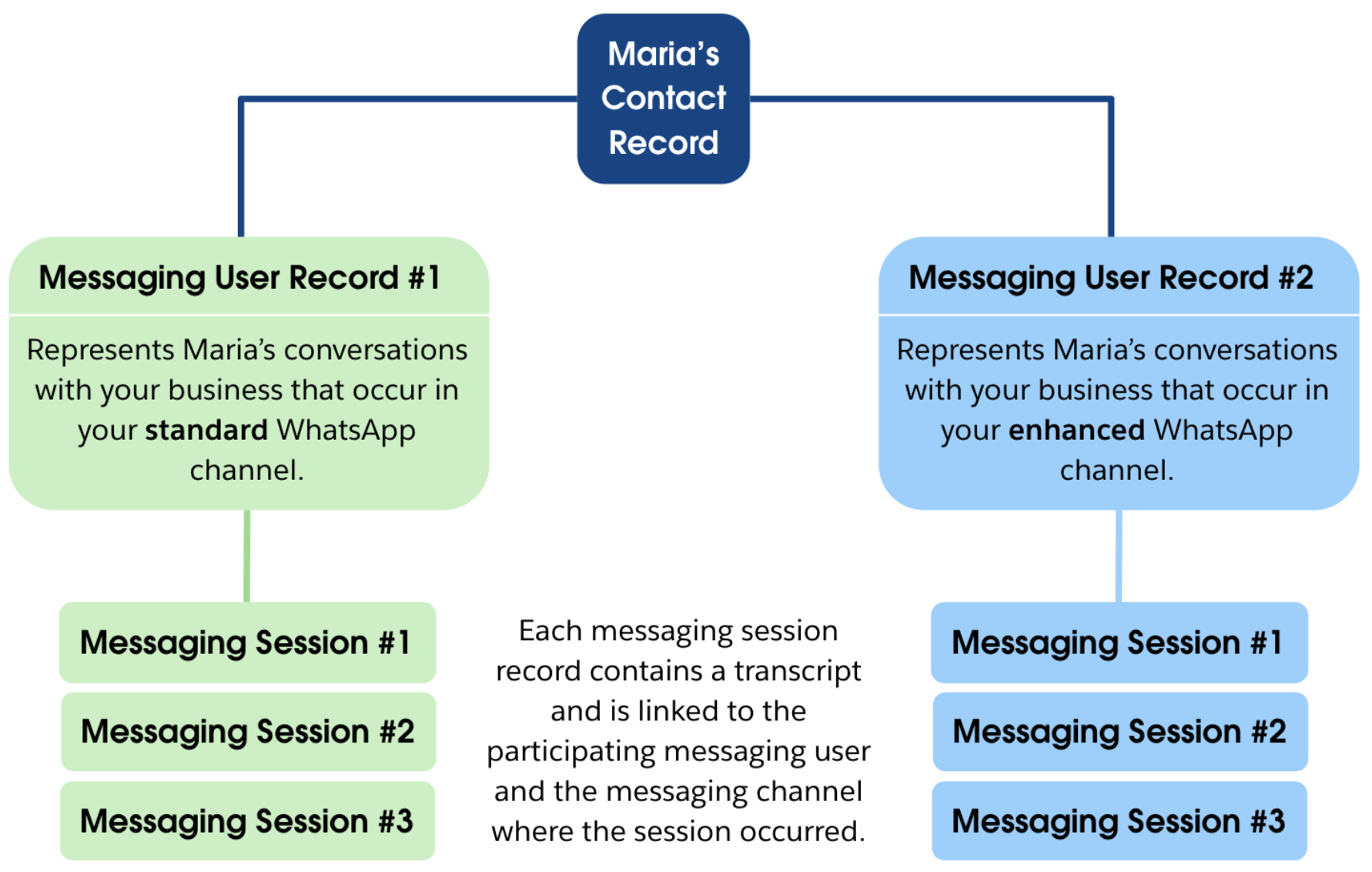
In a migration from an external BSP, no conversation data is transferred to the new enhanced channel. In a standard-to-enhanced upgrade, the standard channel’s conversation history is still available in Salesforce. To find it, go to the messaging user record that’s associated with the standard channel and view their messaging sessions.
For example, Maria is a longtime customer. She has exchanged messages with your business in a standard WhatsApp channel. When you upgrade your standard channel to an enhanced channel, here’s how her messaging data is organized in Salesforce.
Continuity for Customers
When you upgrade to an enhanced channel from a standard channel, customers don’t see any changes in their WhatsApp chat with you. If a customer messaged with you both before and after the upgrade, they see all messages in the same chat.
To minimize downtime that can occur during an upgrade or migration, we recommend using a test or low-traffic phone number at first. After you set up and test your routing configuration, channel settings, message templates, and customer experience, you can create your enhanced channel with your desired number and apply your already-tested customizations.
Activate your channel during a low-traffic time to avoid two possible disruptions that can occur during an upgrade or migration:
- You can experience a short period of messaging loss when you activate your channel.
- If a customer is engaged in an active messaging session in your standard channel as you’re upgrading to an enhanced channel, it’s possible that customer messages sent after the enhanced channel is activated won’t arrive. In this situation, close their open session in the standard channel. Then, create a messaging user for the customer in the enhanced channel that includes their consent preference gathered in the standard channel. Finally, send an automated or manual message to them in the enhanced channel to continue helping them.

Start Your Upgrade or Migration
To get started, see Create or Upgrade to an Enhanced WhatsApp Channel.
Need help with WhatsApp? Review WhatsApp Business Platform Support Considerations.
