
Set Up Masked Phone Calls for Real-Time Location
Using masked phone calls requires setting up Salesforce Voice with Amazon Connect.
Required Editions
| Available in: both Salesforce Classic (not available in all orgs) and Lightning Experience |
| The Field Service core features, managed package, and mobile app are available in Enterprise, Unlimited, and Developer Editions. |
| The Appointment Assistant managed package and permission set license are required. You also need Salesforce Voice with the Amazon Connect license. |
| User Permissions Needed | |
|---|---|
| To view the Amazon Setup page: | Customize Application |
| To turn on Salesforce Voice: | Customize Application |
- Set up Salesforce Voice with Amazon Connect.
-
Set up the contact flow and the lambda function.
- From Setup, in the Quick Find box, enter Voice, and then select Amazon Contact Centers.
- Open your contact center.
- Make sure that your contact center is on version 9.0 or above. See Salesforce Voice Contact Center Updates.
-
Create a phone number.
- Set up your contact center phone number in Amazon Connect. See Manage Your Contact Center in Amazon Connect.
- Connect the phone number to the flow: Sample SVC Field Service Phone Call Subflow.
-
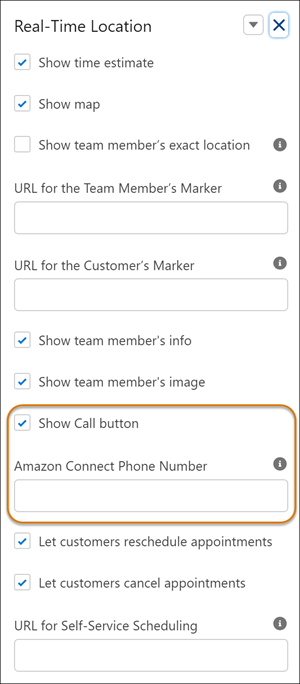
Copy the Amazon Connect phone number, and paste it in the Amazon Connect Phone Number
field of the Real-Time Location component settings. Make sure the Show Call button is also
selected.
Did this article solve your issue?
Let us know so we can improve!
