
Manage Bundled Service Appointments on the Field Service Mobile App
You can view and report your progress on one or more bundled service appointments.
Required Editions
| Available in: both Salesforce Classic (not available in all orgs) and Lightning Experience |
| The Field Service core features, managed package, and mobile app are available in Enterprise, Unlimited, and Developer Editions. |
| To access the Field Service mobile app, users need the Field Service Mobile user license. |
| User Permissions Needed | |
|---|---|
| To manage bundles in the Field Service mobile app: | Field Service Mobile License Field Service Recourse Permissions |
Watch the video to see how grouping short appointments at nearby or same-site locations to create a bundle helps you and your customers.
-
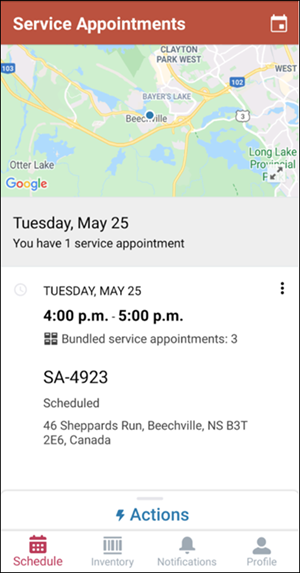
In the Field Service mobile app, tap Schedule.
Bundles have the bundle icon
 .
.
-
Tap a bundle.
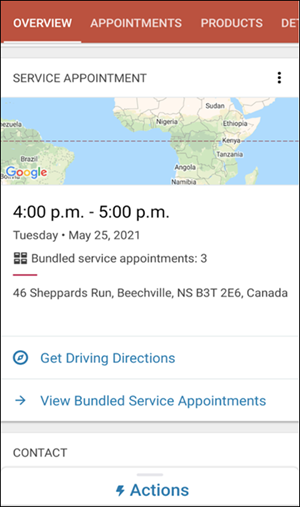
-
Tap View Bundled Service Appointments, or open the APPOINTMENTS
tab.
As you go through your day, appointments that move to a status from the Completed category are considered done. At the top of this screen, you can see how many appointments are done. For example, 3 of 10 done.
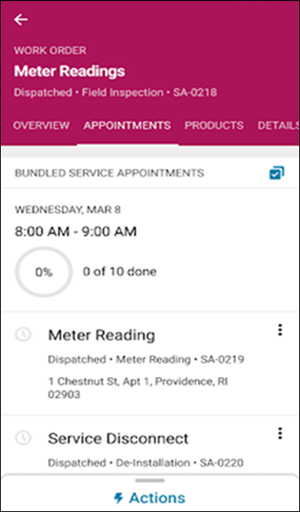
 Note The fields shown for each bundled service appointment are based on the fields selected in the Bundle Member Service Appointments related list search layout on the Service Appointment object. A maximum of three fields is displayed for each appointment card, and the address field is always shown.
 -
Edit a single bundled service appointment to update the status, or update multiple
appointments together.
-
Tap
 .
.
-
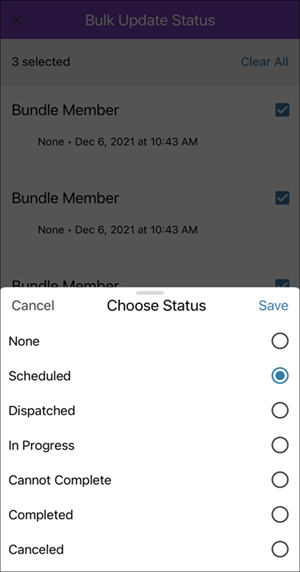
Select the bundled service appointments, and tap Update
Status.
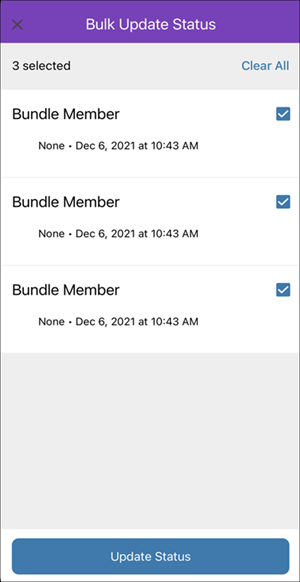
-
Select the new status, and tap Save.
-
Tap
Did this article solve your issue?
Let us know so we can improve!
