Associate Discovery Framework-Based Data Capture Forms with an Object
Use custom quick actions to attach Discovery Framework-based data capture forms to any object. This action makes it easier for your users to launch and complete forms directly from Salesforce record pages.
Required Editions
| Available in: Lightning Experience |
| Available in: Essentials, Professional, Enterprise, Unlimited, and Developer Editions where Field Service, Discovery Framework, Discovery Framework Import or Export, and Discovery Framework Data Capture Flow are enabled |
| User Permissions Needed | |
|---|---|
| To create custom quick actions and to customize action layouts and page layouts: | Customize Application |
| To view page layouts: | View Setup |
By associating Discovery Framework-based data capture forms with any object by using custom quick actions, you can significantly reduce setup time. However, these quick actions aren't available on the Field Service mobile app. In the Field Service mobile app, you can launch the forms only from work order, work order line item, or service appointment records. For more information, see Associate Discovery Framework-Based Data Capture Forms with Service Appointments. If users launch the forms on Salesforce record pages, they can’t use the offline capabilities offered by the Field Service mobile app. This means your users can’t access the forms in areas with poor or no internet connectivity.
- From the object management settings of your target object, click Buttons, Links, and Actions.
- Click New Action.
- Select the action type as flow.
- For the Flow field, select the Discovery Framework Data Capture flow that you want to launch with the quick action.
-
Enter a label for the quick action.
 Note Users see the specified text for the label as the action name on the record page. The quick action appears only on the record pages in Salesforce but not on the Field Service mobile app.Here's a sample custom quick action.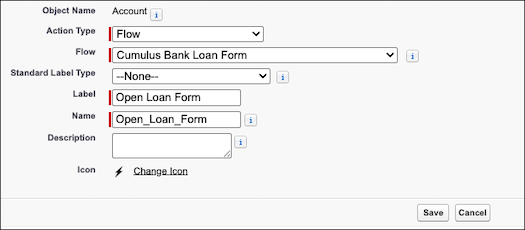
- Save your changes.
- From the object management settings of your target object, click Page Layouts.
- Select the required page layout.
-
On the object page layout, select the Mobile & Lightning Actions
category.
The Mobile & Lightning Actions category contains all available types of actions for the object, including quick actions, Lightning component actions, and standard and custom buttons. Actions in this section appear in the action bar and action menu in various areas of Lightning Experience.
- Find the quick action that you created earlier, and then drag the action onto the Salesforce Mobile and Lightning Experience Actions section of the object page layout.
- Save your changes.
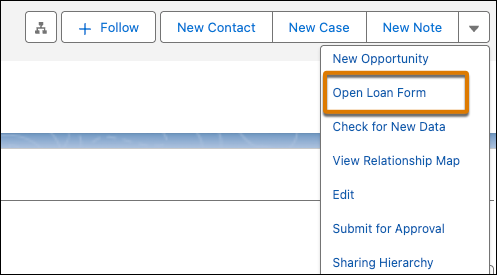
After you add the quick action to a page layout, your users can launch the form from the page-level action menu on the record page.