
Set Up the Search Tab in the Field Service Mobile App
Let mobile workers search for records in the Field Service mobile app.
Required Editions
| Available in: both Salesforce Classic (not available in all orgs) and Lightning Experience |
| The Field Service core features, managed package, and mobile app are available in Enterprise, Unlimited, and Developer Editions. |
| To access the Field Service mobile app, users need the Field Service Mobile user license. |
| User Permissions Needed | |
|---|---|
| To customize tabs: | Customize Application |
- Set up the user permissions.
-
Add the Search component.
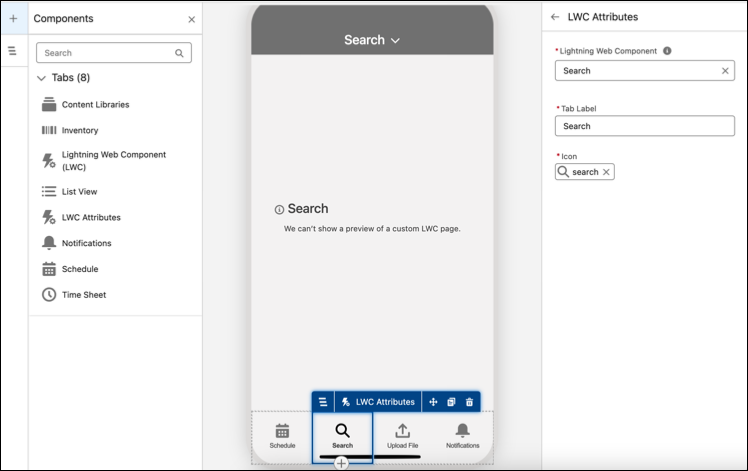
- In Field Service Mobile App Builder, drag LWC Attributes to the bottom bar. See Work with Tabs in the Field Service Mobile App Builder.
- For Lightning Web Component, select Search.
-
Give the tab a label and select an icon. The mobile worker sees the label and icon in the
Field Service mobile app. For example:
- Click Save and then click Publish.
-
The component searches in these objects, listed in the order they appear: Service
Appointment, Work Order, Work Order Line Item, Asset, Contact, Account, Product Item, and
Resource Absence.
Determine which fields are searched and shown in the search results.
- The search bar at the top of the component lets users enter free text. The component then searches in all the fields that are in the object’s search layout. To determine which fields are searched, from Object Manager, select the Service Appointment object, and then click Search Layouts.
- In the row of the required profile, click the arrow and select Edit.
- The component searches in all of the fields in the Selected Fields list. Review the fields in the list and add or remove fields accordingly.
-
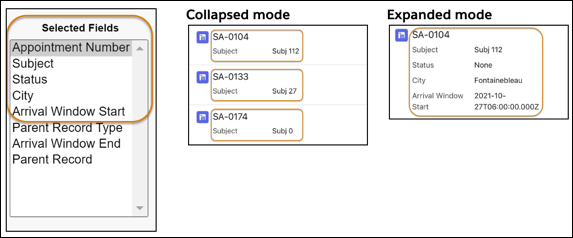
The first five fields are shown in the search results. Determine which fields are shown
by reordering the fields.
The top two fields are shown in the collapsed mode. The first field is the title of the search result, and the second field appears below it. The next three fields are seen only in the expanded mode. For example, if the fields are sorted in the order shown in this example, these fields are shown in the collapsed mode and the expanded mode.
- The component’s Filter By option lets you select any of the object’s fields that are in the page layout. Review the fields in the object’s page layout and add or remove fields accordingly.
- Repeat steps a. to e. for the remaining objects that the component searches in.
Keep these considerations in mind.
- The search results show only the first 50 records that were modified in the last 2 years, based on the last modified field on the record. Older results aren’t shown.
- The component searches in a set list of objects: Service Appointment, Work Order, Work Order Line Item, Asset, Contact, Account, Product Item, and Resource Absence. You can’t remove or add objects to this list.
- When the mobile worker is offline, the component searches only in cached records. To make relevant records available offline, make sure you add them to the briefcase.
- When the mobile worker performs a search, the results are retrieved from the server and cached. If the information changes on the server and the mobile worker then performs the same search, they don’t see the updated information, because the information was already cached. When the data cache policy expires, the search can retrieve the updated information.
- The component retrieves only records that the user has access to. When a mobile worker searches for service appointments, only appointments that are assigned to them are retrieved.
Did this article solve your issue?
Let us know so we can improve!
