
Search for Records
Use the Search tab to search for records.
Required Editions
| Available in: both Salesforce Classic (not available in all orgs) and Lightning Experience |
| The Field Service core features, managed package, and mobile app are available in Enterprise, Unlimited, and Developer Editions. |
| To access the Field Service mobile app, users need the Field Service Mobile user license. |
| User Permissions Needed | |
|---|---|
| To access the Search tab: | Custom Applications for Field Service Mobile AND Lightning SDK for Field Service Mobile |
-
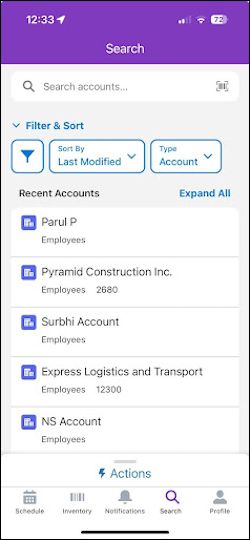
From the Field Service mobile app, open the search tab.
-
Enter a search term or use the barcode scanner.
The search results show only the first 50 records that were modified in the last 2 years, based on the last modified field on the record. Older results aren’t shown.
-
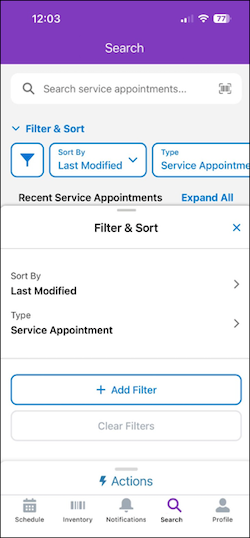
To apply filters and determine how the results are sorted, tap the filter icon.
-
To determine how the results are sorted, tap Sort By.
You can sort the results by Last Modified, First Modified, A–Z, and Z–A. Objects that have Latitude and Longitude fields (Service Appointment, Work Order, Work Order Line Item, and Asset) can also be sorted by Closest Location and Furthest Location.
 Note When you sort by distance, the 50 last modified records are loaded and only then sorted according to distance, and it’s possible that you can’t see the most accurate results. For example, if you sort service appointments according to Closest Location and the service appointment with the shortest distance hasn’t been modified recently, it’s possible that it doesn’t appear in the results.
 - To search in a different object, tap Type.
- To search for a specific field value, tap Add Filter to select a field and a value.
- To see more details about the results, tap Expand All.
- When you find the result that you were looking for, tap it to open the record.
Did this article solve your issue?
Let us know so we can improve!
