
You are here:
Configure Custom Labels for Enhanced Chat
Customize the end user experience of Enhanced Chat by writing your own labels. Optionally, add custom labels for each of your supported languages.
Required Editions
| View supported editions. | |
 This article applies to:
|
Enhanced In-App Chat and Enhanced Web Chat |
 This article doesn’t apply to:
|
Standard and enhanced WhatsApp, standard and enhanced Facebook Messenger, standard and enhanced SMS, enhanced Apple Messages for Business, enhanced LINE, Bring Your Own Channel, and Bring Your Own Channel for CCaaS |
Custom Labels Dropdown Menus
- In the Language dropdown, select a language that you support end users in. If you support end-users in more than one language, you’ll need to repeat these steps for each language that you support customers in.
- In the Chat Group dropdown, select the part of the chat experience that you want to set custom labels for. Pre-Chat includes anything in an active pre-chat form. Chat in Progress includes labels that appear when a conversation is active. General includes everything else.
- In the Label Group dropdown, further restrict the experience that you want to customize labels for. Each Chat Group has a variety of sub-sections.
- In Label Type, choose the kind of text that you’d like to customize. Standard refers to text that’s accessible to an end user without a screen reader. Accessibility refers to text that a screen reader dictates to an end user. System Messages refers to text that’s generated by the channel, not by a service rep, bot, or Agentforce. System messages are used to communicate important events in the conversation, such as start and end times or changes in participants.
Custom Labels for Standard Text in the General Chat Group
Custom Labels for Accessibility Text in the General Chat Group
| Label | Label Group | Definition |
|---|---|---|
| Expand the text | All or Minimized | Explains the minimized state notification window. |
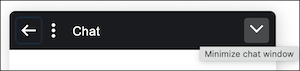
| Minimize the chat window | All or Minimized | Explains the icon for minimizing the chat conversation window when it’s maximized. |
| Expand the message window | All or Minimized | This label isn't in use. Ignore it. |
| Expand the chat window | All or Minimized | Explains the icon for maximizing the messaging conversation window when it’s in a minimized state. |
| Close the chat notification | All or Minimized | Explains the icon for closing the pop-up notification that appears when the chat conversation window is in a minimized state. |
| Hello, have a question? Let’s chat. | All or Minimized | Introduces the chat icon. |
| Close window | All or Enlarged File Attachments | Explains the icon for closing a file preview. |
| Enlarged image preview | All or Enlarged File Attachments | Explains a file preview. |
| Chat with an Agent | All or Messenger Window | Explains the entire chat conversation window. |
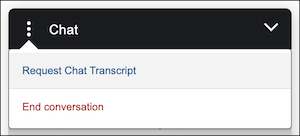
| Close messaging menu | All or Header | Explains that clicking the three dots menu icon when the menu is expanded will close the menu. |
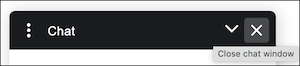
| Close the message window | All or Header | Explains the X icon for closing the chat conversation window. |
| Reconnecting... | All or Header | Explains that the chat client is attempting to reconnect after the end user’s network had an outage. |
| Open messaging menu | All or Header | Explains that clicking the three dots menu icon, when the menu isn’t already open, will open the menu. |
| Chat Window | All or Header | Explains the expanded chat conversation window. |
Custom Labels for Standard Text in the Chat Group Called Pre-Chat
| Label | Label Group | Description |
|---|---|---|
| Terms and Conditions Label | Terms and Conditions | This help topic explains how to customize labels for Terms and Conditions. |
| [Any dropdown labels that appear in this label group] | Dropdown Values | Learn how to custmize labels for Dropdown Values. |
| Start Conversation | Pre-Chat Form | Explains the button that submits the pre-chat form. |
| I accept | Pre-Chat Form | Explains the checkbox for accepting Terms and Conditions. |
| Use a valid email format. | Pre-Chat Form | An error message that asks the user to re-enter their email address due to an invalid format. UTF-8 encoding is supported for international email addresses. Valid email addresses include name@example and name@example.com. |
| None | Pre-Chat Form | This text appears by default as the first option in a choicelist in the pre-chat form. |
| Loading... | Pre-Chat Form | After the end user submits their pre-chat form, this text appears. It disappears when the messaging session begins. |
| This field is required. | Pre-Chat Form | Error message that prompts the customer to fill in a required field. |
Custom Labels for Standard Text in the Chat in Progress Chat Group
| Label | Label Group | Description |
|---|---|---|
| Send message | All or Input Footer | Explains the icon for sending a message in the chat conversation window. |
| Type your message... | All or Input Footer | Placeholder text that appears in the text input field after a service rep has responded to a chat session. |
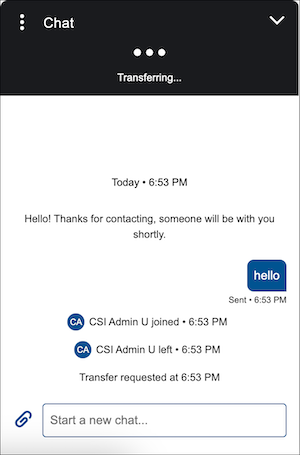
| Start a new chat... | All or Input Footer | Placeholder text that appears in the text input field before a service rep has responded to a chat session. |
| Awaiting response... | All or Input Footer | A placeholder in the input field when the input field is temporarily disabled. An end user sees their input field temporarily disabled when a bot is typing. |
| Yes, Leave Page | All or Auto-Response | Text for the button that appears when an End Conversation Auto-Response messaging component, with the Display Method set to Popup Message, is sent to the end user. To stop viewing the component, an end user clicks a backwards arrow, and is taken to a message letting them know that, once they leave the component page, they can’t return to it. This button is a confirmation that the end user is okay with permanently leaving the component. |
| Back to chat | All or Auto-Response | Hover text for the icon that lets an end user leave the display page for an End Conversation Auto Response messaging component. Specifically, this appears when the Display Method for the messaging component is set to Popup Message. |
| Leave current page? | All or Auto-Response | Title text that appears in the chat conversation window after an End Conversation Auto-Response messaging component, with the Display Method set to Popup Message, is sent to the end user. To stop viewing the component, an end user clicks a backwards arrow, and is taken to a message letting them know that, once they leave the component page, they can’t return to it. |
| After you leave this page, you can't return to it. | All or Auto-Response | Body text that appears in the chat conversation window after an End Conversation Auto-Response messaging component, with the Display Method set to Popup Message, is sent to the end user. To stop viewing the component, an end user clicks a backwards arrow, and is taken to a message letting them know that, once they leave the component page, they can’t return to it. |
| Post-Chat Page | All or Auto-Response | Header text explaining that you’ve landed on the End Conversation auto-response messaging component’s display page. |
| Cancel | All or Auto-Response | Text for the button that appears when an End Conversation Auto-Response messaging component, with the Display Method set to Popup Message, is sent to the end user. To stop viewing the component, an end user clicks a backwards arrow, and is taken to a message letting them know that, once they leave the component page, they can’t return to it. This button allows the end user to return to the component display page. |
| Download file | All or File Transfer | When an end user receives a file in the messaging conversation, this is hover text for the button to download that file. |
| Unsupported file type: {0}. Try again. | All or File Transfer | An error message that appears when an end user attempts to attach an unsupported file type. The {0} variable shows the file type to the end user. |
| Sending file... | All or File Transfer | If a file sent from the end user isn’t sent to the messaging conversation instantly, this appears to let them end user know that it’s sending. |
| These files exceed the {1} MB limit: {0}. Try again. | All or File Transfer | Error message that appears if you try to attach a file that’s larger than 1MB. |
| Add up to 5 attachments. | All or File Transfer | An error message that appears if you attempt to attach more than 5 files at a time from the Attach File icon. |
| Don't send file {0} | All or File Transfer | When an end user has uploaded a file to the text input footer of the messaging conversation window but hasn’t yet sent the file, an X icon appears to let the end user remove the file. This text appears when you hover over the icon. |
| Attach file | All or File Transfer | Hover text for the paperclip icon next to the text input field. |
| Resend | All or Chat Body | Next to the inline error message telling the end user that their text couldn’t be sent, there’s a Resend text button. When the end user clicks Resend, we try to send the same message to the rep. |
| Delivered | All or Chat Body | This appears when a message is sent to a service rep, but the rep has not yet read it. |
| Placeholder | All or Chat Body | This appears in place of a messaging component menu selection in the following scenario: When an end user makes a selection from a Question with Static or Dynamic Options messaging component, then either refreshes the page or opens a new page with session continuity, and there is a server error preventing the menu selection from showing up in the refreshed or new page. |
| {0} sent an unsupported message type. | All or Chat Body | An error message that lets the end user know that a service rep or bot sent an unsupported message. The {0} variable tells the end user who sent it. |
| {0} says... | All or Chat Body | Text that appears in your browser tab if you navigate away from the page where you’re messaging and a service rep sends a message. |
| Yesterday | All or Chat Body | A time stamp indicating that a message was sent the previous day. |
Sources: 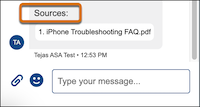 |
All or Chat Body | Indicates one or more citations in a conversation with an Agentforce Service Agent. While this is customizable for the messaging conversation window, it will always appear as “Sources:” in the downloaded messaging conversation transcript. |
| Not sent | All or Chat Body | Appears to the end user when a network issue prevents an end user’s message from being sent. |
| Read | All or Chat Body | Appears to the end user to indicate that a service rep has read their message. Read recipts must be turned on for this to appear. |
| Revised | All or Chat Body | Explains that the previous version of this message from an Agentforce Service Agent was re-written. |
| Sent | All or Chat Body | When a message from the end user is successfully delivered to the service rep, the word Sent appears below the line of text. |
| This conversation ended. Close the chat window and start a new one. | All or Chat Ended | Text that appears when a JWT expires in an unauthenticated messaging session. |
| You ended the conversation at | All or Chat Ended | Text that appears when an end user ends an unauthenticated messaging session. |
| Leave Form | All or Secure Form | When an end user clicks the Back to chat arrow after viewing a secure form, a confirmation message appears. The end user can click Leave Form to return to the chat conversation. |
| Enter the correct input format. | All or Secure Form | A general error message for any secure form field that has a formatting requirement. When an end user attempts to input data into the field in the incorrect format, this error message appears. |
| Next | All or Secure Form | A secure form presents to the end user as a series of fields to engage with. The end user clicks the Next button to move forward in filling out each field on the form. |
| After leaving the form, you can open it again in the messaging window. However, your progress isn't saved. | All or Secure Form | When an end user clicks the Back to chat arrow after viewing a secure form, a confirmation message appears. This custom label is for the body of the confirmation message. |
| Select one | All or Secure Form | When a Secure Form’s dropdown menu only allows one selection, this prompt appears. |
| Stay on Form | All or Secure Form | When an end user clicks the Back to chat arrow after viewing a secure form, a confirmation message appears. The end user can click Stay on Form to return to the secure form landing page. |
| Enter a value. | All or Secure Form | When an end user is presented with a required field in a secure form messaging component, this inline message appears to remind them that they must enter a value before proceeding. |
| Form was submitted. | All or Secure Form | A message that’s send to the end user in the chat conversation window, confirming that a secure form was submitted. |
| Select a value. | All or Secure Form | When an end user is presented with a required field in a secure form messaging component, this inline message appears to remind them that they must make a selection before proceeding. |
| Enter text | All or Secure Form | If you include a text input field on a secure form, this is a field prompt that tells the end user what to do with the field. |
| Submitting form… | All or Secure Form | When a spinner icon appears because it’s taking a few moments to submit a secure form, this message appears. |
| Submit | All or Secure Form | On the final screen of the secure form flow, the Next button changes to a Submit button. When the customer clicks Submit, their secure form is sent. |
| Leave this form? | All or Secure Form | When an end user clicks the Back to chat arrow after viewing a secure form, a confirmation message appears. This custom label is for the title of the confirmation message. |
| Select a date | All or Secure Form | When an end user is presented with a required date field in a secure form messaging component, this inline message appears to remind them that they must select a date before proceeding. |
| Back | All or Secure Form | A button on a secure form messaging component that lets the end user return to the previous page. |
| Select all that apply | All or Secure Form | When an end user is presented with a multi-select field in a secure form messaging component, this inline message appears. |
| We couldn't submit the form. | All or Secure Form | An error message that’s sent to the end user if a secure form can’t be sent. |
| 9+ | All or Unseen Messages | When an end user minimizes the chat window and then receives more than 9 messages. This notification appears as a minimized state notification window. |
Custom Labels for System Messages in the Chat in Progress Chat Group
| Label | Label Group | Definition |
|---|---|---|
| {0} left | All or Chat Body | Explains that a service rep or bot left the conversation. |
| Agents are not available. Try again later. | All or Chat Body | Explains that a messaging session couldn’t be routed to a service rep (agent) due to a lack of available reps. |
| Today | All or Chat Body | This text appears at the beginning of a conversation, next to the time stamp. |
| Transfer requested at | All or Chat Body | This message is followed by a time stamp indicating when a transfer was requested. |
| We're connecting you to an agent. Your estimated wait time is {0} minute. | All or Chat Body | This is the text that appears after you turn on Estimated Wait Time. There are two similar versions of this message. This one appears when your estimated wait time is one minute. |
| Transfer request failed at | All or Chat Body | This message is followed by a time stamp indicating when a transfer request failed. |
| {0} joined | All or Chat Body | When a service rep or bot joins the conversation. |
| We're connecting you to an agent. Your estimated wait time is {0} minutes. | All or Chat Body | This is the text that appears after you turn on Estimated Wait Time. There are two similar versions of this message. This one appears when your estimated wait time is less than or greater than one minute. |
| Wait and try later. | All or Chat Body | A transfer request failed. The end user is encouraged to try again later. |
| This conversation ended. Close the chat window and start a new one. | All or Chat Body | The conversation ended due to an expired JWT. The End User must initiate a new conversation. |
| You ended the conversation at | All or Chat Body | This message is followed by a time stamp indicating when the end user ended the chat. |
| Thinking | All or Chat Body | The AI agent or bot is thinking and will respond in a moment. |
Custom Labels for Accessibility Messages in the Chat in Progress Chat Group
| Label | Label Group | Description |
|---|---|---|
| Send message | All or Input Footer | Explains the button for sending a message in the input footer. |
| Chat message | All or Input Footer | Explains the text area of the input footer where an end user types their message. |
| Insert emoji | All or Input Footer | Explains the button for inserting an emoji into the text input footer. |
| Press enter to send | All or Input Footer | Accessibility text for the send message button in the input footer. |
| Emoji keyboard | All or Input Footer | Explains the emoji keyboard that appears after an end user selects the insert emoji icon. |
| Post-Chat URL | All or Auto-Response | Explains an End Conversation auto-response component that is presented to a customer. |
| Back to chat | All or Auto-Response | Explains the icon that an end user can select to return to the messaging conversation from the End Conversation auto-response component landing page. |
| The attachment is in preview until you press the Send Message icon. | All or File Transfer | This explains the thumbnail for an attachment that’s been attached to the text input footer but not yet sent by the end user. |
| Attach icon | All or File Transfer | This explains the icon that lets an end user add an attachment to their message. |
| Attached files | All or File Transfer | A list of attached files that have not been sent. |
| Download-arrow icon | All or File Transfer | This explains the icon that lets an end user download an attachment that was sent by a service rep or bot. |
| Select a menu item | All or Chat Body | This prompts an end user to make a selection from a choicelist messaging component. |
| Loading... | All or Chat Body | Explains the default spinner icon. |
| Loading new messages... | All or Chat Body | When the end user scrolls up in the messaging conversation and more messages need to be loaded, this spinner appears. |
| Select a quick reply | All or Chat Body | This text prompts an end user to make a selection from a messaging component with the Quick Replies format. |
Custom Labels for Standard Text in the Fallback Message Chat Group
| Label | Label Group | Definition |
|---|---|---|
| Fallback Message | Message | For help with fallback messages, see Use Fallback Message to Help Customers During an Enhanced Chat Downtime. |
Did this article solve your issue?
Let us know so we can improve!
