
You are here:
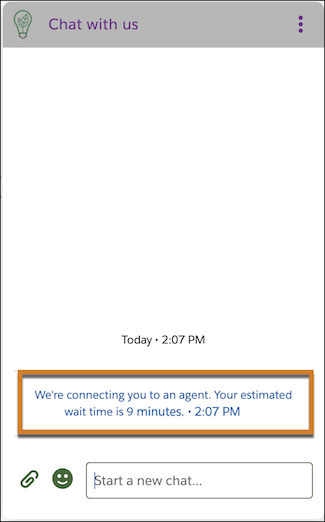
Show Customers an Estimated Wait Time in the Chat Conversation Window
Automatically tell customers how many minutes they have to wait before being connected to a service rep. Build customer trust by setting expectations.
Required Editions
| View supported editions. | |
 This article applies to:
|
Enhanced In-App Chat and Enhanced Web Chat channels |
 This article doesn’t apply to:
|
Enhanced WhatsApp, Standard and Enhanced Facebook Messenger, Standard and Enhanced SMS, Enhanced Apple Messages for Business, Enhanced LINE, and Bring Your Own Channel |
| User Permissions | |
|---|---|
| To set up this feature: | Customize Application AND Modify Metadata Through Metadata API Functions |
| To modify permission sets and profiles: | Manage Profiles and Permission Sets |
Estimated wait time can appear in several scenarios as long as certain conditions are met.
Possible scenarios that trigger Estimated Wait Time include:
- A customer initiates a messaging session, which is routed directly to a queue or to a flow that routes to a queue or skill, and the session is accepted.
- A service rep transfers the session to a flow that routes to a queue or skill, and the transferred session is accepted.
- A bot transfers the messaging session to a flow that routes to a queue or skill, and the transferred session is accepted.
Conditions that must be met to show Estimated Wait Time include:
- You activated Estimated Wait Time.
- Service reps accepted at least 1 messaging request in the last 10 minutes for the corresponding queue or set of skills.
- To trigger estimated wait time when a customer creates a messaging session, the Routing Type field for your deployment in Messaging Settings must be set to Omni-Queue or Omni-Flow with a selected flow that routes to a queue or skill. This condition isn’t required to trigger estimated wait time when a service rep transfers to a flow that routes to a queue skill, or when a bot transfers to a flow that routes to a queue or skill.

Note If the estimated wait time is less than 1 minute, we round it up to 1
minute.
- From Setup, in the Quick Find box, enter Messaging Settings, and then select Messaging Settings.
- Click the edit button to the right of your deployment, and then select Edit.
-
Click Show estimated wait time.
In Enhanced Chat v2 deployments, the transferring message and estimated wait time alternate every 20 seconds.
-
Save your changes.
Did this article solve your issue?
Let us know so we can improve!
