
You are here:
Set Push Notifications for Enhanced In-App Chat
Set push notifications for your iOS or Android mobile apps in your Enhanced In-App Chat channel. Unlike messages that are automated or sent by service reps, push notifications are temporary and don’t appear in a user’s chat history.
Required Editions
| View supported editions. | |
 This article applies to:
|
Enhanced In-App Chat channels |
 This article doesn’t apply to:
|
Enhanced Web Chat v1, Enhanced Web Chat v2, Enhanced WhatsApp, Standard and Enhanced Facebook Messenger, Standard and Enhanced SMS, Enhanced Apple Messages for Business, Enhanced LINE, and Bring Your Own Channel |
| User Permissions | |
|---|---|
| To set up this feature: | Customize Application AND Modify Metadata Through Metadata API Functions |
| To modify permission sets and profiles: | Manage Profiles and Permission Sets |
Before you set up push notifications, review and prepare platform-specific information.
To learn more about iOS device notifications, see Apple’s Notifications Overview. You also need access to the Apple credentials for iOS.
To learn more about Android device notifications, see Google’s Notifications Overview. Before you set up push notifications, also complete these setup tasks for Android.
- Confirm that you have access to the Firebase credentials for Android.
- Enable the Firebase Cloud Messaging API by visiting
https://console.developers.google.com/apis/api/fcm.googleapis.com/overview?project=projectID
(enter your
projectIDin the URL). - Apply the Firebase Cloud Messaging API Admin role to your Google Cloud project’s
service account that you authorized in Salesforce. With this role, you can create &
send push notifications. For your list of Google accounts, visit
https://console.cloud.google.com/iam-admin/iam?project=projectID
(enter your
projectIDin the URL).
With your platform information ready, follow these steps.
- From Setup, in the Quick Find box, enter Embedded Service, and then select Embedded Service Deployments.
- Next to the Embedded Service deployment that you want, click View .
-
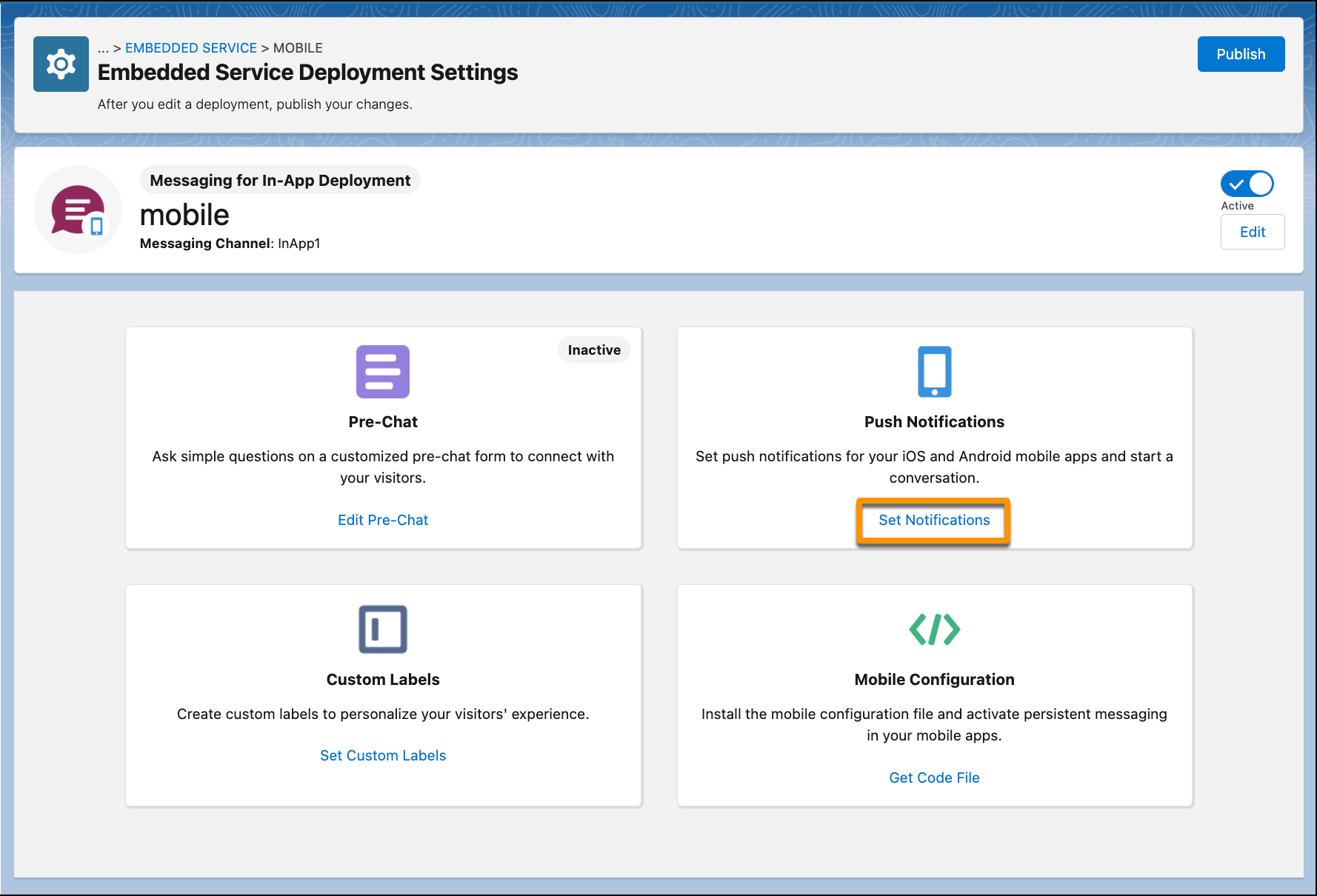
From the Push Notifications section, click Set
Notifications.
-
Enter the information for your push notifications by platform.
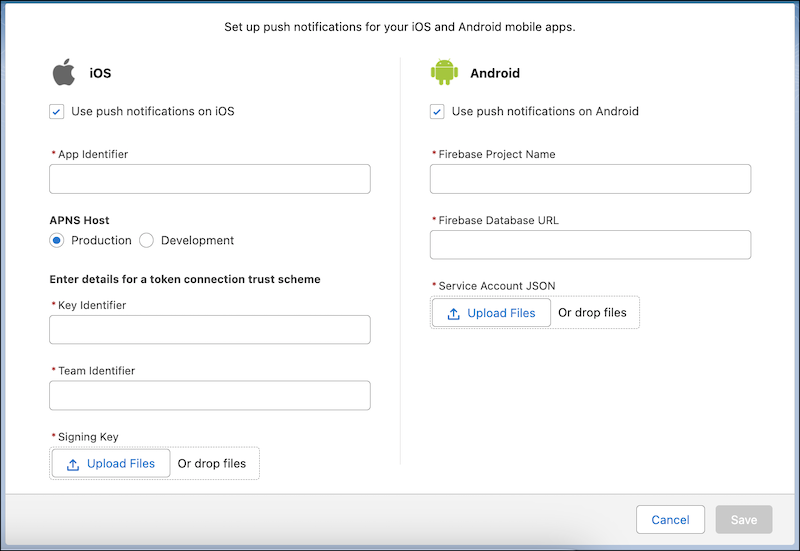 Here’s an overview of the required iOS fields.
Field Purpose/Limitation App Identifier The application bundle of your iOS app. APNS Host Select the host that matches your application build, either Production or Development. Key Identifier The 10-character key ID from Apple for your encryption key. Team Identifier The 10-character team ID for developing your company’s apps. Signing Key Upload the token connection .p8signing key file provisioned in the Apple Developer account associated with your application.Here’s an overview of the required Android fields.Field Purpose/Limitation Firebase Project Name The name of the Firebase project associated with your Android app. Firebase Database URL The Firebase URL for the database associated with your app. Usually in the form https://projectName.firebase.com.Service Account JSON The service account file provisioned from the Firebase Project associated with your application. Contains project information and a private signing key for authorization to FCM services. - Save your work.

developerName in the mobile SDK.