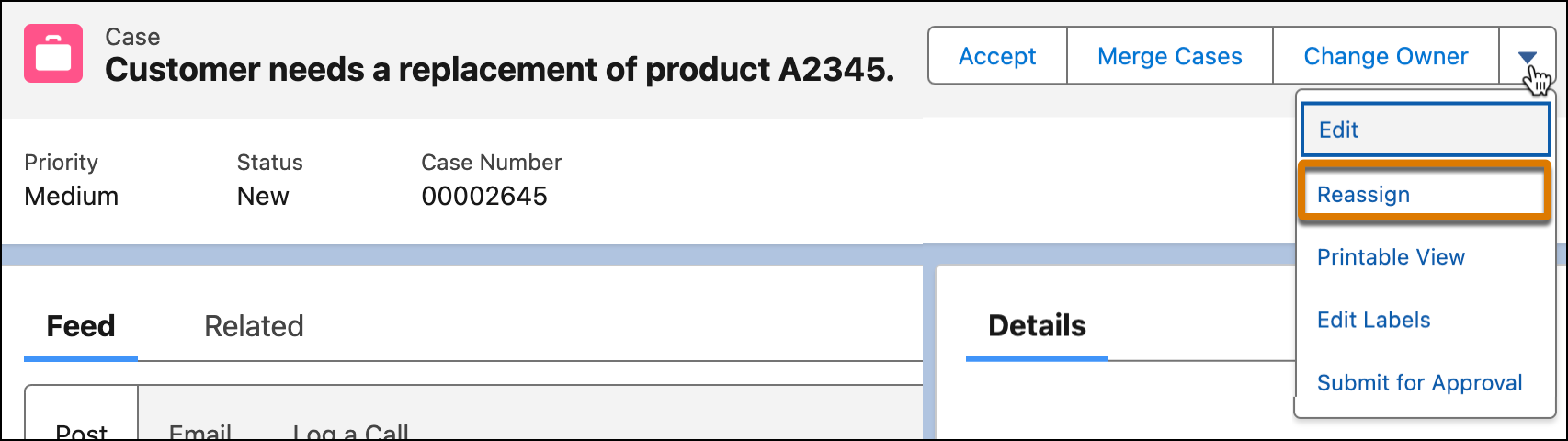
To enable reps and supervisors to reassign routable Salesforce standard and custom
objects, like cases, add the Reassign action to the object page layout.
Note Although you can transfer work to a different skill set
with both Standard and Enhanced Omni-Channel, this topic is explicitly for Enhanced
Omni-Channel. To transfer work with Standard Omni-Channel, see Transfer a Work Item to a Different Skill
Set.
Tip To control who can use the Reassign action and when
they can use it, add it as a dynamic action in Lightning Builder instead of adding it to a
page layout, as described here. With Lightning builder, you can add visibility rules. See
Create Dynamic Actions in Lightning App
Builder.
Before you set up work reassignment, complete these
prerequisites.
Verify that Enhanced Omni-Channel routing is enabled. If it’s not, the Reassign action
isn’t available.
To reassign work items without a routing configuration to a skill or specific rep,
select a default routing configuration in the service channel settings. For example, work
that wasn’t originally routed by Omni-Channel doesn’t have a routing configuration.
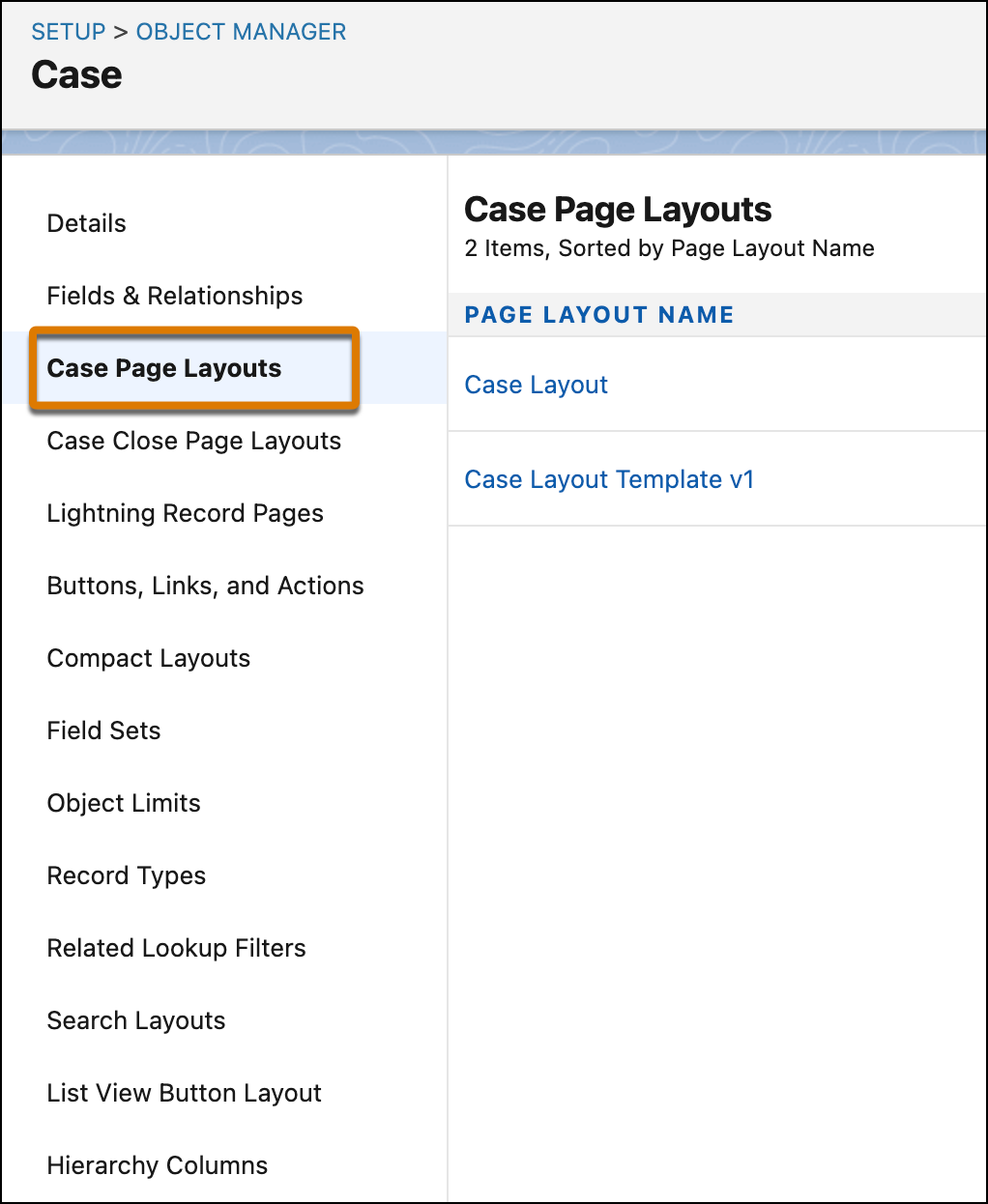
In Object Manager, open the object, like Case.
To open a page layout where you want to add the Reassign action, click
object Page Layouts, and then select a
layout.
In the Mobile & Lightning Actions section, drag the Reassign action on to the
Salesforce Mobile and Lightning Experience Actions section of the page layout.
We use three kinds of cookies on our websites: required, functional, and advertising. You can choose whether functional and advertising cookies apply. Click on the different cookie categories to find out more about each category and to change the default settings.
Privacy Statement
Required Cookies
Always Active
Required cookies are necessary for basic website functionality. Some examples include: session cookies needed to transmit the website, authentication cookies, and security cookies.
Functional Cookies
Functional cookies enhance functions, performance, and services on the website. Some examples include: cookies used to analyze site traffic, cookies used for market research, and cookies used to display advertising that is not directed to a particular individual.
Advertising Cookies
Advertising cookies track activity across websites in order to understand a viewer’s interests, and direct them specific marketing. Some examples include: cookies used for remarketing, or interest-based advertising.