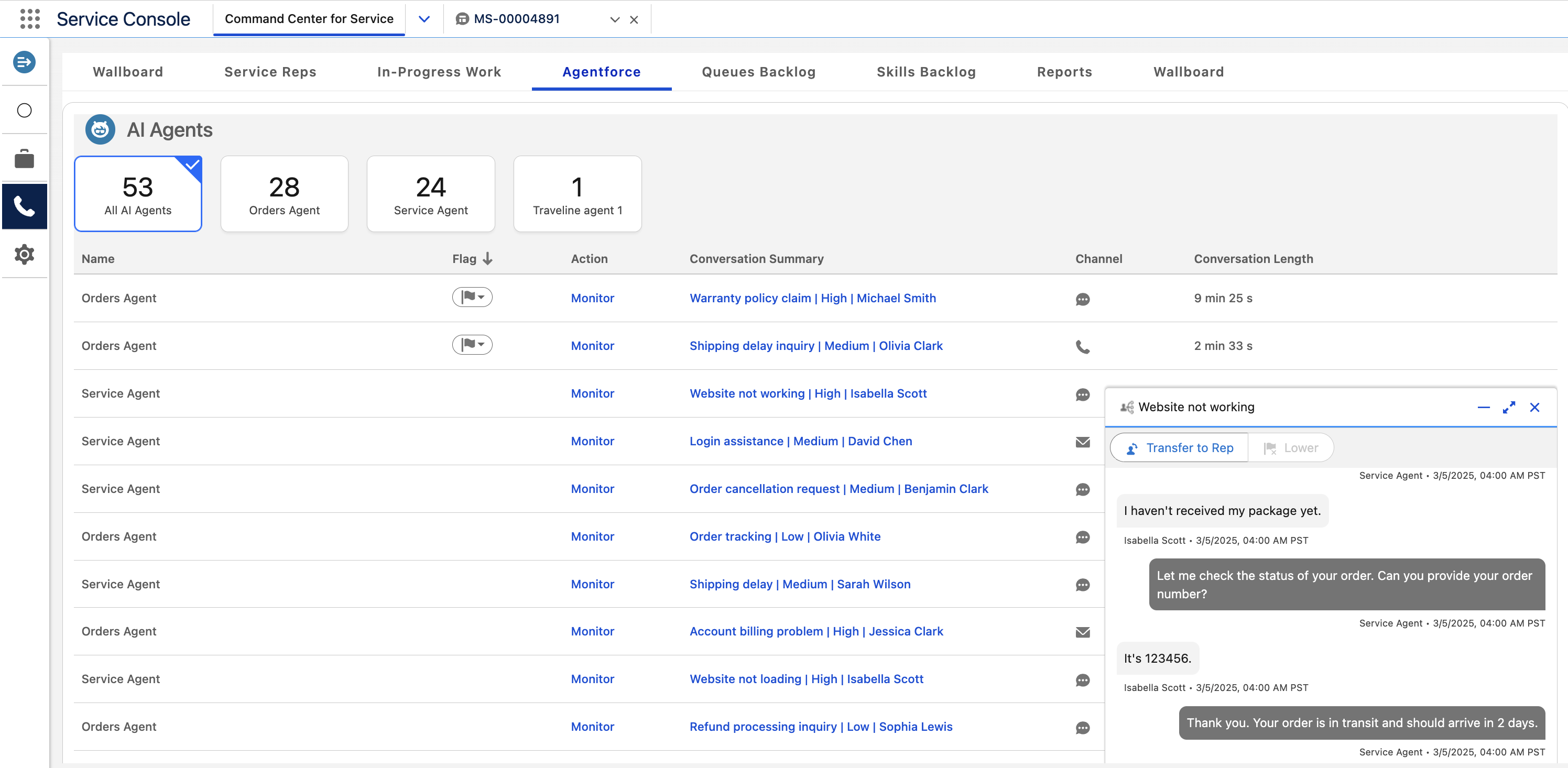
To ensure that Service agents are providing quality service, monitor the messaging
sessions between them and your customers. To focus on conversations that require your
intervention, check out the ones with a raised flag.
Note This feature is available with Enhanced Omni-Channel only.
In Command Center for Service, open the Agentforce tab.
The table in the Agentforce tab shows all active conversations, showing up to
100 conversations at a time. If you don’t see the Agentforce tab, talk to your admin.
To determine which Service agents require your attention, look for the flag.
Conversations with raised flags appear at the top of the list.
If the conversation no longer requires attention, click Lower to
lower the flag.
To see how many active conversations each AI agent is handling, look at the boxes above
the table.
To filter the list of conversations by agent, select one of the agent’s boxes above the
table.
For example, to view conversations for a Service agent, click the box with their name.
The Agentforce tab can show conversations for up to 10 Service agents. If there are more
agents, the top 10 agents with the most conversations appear in the tab.
To view an active conversation between an AI agent and a customer, click
Monitor.
If the AI agent needs help from a service rep, click Transfer to
Rep in the conversation.
The Transfer to Rep button invokes the outbound flow assigned to the Service
agent. The flow routes the work item to the Service rep and the Service agent leaves the
conversation.
We use three kinds of cookies on our websites: required, functional, and advertising. You can choose whether functional and advertising cookies apply. Click on the different cookie categories to find out more about each category and to change the default settings.
Privacy Statement
Required Cookies
Always Active
Required cookies are necessary for basic website functionality. Some examples include: session cookies needed to transmit the website, authentication cookies, and security cookies.
Functional Cookies
Functional cookies enhance functions, performance, and services on the website. Some examples include: cookies used to analyze site traffic, cookies used for market research, and cookies used to display advertising that is not directed to a particular individual.
Advertising Cookies
Advertising cookies track activity across websites in order to understand a viewer’s interests, and direct them specific marketing. Some examples include: cookies used for remarketing, or interest-based advertising.