
You are here:
Route Work Items to Queues
Automatically route work to a specific queue using variables.
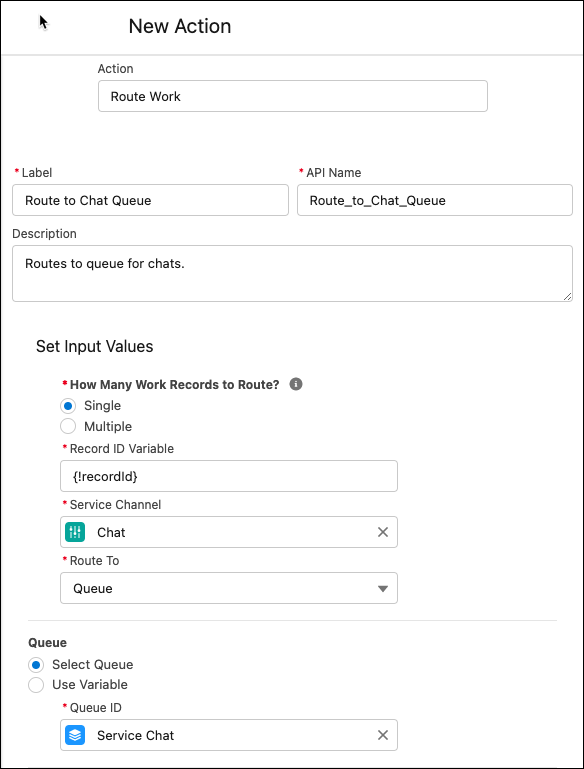
- Follow the steps to create an Omni-Channel Flow.
- Drag the Route Work action onto the canvas.
- Give the action a label and API name and optionally, a description.
-
Under Set Input Values, select how many items to route work for.
To route one item, select Single and select a flow variable of type Text that contains the record ID to route work for. To route work for up to 100 items, select Multiple and provide a flow variable that’s a collection variable of type Text with the list of record IDs to be routed.If you specify a collection of records and the flow can’t find one of them, it rolls back the changes and routes none of them.
- Under Service Channel, select the channel.
- Under Route To, select Queue.
-
Under Queue, select either of the following options:
- Select Queue—Specify the queue to route to.
-
Use Variable—Use a variable to find the appropriate queue. For example, the
variable can represent a department queue that’s related to the customer’s Contact
record. While migrating Omni-Channel Flows with Omni Actions, use a variable to better
support migration of the action.
If the flow finds a record but can’t route it to the specified queue for some reason, the record is routed to the fallback queue.
Did this article solve your issue?
Let us know so we can improve!
