
Loading
Service
Table of Contents
Select Filters

          No results
          No results
          Here are some search tips

          Check the spelling of your keywords.
          Use more general search terms.
          Select fewer filters to broaden your search.

          Search all of Salesforce Help
          Prioritize Work By Acceptance Due Date

          Prioritize Work By Acceptance Due Date

          Omni-Channel enables you to consider future dates while prioritizing work. This helps enhance routing prioritization and improves overall efficiency and SLA management. As a result, supervisors can more effectively monitor and manage their team's workload in relation to their SLA commitments. You can include an Acceptance Due Date with route work actions in Omni-Channel flows, allowing supervisors to see the due date for rep work. While submitting a work item, the admin can assign a target date to the work item. This is the date by which the admin expects the work to be accepted. Based on the target date, an admin can select the due date by which a service rep needs to accept the work item.
          Required Editions

          View supported editions.

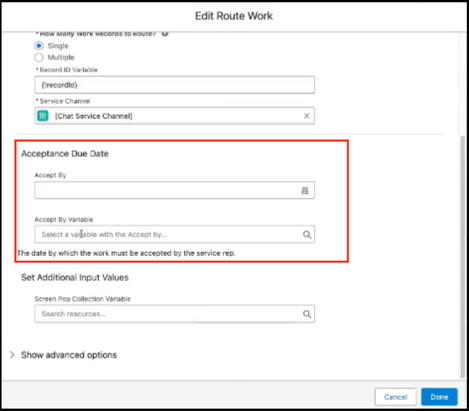
          You can set an acceptance due date in Omni-Channel flows.

          • To set an acceptance due date, go to your Omni-Channel flow and select the Route Work action.
          • In the Edit Route Work window you can set the due date in the Acceptance Due Date section.
          • To set a rolling date based on a variable, select the search icon in the Accept By Variable menu and select a variable.
          the Edit Route Work window showing the Acceptance Due Date field.

          Report on Acceptance Due Date

          To report on Acceptance Due Date, add the Acceptance Due Date field to any of your custom report types that have the AgentWork object.

          After adding the field, write a row-level formula to identify work items that were accepted on or before the target date. To write a row-level formula, see Write a Row-Level Formula. An example formula is:

          IF(ISNULL(AgentWork.TargetAcceptDateTime), "No target set", IF(AgentWork.AcceptDateTime > AgentWork.TargetAcceptDateTime, "Target Not Met", "Met Target"))

          The example formula displays ‘Target Met’ if the rep accepts the work item on or before the target date, ‘Target Not Met’ if accepted after, or ‘No Target Set’ if no target date is set. The formula assumes that the report is filtered for work items with Status as Accepted.

          Name the formula as per your requirement, for example ‘Target Met’ and group all rows based on the formula. Within the report add filters where both ‘TargetAcceptDateTime’ and ‘AcceptDateTime’ are NOT NULL.

          To visualize the results of the report add a Donut chart that shows the percentages of Target Met and Target Not Met. The chart summarizes the percentage of work items accepted within the target time.

          To summarize the results of the report create a summary formula. To write a summary formula, see Add a Summary Formula Column to a Report. An example formula is:

          RowCount/PARENTGROUPVAL(RowCount, GRAND_SUMMARY)
          

          Customize the report further by adding filters around users, channels, or time frames.

           
          Loading
          Salesforce Help | Article