
View or Modify a Field Service Bundle
To view, remove, or modify appointments that are members of a bundle appointment, access the details of a bundle from the appointment list in the Field Service Classic Dispatch Console.
Required Editions
| Available in: both Salesforce Classic (not available in all orgs) and Lightning Experience |
| The Agentforce Field Service and Operations core features, managed package, and mobile app are available in Enterprise, Unlimited, and Developer Editions. |
| User Permissions Needed | |
|---|---|
| To manage bundles: | Field Service Dispatcher |
- To go to the Field Service Classic Dispatch Console, click the Field Service tab.
- To identify bundle appointments on the Gantt, look for a package icon near the appointment in the appointment list or on resource schedules.
- From the appointment list or the Gantt, select a service appointment, and click Edit.
-
Open the BUNDLE tab.
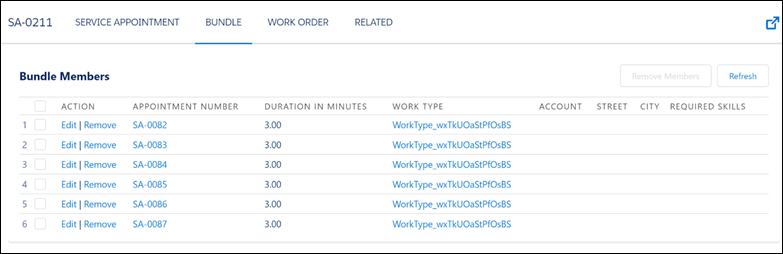
If this service appointment is a bundle appointment, the BUNDLE tab lists all the bundle member service appointments.
 If this service appointment is a bundle member, the BUNDLE tab shows the details of the bundle service appointment and lists the additional bundle member service appointments.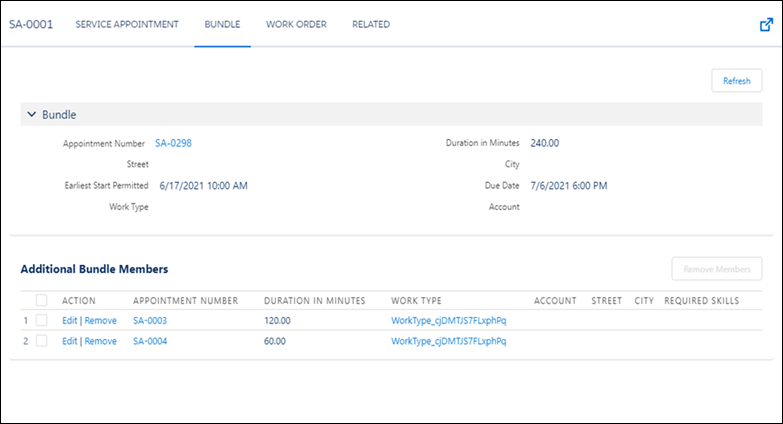
-
To change the details, click Edit.
You can only schedule a bundle service appointment, not a bundle member service appointment. Therefore, in the SERVICE APPOINTMENT tab of a bundle member service appointment, you can’t edit the start and end times or change the status to Scheduled.
-
To remove a bundle member, click Remove, or select multiple bundle
members and click Remove Members.
If the bundle is pinned, you can’t remove bundle members.
If you need to change bundle member service appointments, we recommend that you unbundle the Bundle appointment, edit the service appointments that were bundle members, and then rebundle the appointments. Bundling again allows backend logic and calculations to rerun so that the Bundle appointment is created with the correct duration and skill requirements, defined by appointment bundle aggregations.
Bundle members in the Canceled status and bundle members that are part of a complex work chain are automatically removed from the bundle. If you want the status of the removed bundle members to remain Canceled, in the Appointment Bundle Config, take both of these actions:
- Bundle Statuses to Propagate—If the list is empty, leave it empty. If statuses are already in the list, add the Canceled status.
- Bundle Member Statuses not to be Propagated—Add the Canceled status to the list.
