Create Scheduling Recipes for Common Events
Tackle common Field Service scheduling challenges with simple optimization “recipes” that address what happens to your schedule after appointment cancellations, time changes, and overlaps. Cover all scenarios by creating multiple recipes for each category.
Required Editions
| Available in: both Salesforce Classic (not available in all orgs) and Lightning Experience |
| The Agentforce Field Service and Operations core features, managed package, and mobile app are available in Enterprise, Unlimited, and Developer Editions. |
| User Permissions Needed | |
|---|---|
| To create a scheduling recipe: | Custom permission set: Field Service Admin Permissions |
 This is a Field Service managed package feature.
Scheduling recipes are an optimization feature. They use resource schedule optimization, which means that only the affected service resource’s schedule is optimized. Scheduling recipes aren’t available when using Enhanced Scheduling and Optimization, which uses the Fix Schedule Overlaps automated flow instead.

- From the App Launcher, find and open the Field Service Admin app.
- Click the Field Service Settings tab, and then click Automated Scheduling.
- In the New Recipe menu, select a category. We’ve provided some example recipes to get you started. You can activate them or create your own.
-
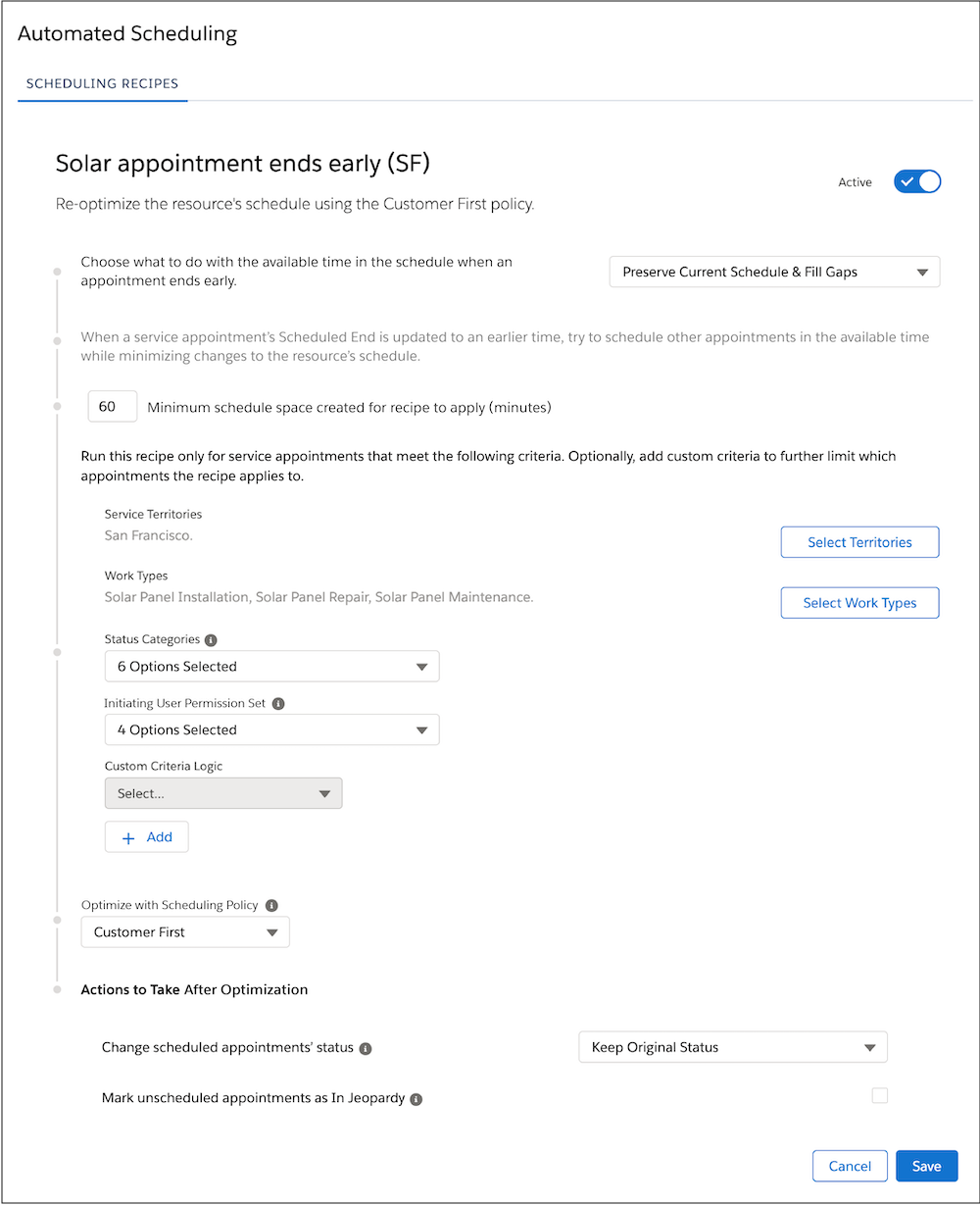
Customize your recipe’s settings. Then, activate and save it. Inactive recipes
aren’t enforced.
- The Status Categories field lets you limit which appointments the recipe applies to. For example, if you select only the Scheduled value on a recipe for shortened appointments, the recipe runs only if an appointment’s status is in the Scheduled status category when the appointment is shortened. Excluding the Canceled status category, the appointment’s status must also be a pinned status, which is set in Field Service Settings | Optimization | Logic.
- The Initiating User Permission Set field lets you decide which users can
trigger the recipe. For example, if you’re creating a recipe for
canceled appointments, select
Community
to run the recipe only for appointments canceled by an Experience
Builder site user (typically, a customer). The values in this field
correspond to the permission sets provided by the managed package.
Initiating User Permission Set Value Corresponding Permission Set Resource Field Service Resource Dispatcher Field Service Dispatcher
Field Service Community Dispatcher
Call Center Rep Field Service Call Center Rep Admin Field Service Admin Community Field Service Self Service
-
To change the priority order of recipes within a category, click
 on the
Automated Scheduling home page. Drag the recipes into the desired order and
click Save.
on the
Automated Scheduling home page. Drag the recipes into the desired order and
click Save.
Considerations for Scheduling Recipes
- You can create up to 75 active recipes per category, and up to 1000 recipes per org.
- For Shortened Appointment scenarios, scheduling recipes only try to fill one empty space per day for each service resource.
- For Shortened Appointment scenarios, scheduling recipes support only a single operating hours timeslot per day.
- Scheduling recipes support only operating hours and timeslots, not shifts.
- A triggering service appointment is the appointment that actually triggers resource scheduling optimization. For Shortened Appointments, Late-End Overlap, and Emergency Overlap scenarios, scheduling recipes are only triggered if the triggering service appointment's status has been selected as a pinned status for In-Day Optimization. The optimization engine then optimizes service appointments that are schedulable (not in a pinned status). We recommend leaving the Dispatch status deselected so dispatched work can be moved if a previous job runs late or emergency work is needed.
- If you have access to 2,000 or more service territories, the service territories list shows only selected territories. Use the search bar to find territories that aren't selected.
Scheduling Recipe Scenarios
Automate how Field Service handles common situations that cause gaps or overlaps in your schedule, like the following.
- An appointment is canceled
- A mobile worker finishes early
- A mobile worker finishes late and has overlapping appointments
- An emergency causes appointments to overlap
Certain conditions trigger a scheduling recipe, for example, appointment status categories. Recipes are triggered only for in-day of service changes to address last-minute issues to an individual service resource’s schedule.
You can set the scheduled appointment’s Status Category to change after optimization to Scheduled or Dispatched, and mark resulting unscheduled appointments as In Jeopardy with a jeopardy reason.
| Scenario | Trigger Criteria | Expected Behavior (Result) |
|---|---|---|
| Canceled Appointment |
|
|
| Shortened Appointment |
|
|
| Late-End Overlap |
|
|
| Emergency Overlap |
|
|