
Optimize a Single Field Service Resource’s Schedule
In Field Service, when last-minute developments occur like canceled jobs or lateness, use Resource Schedule Optimization (RSO) to design the best schedulefor an individual service resource.
Required Editions
| Available in: both Salesforce Classic (not available in all orgs) and Lightning Experience |
| The Agentforce Field Service and Operations core features, managed package, and mobile app are available in Enterprise, Unlimited, and Developer Editions. |
| User Permissions Needed | |
|---|---|
| To see Resource Schedule Optimization on the Gantt: | Resource Schedule Optimization custom permission |
 This is a Field Service managed package feature.
As changes to a service resource's schedule occur throughout the day, gaps or overlaps in the schedule can occur. Resource Schedule Optimization is a tactical tool primarily targeted at intraday adjustments. It automatically fixes a resource's schedule and fills gaps with other work based on two hidden, fundamental objectives:
- Utilization Bias: The engine prioritizes scheduling as many appointments as possible.
- Appointment Priority: When capacity is limited, high-priority appointments are given precedence over lower-priority work.
-
Optionally, exclude service appointments with certain statuses from being changed during
resource schedule optimization.
- From the App Launcher, find and open the Field Service Admin app, and then click Field Service Settings | Optimization | Logic.
-
Scroll to Resource Schedule Optimization and in the Pin Criteria field select which
statuses pin service appointments during optimization.
Service appointments with a selected status aren’t scheduled, unscheduled, or rescheduled during resource schedule optimization. Scheduled service appointments in a pinned status can’t move to a different service resource or to a different time. Unscheduled service appointments in a pinned status remain unscheduled. We recommend leaving the Dispatch status deselected so dispatched work can be moved if a previous job runs late or emergency work is needed.
-
Optimize a service resource’s schedule.
- From the Classic Dispatch Console, click the action menu of the resource whose schedule you want to optimize.
-
Click Resource Schedule Optimization.
-
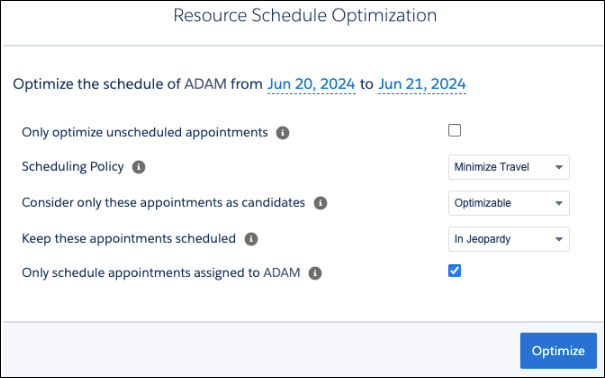
Define the scope of your optimization. scheduling horizon). Define the scheduling
horizon of your optimization. Service appointments are scheduled only within the dates
you select, but the candidate service appointments that are considered for scheduling
can come from outside the time frame (up to approximately 7 days).
 Note Resource Schedule Optimization loads unscheduled service appointments that meet the time and candidates criteria, based on the specific database work rules configured in the scheduling policy. Service appointments without a territory are always loaded regardless of the work rule configuration. For example:
- Match Territory work rule—If the service resource is a primary or relocation member covering only the Manhattan service territory, service appointments from other territories aren’t loaded.
- Working Territories work rule—If the service resource is a primary, secondary, or relocation member covering Manhattan, Brooklyn, and Queens during the resource schedule optimization period, appointments from other service territories aren’t loaded.
- Match Skills work rule—If the service resource has only Install and Repair skills, service appointments requiring any other skill aren’t loaded.
- Match Boolean work rule—If specific service appointments require a service resource who’s a contractor (Boolean property "Is Contractor" is true), but the checkbox for the assigned service resource is deselected (the Boolean property is false), these appointments aren’t loaded.
- Maximum Travel from Home work rule—If a service resource covers a radius of 50 KM from their home base, service appointments located beyond this radius aren’t loaded. Service appointments with no location are also loaded.
- Extended Match work rule—If you have a custom criteria set that matches a service appointment field to a related list on the service resource, appointments with a requirement not supported by the resource aren’t loaded. You can’t use relevance groups with Extended Match work rules, and a scheduling policy can have up to five Extended Match work rules.
- Match Fields work rule—If you have a custom rule that matches a service appointment field with a service resource field, appointments with a requirement not supported by the resource aren't loaded.
-
Select your optimization settings:
- Only optimize unscheduled appointments: If you select this option, only unscheduled service appointments are considered, and all scheduled service appointments are pinned (unmovable). The engine only populates the gaps between them and doesn’t slide existing work to close gaps. This setting is most effective when you're managing a high-density schedule that has already been carefully refined or perfected. In this scenario, your primary goal is to have the system fill the gaps with new emergency work or lower priority tasks without disrupting the existing plan. It allows you to protect the integrity of the current schedule while still addressing new demand. However, as a general best practice, it’s recommended to include your already scheduled work in the optimization process whenever possible. By allowing the engine to look at the day as a whole rather than just the empty spaces, you give RSO the flexibility it needs to reshuffle and tighten the schedule. This is how you achieve truly optimal results, significantly reducing downtime and maximizing your resource utilization.
- Scheduling Policy: Select a policy to define rules and objectives that meet your needs for the optimization request.
- Consider only these appointments as candidates: Set the criteria to determine which appointments resource schedule optimization evaluates to optimize or schedule to a resource. This doesn’t mean that only appointments that are currently assigned to the resource and meet this criteria are moved or rescheduled. Appointments that don’t meet this criteria but are assigned to the resource can also be moved, unless they are pinned or in a pinned status.
- Keep these appointments scheduled: Select which service appointments must remain on the schedule during resource schedule optimization. The optimization can move and reschedule the service appointments marked to keep scheduled. If the resulting schedule doesn’t include all the service appointments marked to keep scheduled, resource schedule optimization fails. To optimize, give these appointments a much higher priority than the other appointments or try to run optimization on more days. Any appointment in this keep-scheduled group needs to also be an optimizable appointment. This means that appointments to keep scheduled must be a subset of the appointments indicated in the Consider only these appointments as candidates criteria. Keep in mind that when you're not using Enhanced Scheduling and Optimization, resource schedule optimization fails if more than 50 appointments must remain scheduled.
- Only Schedule Appointments Assigned to…(Optimize for the specific resource only): Select whether only service appointments scheduled to the resource are considered in the optimization process. If you don’t select the checkbox, unscheduled service appointments, appointments scheduled to the resource, and appointments scheduled to other resources are considered during optimization. In this case, the engine can "steal" work from other resources to improve the organization's overall schedule. The engine prioritizes stealing a scheduled job from another resource if there's no unscheduled work available to fill the gap. It would rather pick up a brand new unassigned appointment than simply move an existing appointment from one person to another. However, the engine moves the appointment from one resource to another if it results in better utilization or lower travel costs for the organization. When using Enhanced Scheduling and Optimization, if you select to only schedule appointments to the resource, both unscheduled service appointments and appointments scheduled to the resource are considered. When not using Enhanced Scheduling and Optimization, only service appointments scheduled to the resource are considered, such that this checkbox overrides Only optimize unscheduled appointments.
- Click Optimize.
You can also set up scheduling preferences to automatically run resource schedule optimization in response to common scheduling events, like appointment overlaps or cancellations. To learn how to fix schedule overlaps, if you’re using Enhanced Scheduling and Optimization, see Fix Overlaps with an Automated Scheduling Flow. If you aren’t using Enhanced Scheduling and Optimization, see Create Scheduling Recipes for Common Events.
- Complex work information that’s not fully available in the optimization data is considered excluded from resource schedule optimization. For example, a partial chain of a scheduling dependency is excluded.
- Resource schedule optimizations can’t run in parallel for the same service resource on the same time interval.
- You can’t run resource schedule optimization on capacity-based resources.
- To customize the scope of data considered by Resource Schedule Optimization (such as by using the resourceDayOptimization method of the OAAS class), while also providing a tailored user experience within the Classic Dispatch Console that accepts custom user inputs and initiates an optimization request in the background, see Create Custom Actions for the Field Service Classic Dispatch Console. You can create an action to display a custom user interface that can then call your custom Apex code (a customized resource schedule optimization request).
See Also
Handling Complex Resource Schedule Optimization (RSO) Scenarios
- Complex Work: The engine prioritizes schedule integrity over optimization. If RSO can't see the whole dependency chain because of your filter criteria, it won't risk moving one link and breaking the chain. Complex work information that’s not fully available in the optimization data is considered excluded from resource schedule optimization. For example, a partial chain of a scheduling dependency is excluded. You must ensure your optimization scope includes all related parts of a dependency.
- Multi-Day Appointments: RSO is a tactical tool, usually triggered on a narrow horizon, like today or tomorrow, to handle immediate exceptions and cancellations. It often lacks the multi-day visibility to fit a large project (for example, a 30 hour job) into a narrow window (for example, 24 hours). In these cases, the engine treats the multi-day appointment as pinned and optimizes smaller jobs around it. RSO is excellent at fine-tuning your daily route, but it's not the right tool for multi-day work. Use global optimization when dealing with multi-day requirements with a wide horizon to do the initial heavy lifting or placement. Understand that once a multi-day job is on the board, tactical RSO runs will likely treat it as a non-movable anchor. Also, don't force the narrow view. Trying to schedule a multi-day job using a one-day optimization window almost always results in the job being ignored or failing to schedule.
- 24/7 Shifts: With 24/7 shifts, there is no "extended horizon" of approximately 7 days, such that you can only optimize the horizon of the request, and optimization can’t "steal" work from the future. If an appointment is part of a shift that crosses beyond your horizon (for example, it spans past midnight), the engine treats the entire appointment as unmovable. To fix this, you must ensure your optimization horizon fully encompasses the entire duration of the shift you want to optimize.
- Max Runtime: RSO is set to a 60-second mathematical limit by default. This only covers the optimization engine runtime and doesn’t include data fetching or committing results to the Gantt. For example, if a dispatcher sees the Gantt as disabled for 2 minutes during an RSO run, the system hasn't crashed. It simply means the data-in/data-out process is happening on either side of the 60-second calculation window.
- Data Volume: For the best optimization quality, use the filtering criteria to limit the volume of loaded data (candidate pool) to approximately 1,000 service appointments per run. The engine begins by selecting a random service appointment as a starting point, and then schedules others that are close to it. When working with extremely large data sets (for example, 4,000 service appointments), this behavior can often cause the engine to settle on a schedule before fully exploring the candidate service appointments and before using the full runtime available to it, which produces a less optimal result. To stay within this range, narrow your candidates by using the Consider only these appointments as candidates filter, refining the work rules in your scheduling policy, or shortening your optimization horizon.
