You are here:
Procure and Manage Phone Numbers
Procure and claim phone numbers for yourself without waiting for admins to assign them to you. You can choose from available local or standard company phone numbers, depending on your business requirements.
Required Editions
| View supported editions. |
| User Permissions Needed | |
|---|---|
| To claim and remove phone numbers: | Manage Numbers |
| To make calls: | Salesforce Voice Contact Center Rep |

Applies to these telephony models
- Salesforce Voice with Amazon Connect
- From your profile, go to Settings.
-
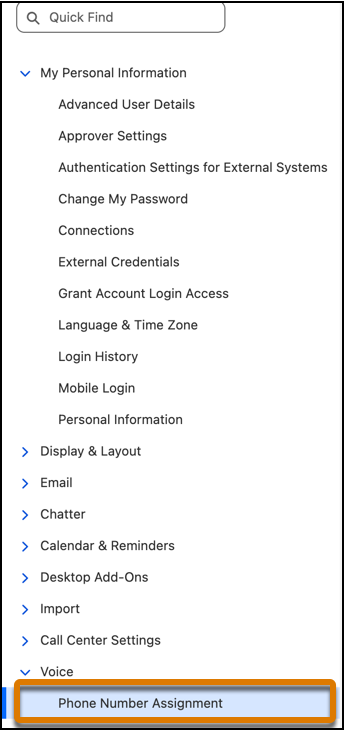
In the Quick Find box, enter and select Phone Number
Assignment.
-
To claim a phone number, click Claim.
-
Select a previously claimed phone number, or claim a
new number.
Claim a previously used number to select from numbers already available in your telephony. Claim a new number to directly procure a number and add it to your telephony service.
- Filter by Country and Area Code to view the available phone numbers.
-
Select a previously claimed phone number, or claim a
new number.
-
Select the number from the list and click Claim.
Both your claimed and admin-assigned phone numbers are listed in the My Phone Numbers table. From here, you can assign different voicemail greetings to each of your numbers to make sure that your callers receive the most applicable message.
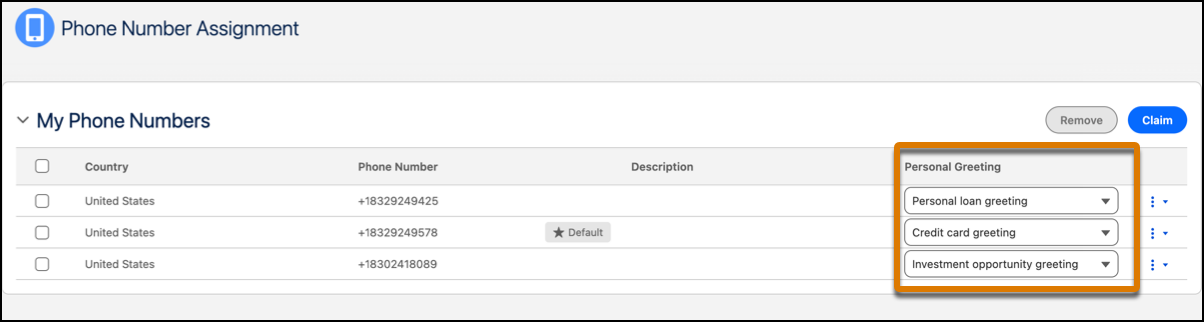
For more information on recording greetings, see Record Voicemail Greetings.
Use the Set Default option to set a phone number as your default. The default number displays as your caller ID on the customer’s device. Use the Remove option to remove a phone number from your claimed numbers. The default phone number cannot be removed by your contact center supervisor.
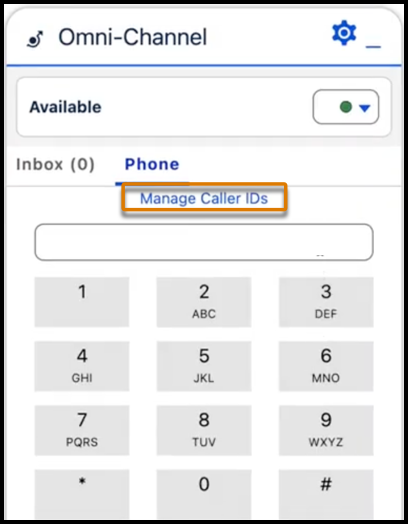
To view or update your default number while making a call, click Manage Caller IDs on the Omni widget to directly open the Phone Number Assignment screen.