
You are here:
Standardize Responses with Quick Text
Quick text saves users time and helps you standardize your company messaging. With quick text, you can insert predefined messages, like greetings, answers to common questions, and short notes. You can insert quick text in emails, chats, events, tasks, Knowledge articles, and more.
Required Editions
| View supported editions. |
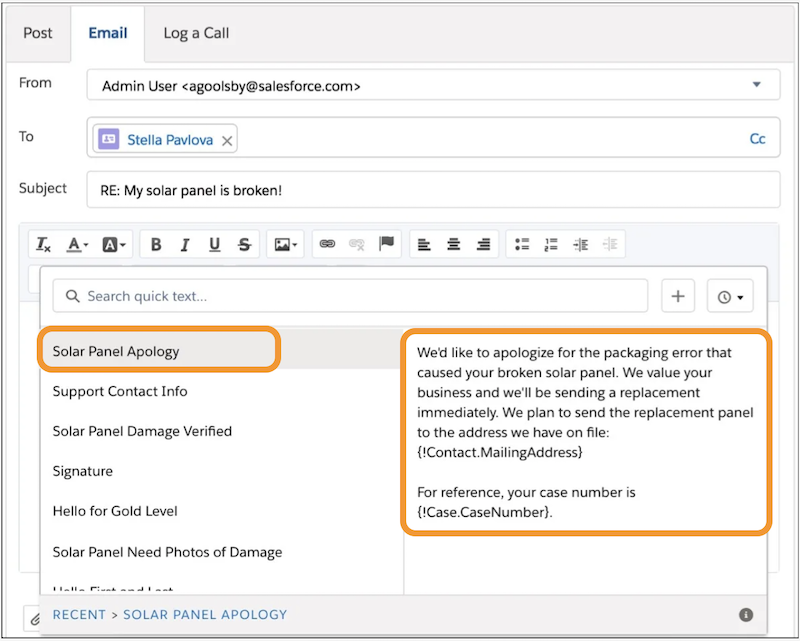
To set up quick text, you'll enable it in Setup, give users access to quick text, and create your messages. After users receive access, they can insert the quick text messages into conversations and records. The quick text browser on supported records helps users find and insert the right messages for the situation.
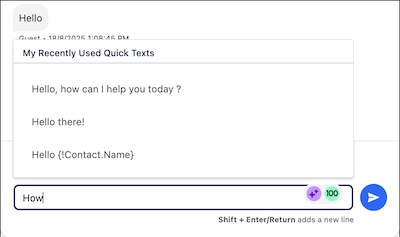
And in Enhanced Messaging and Enhanced Chat, predictive quick text suggests recently-used messages to service reps as they start typing.
Here are three ways to make the most of quick text.
- Organize quick text messages into folders to help reps find the perfect message.
- For example, create separate folders for your business units, such as support and sales or tiers 1 and 2. Share each folder with the appropriate users to help them quickly find the right message for any situation.
- Use categories to indicate each message’s purpose.
- Categorize quick text messages into greetings, FAQ, closings, or your own custom categories.
- Let users create and manage their own quick text.
- Give selected users the ability to create quick text messages for themselves or for multiple users.
- Design Your Quick Text Strategy
Before you get started using quick text, run through these planning questions. They help you and your team use quick text effectively to save time. - Enable Quick Text
Enable quick text for your org so that your users can insert predefined messages into customer conversations and records. Optionally, customize your quick text categories to make each message’s purpose clear. - Create Quick Text Messages
Create custom predefined messages to insert into emails, chats, tasks, events, and more. Quick text can include merge fields, line breaks, and special characters. - Give Users Access to Quick Text
Giving users access to quick text lets them insert predefined messages in their emails, chats, events, tasks, Knowledge articles, and more. Service reps can respond to customers and update cases quickly and easily. Sales reps can work with their contacts, accounts, and opportunities more efficiently. - Share Quick Text
You can share quick text with users, public groups, and more. The way you share quick text in Salesforce Classic and Lightning Experience is different. In Salesforce Classic, you can share individual quick text messages. In Lightning Experience, you share quick text using folders. - Insert and Use Quick Text
Stop retyping the same message over and over, and save time. Use quick text to insert predefined messages on any standard or custom objects in Knowledge articles, Chats, Log a Call actions, emails, events, tasks, and social posts. After inserting a quick text message into a message field, you have the chance to tailor the text to your situation before sending it. - Quick Text Considerations
Learn how quick text functionality can impact you and your users.
