
You are here:
Install Service Insights
After Service data is ingested into Data 360 and Tableau Next is enabled, you’re ready to install Service Insights.
Required Editions
-
On the Service Insights Setup page, click Start Install for the
Install and Enable Service Insights step.
Service Insights checks whether your org includes the data and settings to transform the data model objects and create the semantic data models and dashboards. If you receive an error message, follow the instructions and then restart the installation process.
-
Select a dashboard and customize the Service Insights dashboards by answering these
configuration questions, and then click Next. To complete the
installation, select at least one dashboard in the setup.
- If you track Case data, select the Show Case Analytics checkbox.
- Service Insights dashboards provide visualizations that display total cost and average cost per support rep interaction. To calculate this value, enter the hourly cost of your support reps. This value is known by your personnel management.
- Identify the location where you track contact reasons for your cases.
- From the dropdown menu, select the field where your support reps capture the contact reason for cases.
- Specify if you want to show CSAT analytics and then click Next.
- Specify if you want to show Agentforce Analytics and then click Next.
-
Complete the Service Insights installation.
- Give your instance a unique, easily recognizable name.
- Leave the log level as is, unless you require more information about the Service Insights installation.
- Click Next.
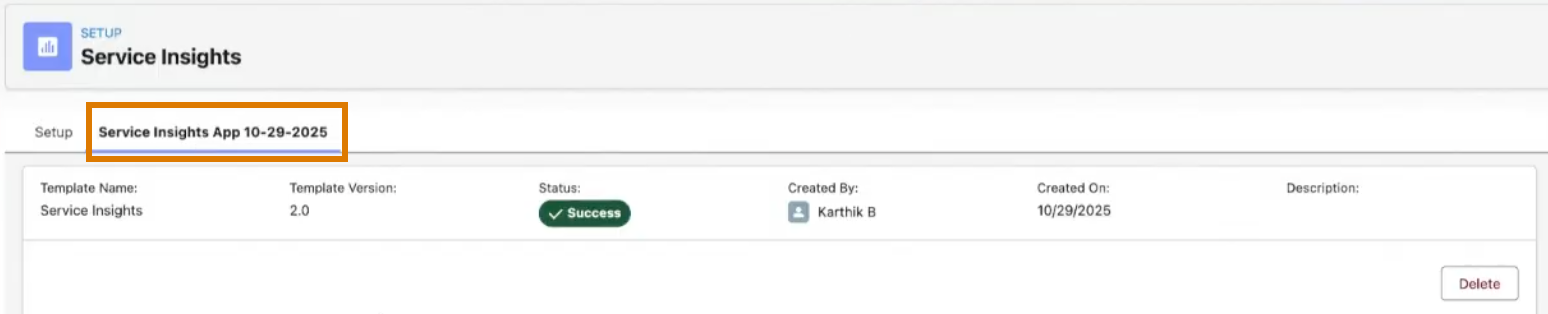
After Service Insights is successfully installed, assign the admin permission sets to any users who need to manage Service Insights and the user permission sets to any users who need access to the dashboards. The dashboards are accessible in both the Service app and the Service Console.
To access Service Insights dashboards from the Service app, go to the App Launcher and search for Service Insights. Click Service Insights to open the tab. The tab doesn’t persist, so you must open Service Insights from the App Launcher the next time you open the Service app.
To access Service Insights dashboards from the Service Console, go to the Console App Navigation and click Edit > Add More Items. Search for Service Insights and click the + sign to select it. Click Add 1 Nav Item and Save. The next time you open the Console App Navigation, Service Insights displays in the list.
