
You are here:
Embedded Chat
Add an embedded chat window to your company website for customers to get quick answers to their questions while browsing your pages. Include a pre-chat form to collect key information and customize the experience to match your branding.
Required Editions
| View supported editions. |

Legacy Chat will be retired on February 14, 2026. To avoid service interruptions to your end users, switch to enhanced Chat (formerly Messaging for In-App and Web). Enhanced Chat offers many of the legacy Chat features that you love plus asynchronous conversations that can be picked back up at any time. Learn about migrating in Help and Trailhead.
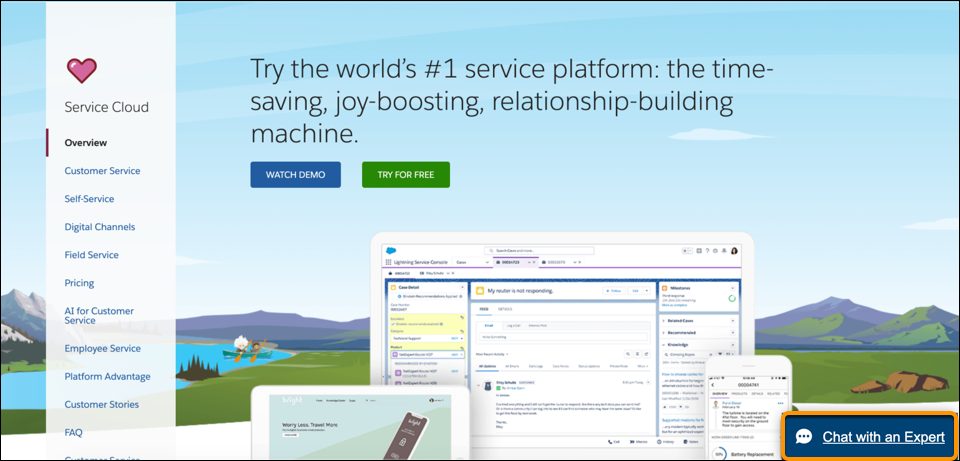
The chat window sits unobtrusively on your web page. When customers want to chat, they click the button to launch.
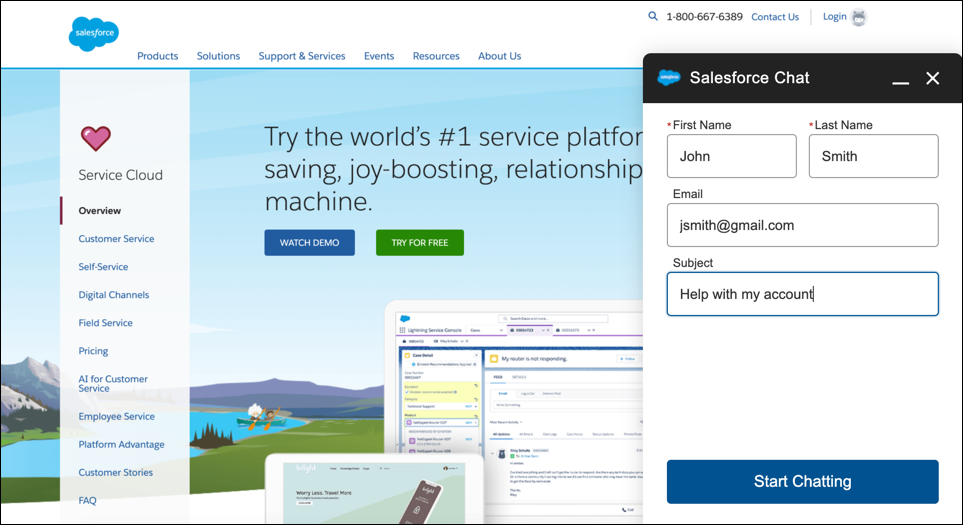
Add a pre-chat form for customers to complete, which helps agents gather basic information like their contact details, before the conversation.
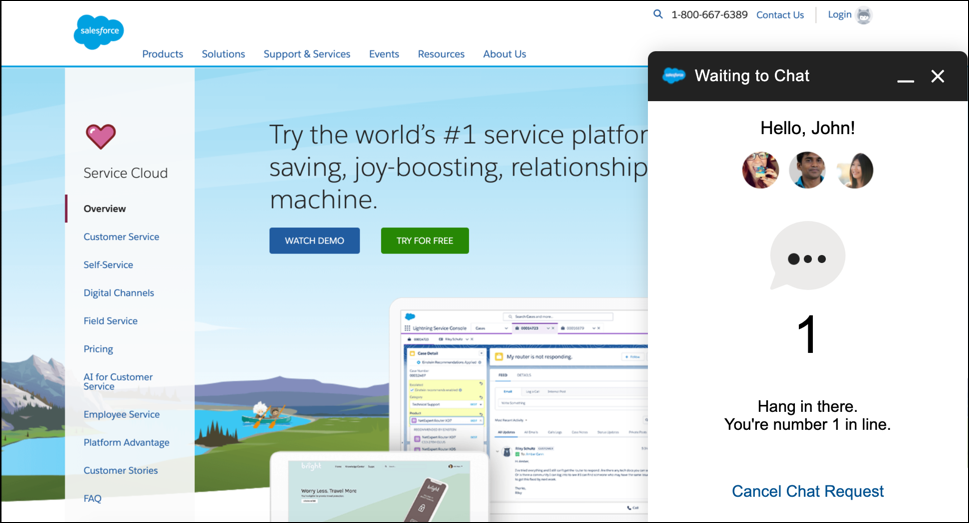
Customers can start chatting while viewing your web page. They’re also able to minimize the chat window so it’s not in the way. The chat persists across your web pages and their subdomains, so they can continue browsing while waiting or chatting with an agent.
Embedded chat windows use a Chat deployment that you can quickly configure. Then, simply add the code snippet to the web pages where you want the chat window to be available. Setting up Embedded Chat doesn’t change how your agents chat with customers in their console.
- Set Up Your Embedded Chat Window
Ensure that your org meets the following prerequisites before setting up Embedded Chat. Follow these steps to configure the embedded chat window and add to your web pages. - Set Up Appointment Management
Appointment Management gives your users an easy way to schedule, modify, and cancel appointments. The experience is powered by Flow Builder. You craft the perfect interaction and decide when and how to create related records like work orders. - Add an Embedded Flow to Automate a Task
Use an embedded screen flow to help customers or users complete simple, automated tasks. An embedded flow is also guest-user friendly because users don’t need to log in to access the flow. - Create Embedded Static Resources
Create and upload JavaScript files to Salesforce as static resources and then apply them to your website or Experience Builder site. With static resources, you can change one or many pages with a few clicks in code settings on existing deployments. - Test Your Embedded Chat Window
After adding Embedded Chat to your web pages or Experience Builder site, check the customer’s experience. - Embedded Chat Limitations
Before setting up Embedded Chat, consider general guidelines, limitations, and cookies and customer browser restrictions. - Embedded Chat Cookies
Embedded Chat uses cookies to improve functionality and accelerate processing times. By saving a user’s settings, cookies can enhance the user’s experience and the performance of your Embedded Service.
