
You are here:
Grounding Service Assistant with Quick Actions (Optional)
Learn our recommended best practices for implementing quick actions in Service Assistant so you can create automated and actionable service plans.
Required Editions
| View supported editions. |

Here's a quick overview of quick actions in Service Assistant and the general setup. To open the video in full-screen, click here.
Overview
In Service Assistant, quick actions are a grounding source that adds actionable and automated workflows to service plans. They surface as buttons within plan steps to give service reps easy access to complete tasks a plan step requires, like changing the case status or summarizing a case. The buttons provide service reps a way to complete tasks within Service Assistant so they don’t have to go to another section of the Case record page or leave page entirely.
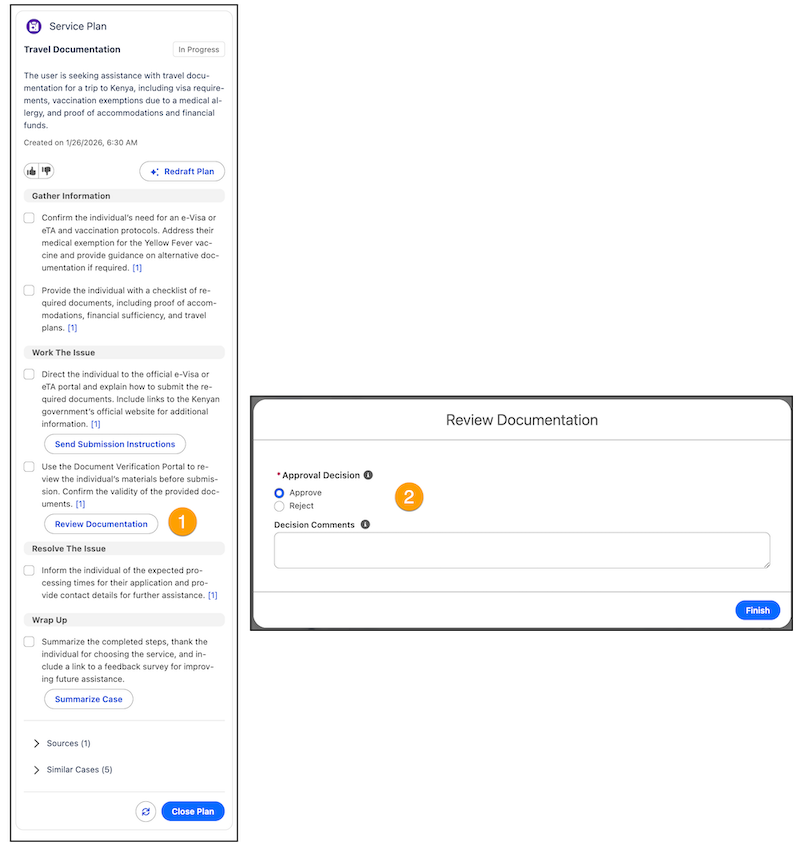
You create and manage your standard and custom Case object quick actions in the Buttons, Links, and Actions Setup page for the Case object. You then integrate your quick actions with Service Assistant with the Quick Actions Manager of the Agentforce Builder. The Quick Actions Manager is available only for Service Assistant.
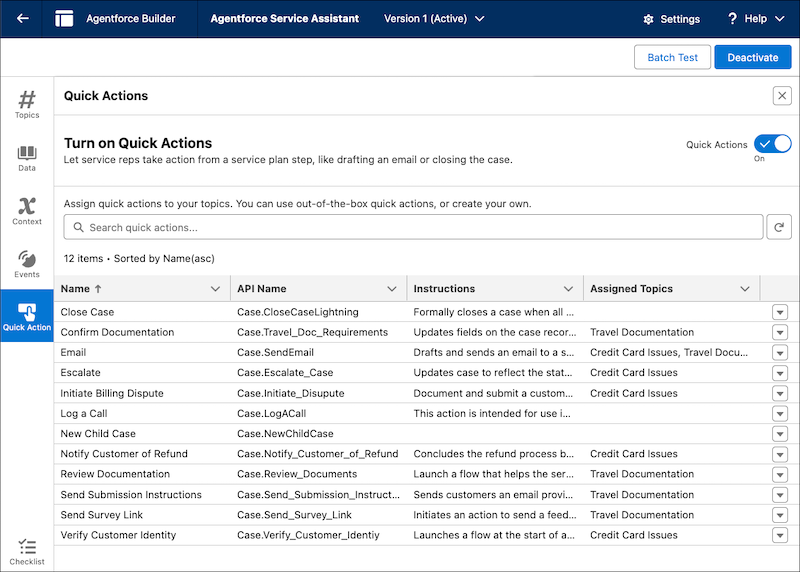
Your standard and custom Case object quick actions are automatically populated in the Quick Actions Manager. In the manager, you select which quick actions you want to assign to topics. When quick actions are assigned to topics, Service Assistant decides which quick actions are most important to add to a plan step that is created from the topic and instructions. The quick actions then show as a button in a service plan step for service reps to complete the step task directly in Service Assistant.
While the Quick Actions Manager lists your quick actions, you must add each quick action added to your Case Layout in order for the quick action to show in a drafted service plan. Service Assistant supports standard and custom Case object quick actions.
Supported Quick Actions and Permissions
Here are the quick action types Service Assistant supports and the required permissions for using quick actions in Service Assistant. Both standard and custom Case object quick actions are supported.
| Quick Action Type | Supported Quick Actions in Service Assistant | Required Permissions |
|---|---|---|
| Standard Case object |
|
|
| Custom Case object |
|
|
Quick Action Instructions
All quick actions require instructions that define what the action does and when it’s used for a particular workflow, case type, or business process. The instructions help Service Assistant determine what actions are most relevant to surface in a plan step. We provide you with reference guidance and best practice for creating quick action instructions in the next sections. For setup guidance using the Quick Actions Manager, see Set Up Quick Actions (Optional).
To get you started, we provide the listed instructions for the Send Email, Close Case, and Summarize Case quick actions. You can modify these instructions to suit your preferences. You must add each of these quick actions to the Salesforce Mobile and Lightning Experience Actions section of your Case layout in order for them to appear in the Quick Actions manager.
The Summarize Case quick action has an additional requirement: Einstein Work Summaries for Case (beta) must be enabled and configured. As part of that setup, you must select where service reps post the summary: either to the Case Feed or Case Comments. These setup steps are included in Setup Service Assistant Quick Actions.
- Summarize Case
- Creates a case summary that incorporates Service Plan information, such as completed steps and the final outcome. Intended for use when the case is nearing resolution, the case is resolved, or the customer or service rep requests a summary. Service reps initiate the quick action directly from a service plan step for an in-workflow experience.
- Send Email
- Drafts and sends an email to a specified recipient directly from a service plan step. The email can be used for customer communications, including, but not limited to, providing status updates, conveying resolution details, and requesting or supplying additional information during case management or follow-up.
- Close Case
- Closes the case when the required steps to resolve issues are completed and no further action is needed. When executed, the support process is formally concluded and no additional steps can be performed.
Considerations
When using quick actions in Service Assistant, keep these considerations in mind.
- Service Assistant supports only quick actions that have a single CaseId input.
- To display quick actions in service plans, quick actions must be added to the Salesforce Mobile and Lightning Experience Actions of your Case Layout. See Add Quick Actions to the Case Page Layout.
- Standard and custom quick actions related to the Case object appear in the Quick Actions Manager. However, only certain custom quick action types are supported. See the table above.
- Service Assistant can assign multiple quick actions to a plan step. In this case, the button in the step displays with a dropdown for the service rep to select what quick action to execute.
- All quick actions require instructions that detail what the action does and when it’s used. Like topic instructions, these instructions help Service Assistant determine when an action is relevant to include in a service plan step. The Quick Actions Manager includes a field for adding these instructions to each quick action. For guidance on creating quick action instructions, review the next sections.
- We provide you with instructions for the standard Summarize Case, Draft Email, and Close Case quick actions. See previous section. Although these actions automatically appear in the Quick Actions Manager, you must manually add their instructions. You can modify our provided text to suit your needs.
- The Summarize Case quick action requires Einstein Work Summaries for Case (beta). You must enable this feature and select where the summary appears: in the case feed or as a case comment. If you choose case comments, you must create a version of the Summarize Case quick action. See Set Up Quick Actions (Optional).
- You can’t assign quick actions to standard Agentforce topics. You must create versions of these standard topics and then assign the quick actions to the topic version. See Edit a Standard Topic.
- Any changes made to a quick action name or instruction after service plans are generated aren’t considered new case information. The Redraft Plan button doesn’t appear in the component. This behavior is unlike changes made to topics and their instructions. See the Redraft Plan State section in Work with Service Assistant.
- We don’t provide guidance for using quick actions with Agentforce actions. Agentforce actions aren’t required in Service Assistant. If you add any Agentforce actions, they’re treated like topic instructions. All guidance for using Agentforce topics and quick actions together apply to Agentforce actions.
- Quick Actions in Service Assistant
Get to know the role of quick actions in Service Assistant and their relation to Agentforce topics. - Guidelines for Creating Quick Actions
Review our recommendations for setting up your quick actions in Service Assistant. - Quick Actions with Topics
Review our recommendations for how to best use quick actions with Agentforce topics and instructions. - Quick Actions with Knowledge
Review our recommendations for how to best use quick actions with knowledge articles. - Quick Actions Sample Library
Review sample service plans with quick actions to see how they're added to a plan when following our provided guidelines.
