
You are here:
Change the Data Category Path Shown in Your Site
Use Salesforce Workbench to edit the default data category path customers see when they’re browsing your Service Catalog site.
Required Editions
| View supported editions. |
| User Permissions Needed | |
|---|---|
| To build and configure Service Catalog site pages and components: | Permissions and licenses associated with the LWR Service Catalog Site Builder |
With the Data Category Path component placed in the header of your site, customers see the site page hierarchy as they browse the catalog and request items. For example, in the category path Account Services > Billing, customers can easily go back to any of the pages listed in the path by clicking the page name.
However, the parent category is set to Help by default. So, from the example, the category path is Help > Account Services > Billing. To change the Help category name you must use Salesforce Workbench.
-
From Salesforce Workbench, on the QUERIES tab, enter this query where
‘...’is your Service Catalog community name. Find your Service Catalog community name in Setup > All Sites.SELECT Id, NetworkId, Network.name, DataCategoryName, DataCategoryGroupName, Label, Description FROM NetworkDataCategory WHERE Network.Name='LWR Service Catalog Site' -
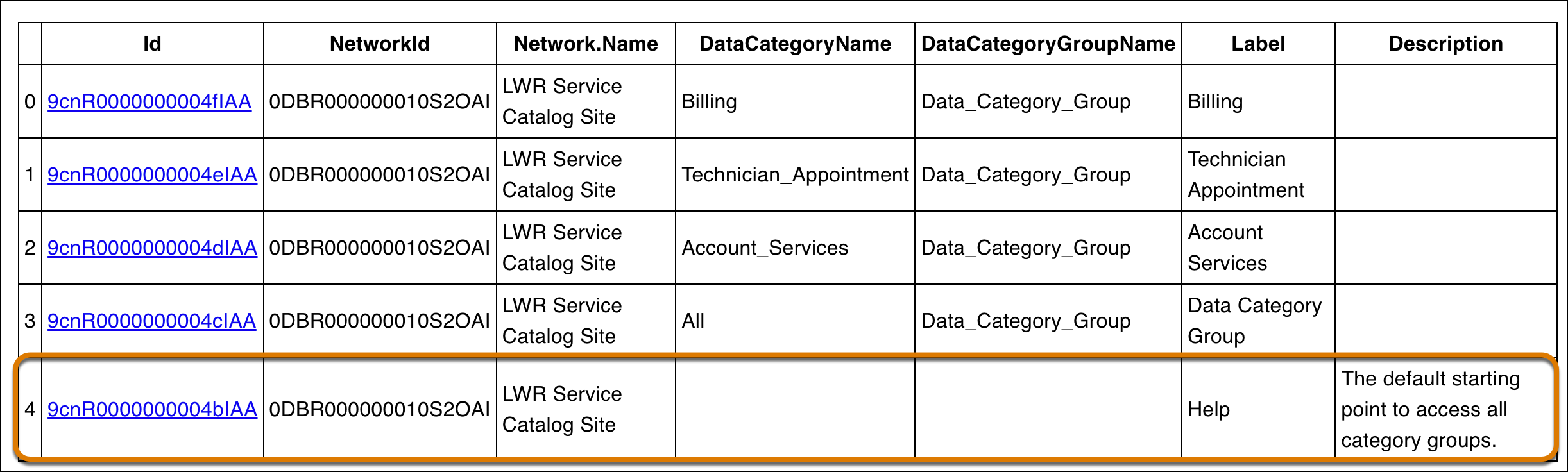
Review the query output and copy the listed Id and NeworkID of the rows from the blank
DataCategoryName and DataCategoryGroupName columns.
- From the UTILITIES tab, under REST EXPLORER, select PATCH.
-
From the Endpoint field, enter this query.
/services/data/v60.0/connect/communities/${communityId}/network-data-category/${networkDataCategoryId} Tip Always check that you have the correct Salesforce API version.
 -
Make these edits to the query.
-
Replace
${communityId}with your copied ID. -
Replace
${networkDataCategoryId}with your copied NetworkID -
Affix ?label={} to the end of the query where {} contains the new
parent category name, such as in this example.
?label=Products and Services - In the Payload field, enter {}.
Here’s the new query following from the example.
/services/data/v61.0/connect/communities/0DBOG0000001bo84AA/network-data-category/0DBOG0000001bo84AA?label=Products and Services -
Replace
-
Confirm your updates in your published and activated Service Catalog site. Don’t confirm in
Experience Builder.
Products and Services > Account Services > Billing
Next, proceed to Launching Your Service Catalog Site.
