Loading
Agentforce Contact Center
Table of Contents
Select Filters

          No results
          No results
          Here are some search tips

          Check the spelling of your keywords.
          Use more general search terms.
          Select fewer filters to broaden your search.

          Search all of Salesforce Help
          Understanding Token-Based User Verification

          Understanding Token-Based User Verification

          When setting up your Enhanced Chat implementation, it’s often valuable for your service reps to know that they’re speaking to a customer, or prospective customer, who has been verified by your authentication system. Token-based user verification lets you continue a conversation with a verified user, even when they’re on a different device, or when they reach out at a later time. The User Verification method uses a token system to ensure that the rep is speaking to someone who has been verified.

          Required Editions

          View supported editions.
          Checkmark This article applies to: Enhanced In-App Chat and Enhanced Web Chat channels
          X icon This article doesn’t apply to: Enhanced WhatsApp, Standard and Enhanced Facebook Messenger, Standard and Enhanced SMS, Enhanced Apple Messages for Business, Enhanced LINE, and Bring Your Own Channel

          In this article, we show how you can use a JSON Web Key Set (JWKS) and a JSON Web Token (JWT) to verify your users. If you don’t have an authentication system already in place, we show how you can test token-based user verification to see if it’s right for you.

          For this feature, a JWT is used as an access token for a user. A JWKS is used to verify the validity of that token. To learn more about JSON, JWT, and JWKS, see User Verification Terms.

          Note
          Note This documentation assumes that you already set up Enhanced Chat. To learn more, see Add Flexibility and Power with Enhanced Chat.

          Set Up Keys in Salesforce

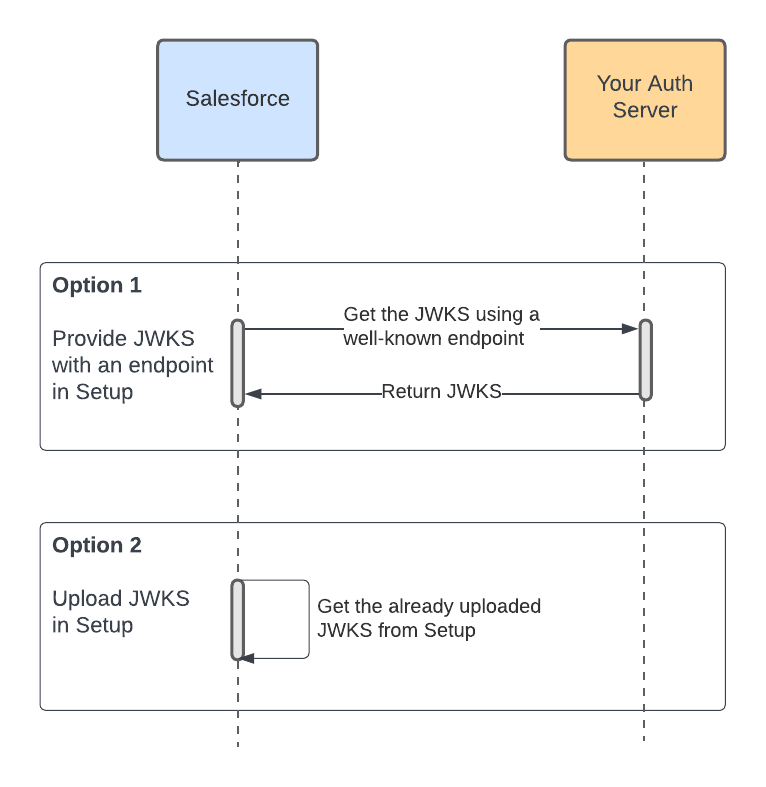
          When setting up user verification in Salesforce Setup, you can upload JSON Web Keys (JWK), or you can provide an endpoint that delivers this same information to Salesforce. This decision determines how Salesforce attempts to access your keyset when verifying your token. The user experience is the same for either flow.

          User verification keys

          Other details about the key: We require a 2048-bit minimum RSA key length. Also, the `n` (modulus) and `e` (exponent) properties of the JWK should be Base64 URL encoded.

          If you already have an endpoint or a keyset using your existing certificate, follow the instructions in Set Up Token-Based User Verification.

          If you want to test this feature by creating a certificate, a key, and a token, see our GitHub repository. This repo walks you through creating a test certificate, creating a JWK, and creating a JWT. After you have a JWK and JWT, follow the instructions in Set Up Token-Based User Verification.

          Pass Token Information When the Customer Logs In

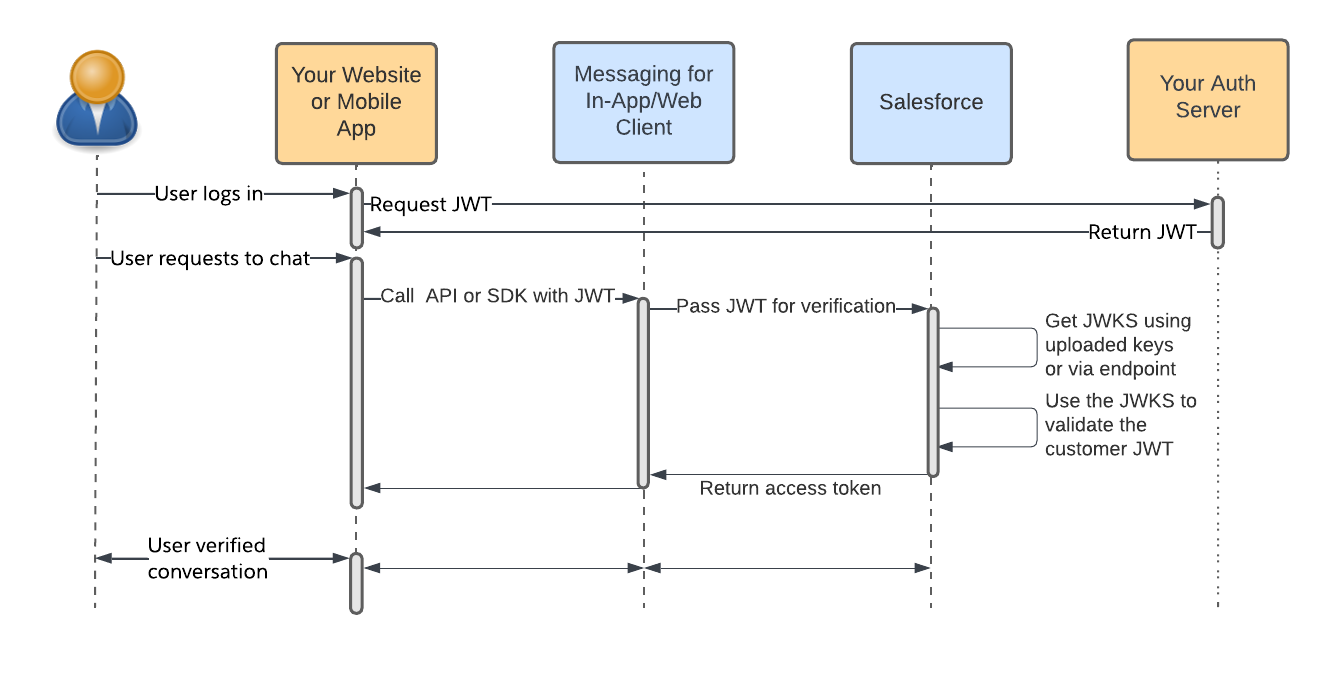
          In addition to providing the key set in Setup, you must pass user verification token information to Salesforce during the login process. When you pass the token to Salesforce, your Salesforce org verifies this information with the keys that you provided earlier.

          User verification token

          After Salesforce verifies the token with the keyset, the verified user can have a conversation with a service rep and all message history is associated with that user.

          Other details about the token: The “sub” value in the JWT is stored as part of the Messaging Platform Key field of the Messaging End User record. For instance, if the “sub” value is user-123, the Messaging Platform Key might be v2/iamessage/AUTH/{auth_id_info}/uid:user-123.

          To learn how to use our API to pass a token, refer to our developer documentation for User Verification (Web, iOS, Android).

          If you need help creating a token, use the command-line tool in our GitHub repository.

          Handle Cleanup After Logout

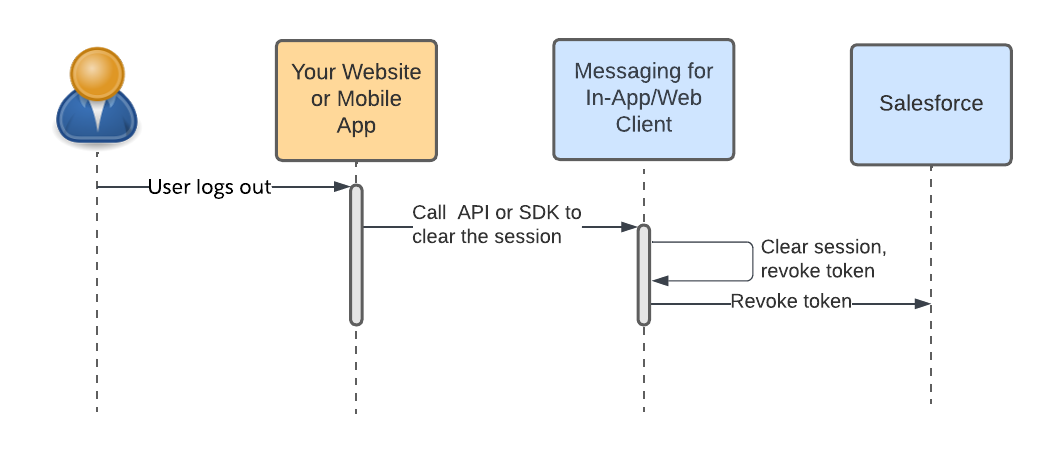
          When the user logs out of your system, call the API to clear the session. This call clears any session data and revokes the token.

          User verification clear session

          To learn how to use our API to clear the session, refer to our developer documentation for User Verification (Web, iOS, Android).

          Final Thoughts

          Token-based user verification takes some time to set up. But when you have the mechanism in place, you ensure that your customers can have a secure, verified conversation with one of your skilled service reps.

           
          Loading
          Salesforce Help | Article