
You are here:
Add a Queue in the Contact Center
Add queues to manage calls for the contact center. For example, you can add a separate queue for product support calls and another for sales calls.
Required Editions
This article applies to:
- Salesforce Voice with Amazon Connect
- Salesforce Voice with Partner Telephony
- Salesforce Voice with Partner Telephony from Amazon Connect
| View supported editions. |
When you add the queue to a contact center, you associate it with a telephony provider queue because the telephony provider routes the calls behind the scenes. If you enable queue management, changes to the contact center queue are synchronized with the associated telephony provider queue.
If you remove an Amazon Connect contact center queue, the associated Amazon Connect queue is disabled and removed from its associated routing profile. If you remove a partner telephony contact center queue, the corresponding queue and associations to users and groups are also removed in the telephony system.
- From Setup, in the Quick Find box, enter Contact Centers, and then select Amazon Contact Centers or Partner Telephony Contact Centers.
- Open the contact center.
- In the Queues section, click Add.
- In the Salesforce Queue field, select a Salesforce contact center queue for calls.
-
Associate this Salesforce contact center queue with a telephony provider queue.
We recommend that you create a telephony provider queue rather than associate with an existing one. For example, to associate a Salesforce queue with a new Amazon Connect queue, select Automatically create the Amazon Connect queue.
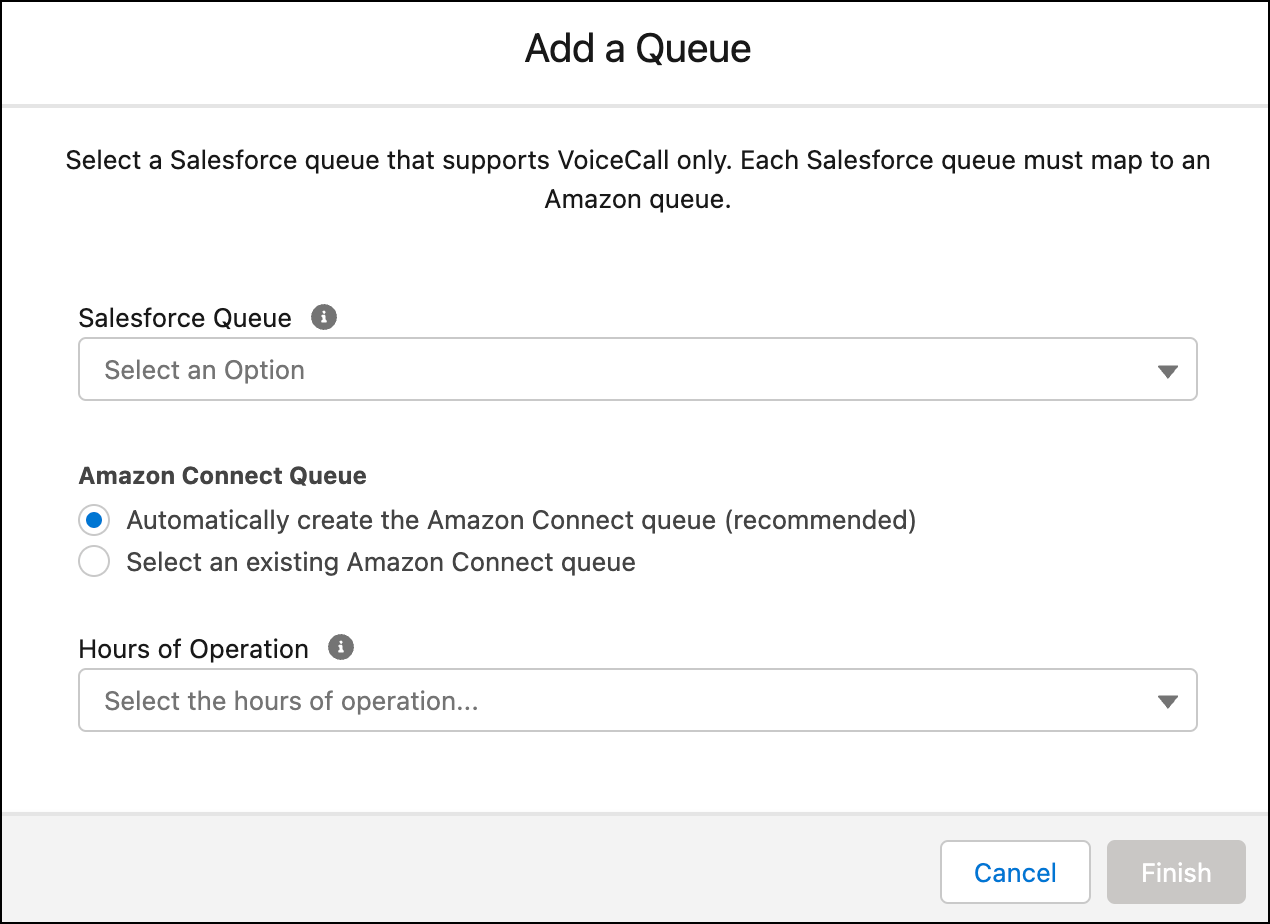
- (For Amazon Connect queues only) In the Hours of Operation field, select the hours of operation when the underlying Amazon Connect queue can process work requests. To enforce these hours, add a Check Hours of Operation block to the contact flow.
- Click Finish.
