
You are here:
Check Connection Status and Address Provider Status Issues
Run quick tests to see whether your workspace is set up and ready for Service Cloud Voice. During work, your status in your telephony provider shows up in the Connection Status utility alongside your Omni-Channel status in the Omni-Channel utility. To address rare inconsistencies between Omni-Channel and your telephony provider, manually sync your Omni-Channel status to your telephony provider.
Required Editions
This article applies to:
- Salesforce Voice with Amazon Connect
- Salesforce Voice with Partner Telephony
- Salesforce Voice with Partner Telephony from Amazon Connect
| View supported editions. |
| User Permissions Needed | |
|---|---|
| To run the Connection Status utility: | Salesforce Voice Contact Center Rep permission set |
If your Salesforce admin has added the Connection Status utility to a console app or Voice extension on Omni-Channel, you can check whether your workspace is set up correctly for Voice. You can also see tips for how to use Voice and Omni-Channel more effectively. If your Salesforce admin has turned on Provider Status, you can monitor your voice or Amazon Connect chat status in Amazon Connect and address status-related errors yourself by syncing your Omni-Channel status to your telephony provider status.
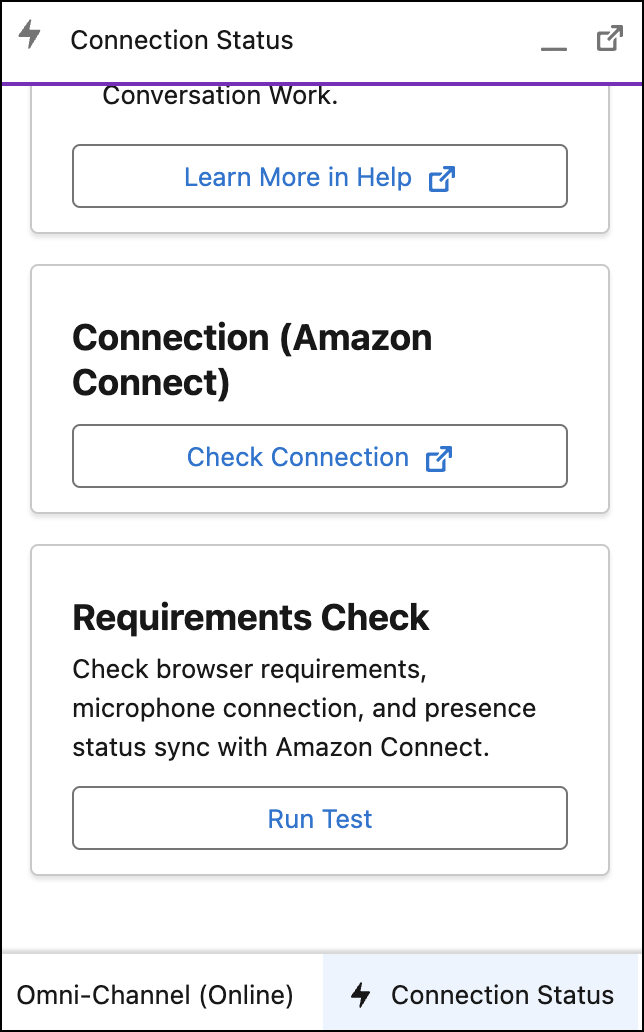
- To run the Amazon Connect Endpoint Test Utility to verify your connection, click Check Connection. This test is available only for Service Cloud Voice with Amazon Connect.
-
To verify your web browser, microphone, presence statuses, virtual desktop
infrastructure (VDI), or a third-party identity provider (IdP), click Run
Test.
Voice is supported only on the latest stable browser version of Google Chrome, Mozilla Firefox, and Microsoft Edge (Chromium). Cookies must be enabled to allow single sign-on (SSO).
If verification fails, messages instruct you how to debug your Voice setup to connect successfully. -
For Salesforce Voice setups that use Amazon Connect as a telephony or CCaaS provider
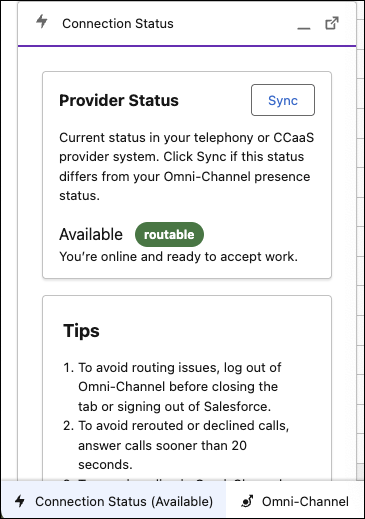
and have Provider Status turned on, your Amazon Connect status displays in real-time in
the Connection Status utility’s minimized view.
- To see the provider status in real-time in the status bar, first open the Connection Status utility at least once and then minimize it.
- To find additional information about your status in Amazon Connect, open the Connection Status utility and check the Provider Status section.
- To push your Omni-Channel status to Amazon Connect in rare cases where your status in both systems doesn’t align, click Sync.
Provider Status Reference
Use the information in the Provider Status section of the Connection Status utility to understand your real-time status in Amazon Connect and determine whether you need to sync your Omni-Channel status to Amazon Connect. For example, if your Omni-Channel status is Online but your provider status is stuck in an Error state, sync your status so that you can accept a voice call or message.

During a voice call or Amazon Connect Chat, states change in the Connection Status utility as your status changes. You should expect your status to change and briefly show a mismatch between Omni-Channel and your telephony or CCaaS provider. Statuses usually end up synced on their own after a transition period. We recommend clicking Sync to recover from rare out of sync issues when you are stuck in a mismatched state only.
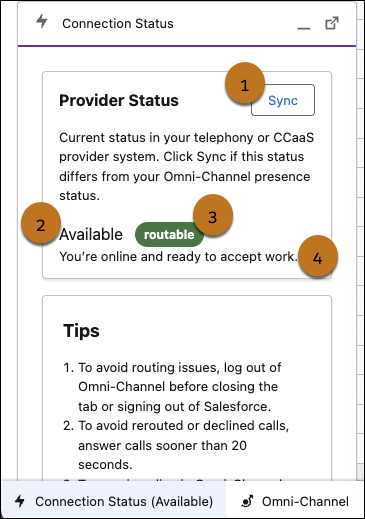
Sync button (1), Amazon Connect status or custom status name (2), the state type - whether work is routable to you (3), status description (4)
These statuses are available in the Provider Status section.
| Status Type | Provider Status | Status Description | Sync Recommendation |
|---|---|---|---|
| NotLoggedIn | NotLoggedIn | Single Sign On (SSO) initialization with vendor isn’t complete. | Sync button is disabled. |
| Offline | Offline | You’re offline and can’t receive work. | No action needed unless Omni-Channel shows a different status. In that case, sync. |
| Routable | Available | You’re online and ready to accept work. | No action needed unless Omni-Channel shows a different status. In that case, sync. |
| Routable | Available for Voice | You’re online and ready to accept work. | No action needed unless Omni-Channel shows a different status. In that case, sync. |
| Not_Routable* | Busy | Custom status configured by Salesforce admin. | No action needed unless Omni-Channel shows a different status. In that case, sync. |
| Not_Routable | Default | Generic error that isn’t captured by a different state. For example, you declined or missed a callback. | No action needed unless Omni-Channel shows a different status. In that case, sync. |
| Not_Routable* | Lunch Break | Custom status configured by Salesforce admin. | No action needed unless Omni-Channel shows a different status. In that case, sync. |
| Not_Routable | Pending | Incoming callback. We recommend that Salesforce admins avoid creating a custom state named Pending. | No action needed unless Omni-Channel shows a different status. In that case, sync. |
| Not_Routable | sfdc_pending | Salesforce is still finishing processing the last call. | No action needed unless Omni-Channel shows a different status. In that case, sync. |
| System | AfterCallWork | Time for you to perform after call work. | If done with after call work and Omni-Channel shows a different status from the provider, then sync. |
| System | Busy | On a call with a customer. | Sync button is disabled. |
| System | CallingCustomer | Outgoing call. | Sync button is disabled. |
| System | PendingBusy | Incoming call. | Accept the work from Omni-Channel. Sync button is disabled. |
| Error | FailedConnectAgent | You weren’t connected. For example, you declined the work or were busy with work in other channels, triggering auto-decline due to Respect Rep Capacity. | No action needed unless Omni-Channel shows a different status. In that case, sync. |
| Error | FailedConnectCustomer | Customer wasn’t connected. For example, customer disconnected their call or conversation. | No action needed unless Omni-Channel shows a different status. In that case, sync. |
| Error | MissedCallAgent | You were assigned work but missed the call window or missed the call due to a technical issue. | No action needed unless Omni-Channel shows a different status. In that case, sync. |
*Custom statuses are included in the Not_Routable status type. If you map a custom status to your telephony vendor with Presence Status Mapping, the custom status shows a mapped Not_Routable status. If a custom state isn’t mapped with Presence Status Mapping, the provider status is Offline.
