
You are here:
Create a Phone Channel
To configure call routing for voice calls, including Omni-Channel flows and queue routing, and to determine when to create an End User record, create a phone channel. After you create a phone channel, you can set up a caller ID tool to create or reuse an End User record and choose whether to associate the End User record with the number dialed.
Required Editions
This article applies to:
- Salesforce Voice with Amazon Connect
- Salesforce Voice with Partner Telephony
- Salesforce Voice with Partner Telephony from Amazon Connect
| View supported editions. |
| User Permissions Needed | |
|---|---|
| To view the Amazon Contact Centers page: | Customize Application AND Manage Call Centers |
| To create and manage a contact center: | Salesforce Voice Contact Center Admin |
| To view the Partner Telephony Contact Centers page: | Customize Application AND Manage Call Centers |
| To create and manage a contact center: | Salesforce Voice Contact Center Admin (Partner Telephony) |
Before you create a phone channel:
- Create a Voice contact center.
- Claim your phone number in Amazon Connect. Alternatively, route calls directly to and from reps for sales use cases or blended sales and service use cases.
- From Setup, in the Quick Find box, enter Contact Center, then select Amazon Contact Centers or Partner Telephony Contact Centers, depending on your telephony model.
- Select the contact center you want to create a phone channel for.
-
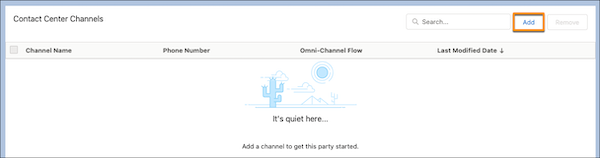
In the Contact Center Channels section, click Add.
-
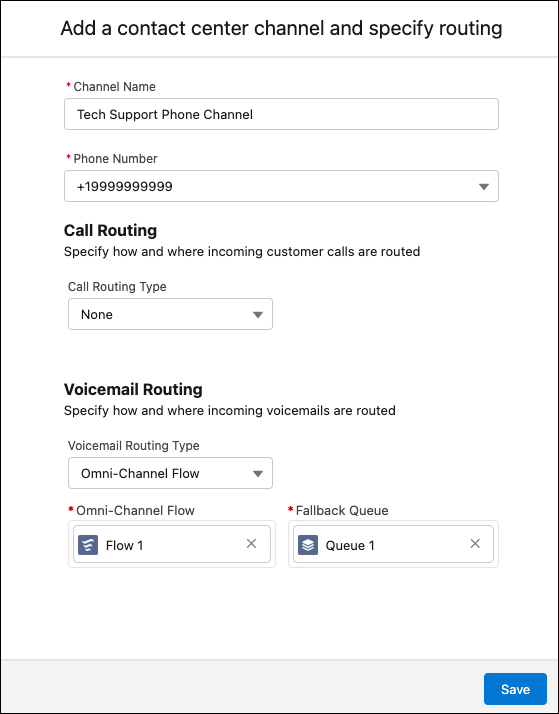
Enter a channel name and the contact center phone number.
- Optional:
Set up call routing configurations for your contact center.
- To route this phone channel’s calls to a specific queue, select Queue in the Call Routing Type field, and then enter the name of the Salesforce queue you want to route calls to.
- To route this phone channel’s calls with an Omni-Channel flow, select Omni-Channel Flow in the Call Routing Type field, and then enter the names of the Omni-Channel flow and fallback queue.
- Optional:
Set up voicemail routing configurations for your contact center.
- To route this phone channel’s voicemails to a specific queue, select Queue in the Voicemail Routing Type field, and then enter the name of the Salesforce queue you want to route calls to.
- To route this phone channel’s voicemails with an Omni-Channel flow, select Omni-Channel Flow in the Voicemail Routing Type field, and then enter the names of the Omni-Channel flow and fallback queue.
- Save your changes.
To make it easier to identify callers, configure your End User record settings for your phone channel. You can choose to match callers to End User records or override your phone channel number settings.
Did this article solve your issue?
Let us know so we can improve!
