
You are here:
Route Calls Directly to and from Reps
Assign each rep in your contact center a direct inward dialing (DID) phone number for inbound and outbound calls using Salesforce Voice (formerly Service Cloud Voice). For example, route inbound sales calls from existing customers directly to their account executives. When account executives make outbound sales calls, their phone number appears as the caller ID. This setup is appropriate for use cases where reps need their own number for direct inbound and outbound calls.
Required Editions
This article applies to:
- Salesforce Voice with Amazon Connect
- Salesforce Voice with Partner Telephony from Amazon Connect
| View supported editions. |
| User Permissions Needed | |
|---|---|
| To view the Amazon Contact Centers page: | Customize Application AND Manage Call Centers |
| To create and manage a contact center: | Salesforce Voice Contact Center Admin |
Before You Start
- Turn on Salesforce Voice with Amazon Connect or Salesforce Voice with Partner Telephony from Amazon Connect. Make sure you have an Amazon Contact Center created according to the telephony model specifications.
- This feature is available with Salesforce Voice contact center version 18.0 or later. If needed, Update Your Contact Center.
- Set up contact center users by assigning permission sets and adding users to your contact center.
- In Setup, under Omni-Channel Settings, turn on the Enable Omni-Channel, Enhanced Omni Channel Routing, and Enable Skills-Based and Direct-to-Agent Routing settings.
- Most organizations that set up Salesforce Voice to route calls directly to and from reps need to increase Amazon Connect’s service quota for phone numbers per instance to support more phone numbers for their contact center. See Increase Amazon Service Quotas.
- New contact centers include access to required sample flows in Amazon Connect. For preexisting contact centers or those created through importing a contact center definition XML file, download JSON files from the Sample Salesforce Voice flows page in GitHub and import them into your Amazon Connect instance. This feature requires Sample SCV Inbound Flow for Direct to Rep, Sample SCV Direct to Rep Subflow, and Sample SCV Outbound Flow From Rep With Caller ID Override. For instructions on how to import flows, see the Import and export flows page in the Amazon Connect Administrator Guide.
For pre existing contact centers or those created using an import.xml file, you must
update the LambdaFunctionARN value in the sample flows with your contact
center’s name using this format:
-
Sample SCV Inbound Flow for Direct to Rep: "
LambdaFunctionARN": "<CONTACT_CENTER_NAME> -InvokeTelephonyIntegrationApiFunction:active" -
Sample SCV Direct to Rep Subflow: "
LambdaFunctionARN": "<CONTACT_CENTER_NAME> -InvokeTelephonyIntegrationApiFunction:active" - Sample SCV Outbound Flow From Rep With Caller ID Override:
“
LambdaFunctionARN": “<CONTACT_CENTER_NAME>-InvokeSalesforceRestApiFunction:active”
Set Up a Phone Number for Each Rep for Inbound and Outbound Calls
To associate a unique phone number to each contact center user so they can reach out to customers and hear back from them directly, claim and assign a number in Salesforce. As a Salesforce admin, you can use a phone number you’ve already claimed or claim a new one. To help reps make outbound calls that show the rep’s unique caller ID, set up API authentication for your contact center. We recommend this setup for sales use cases or setups where customers need to contact a specific rep directly.
-
From Setup, in the Quick Find box, enter
Contact Centers, and then select Amazon Contact Centers. - Select your contact center.
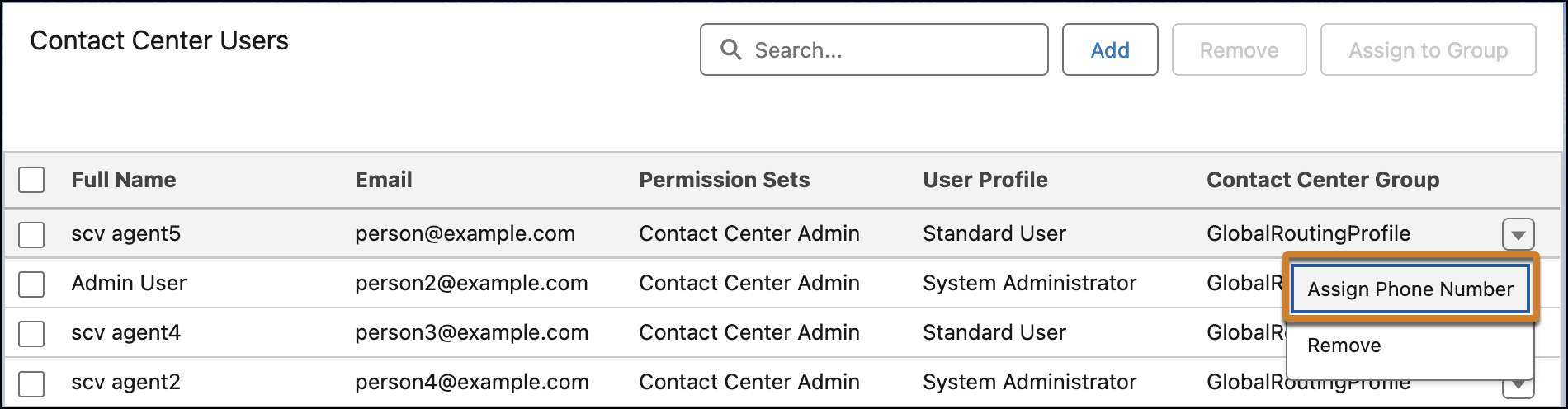
- Under Contact Center Users, find the user you want to associate with a phone number.
-
From the action menu for that user, select Assign Phone
Number.
-
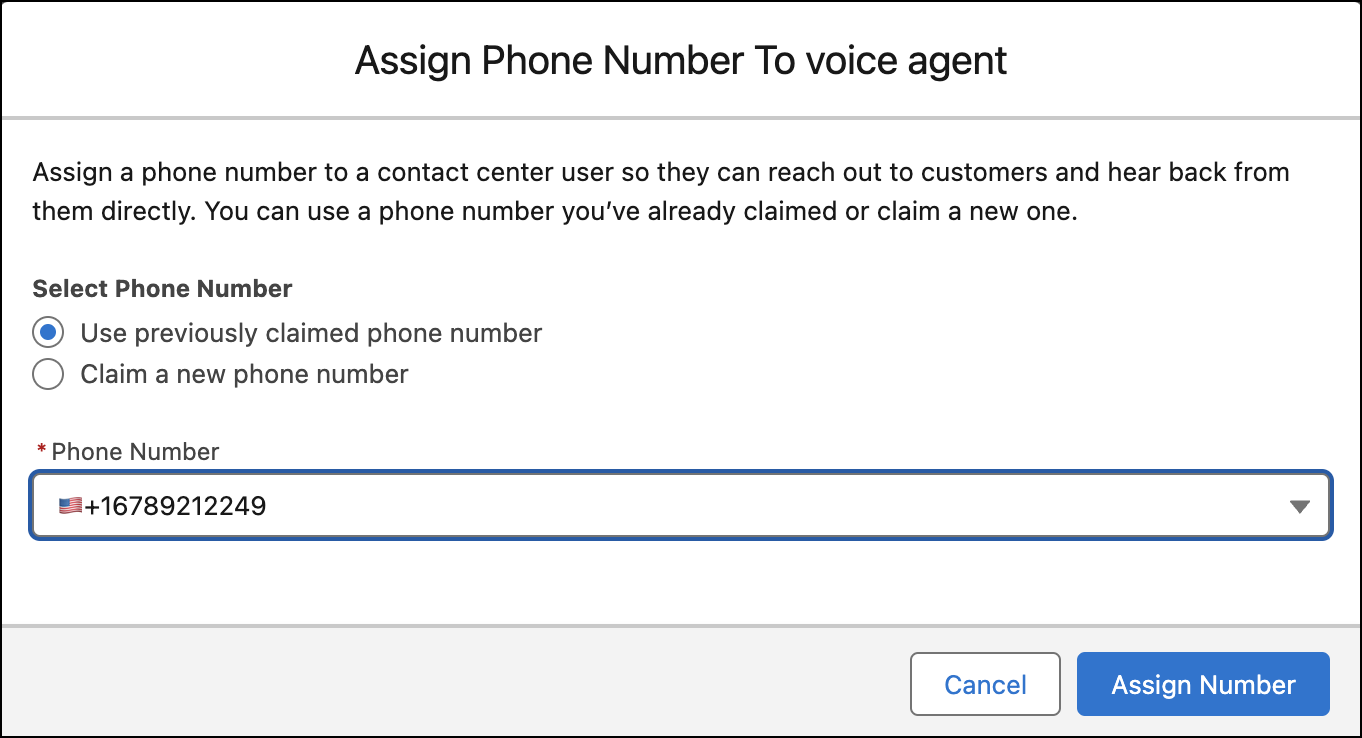
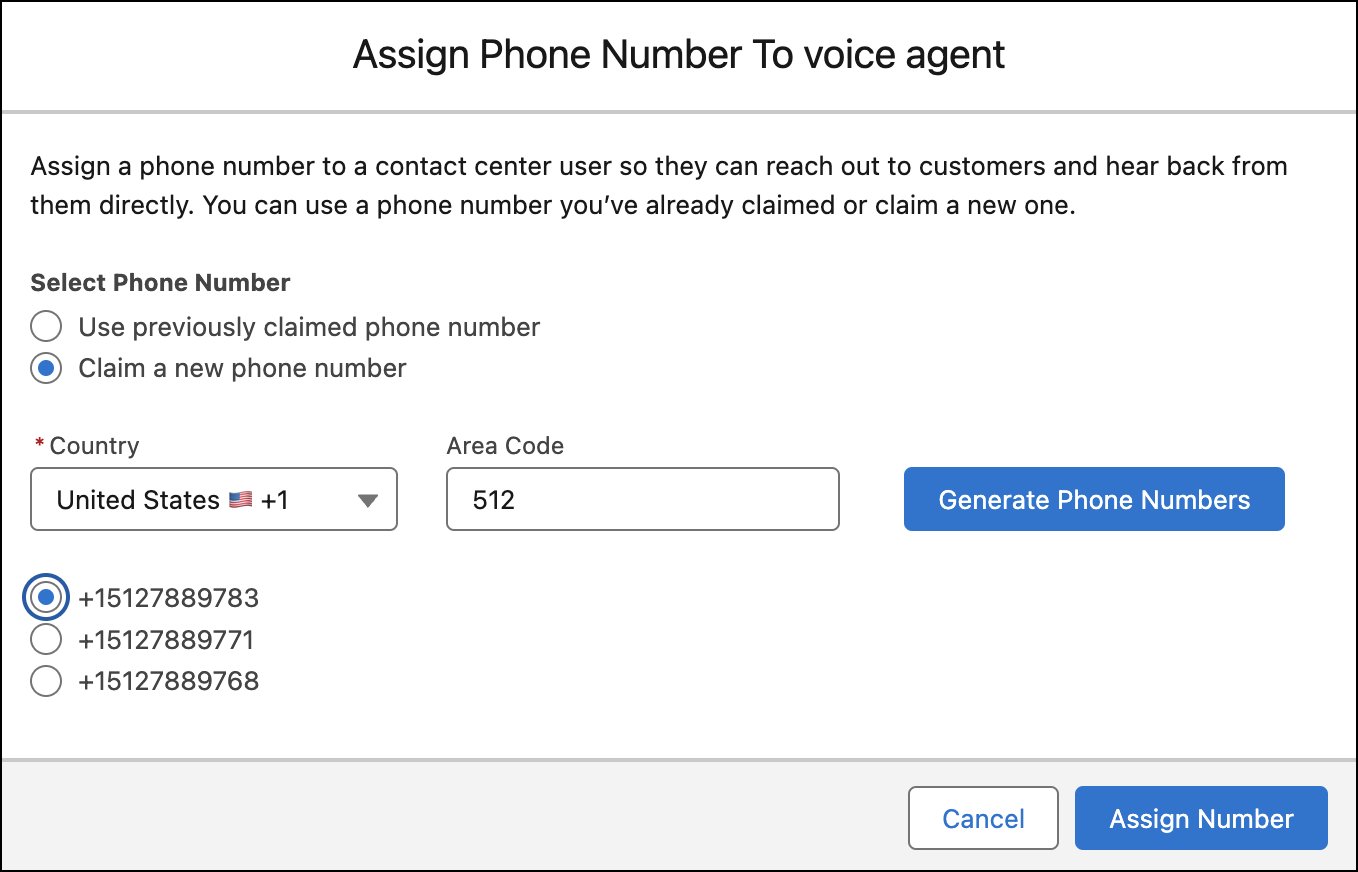
Use a previously claimed number or claim a new one.
- To use a previously claimed number, select it from the Phone Number list, and click
Assign Number.
- To claim a number, select a country and enter an area code, and then click
Generate Phone Numbers. Select a number and click Assign
Number.
- To use a previously claimed number, select it from the Phone Number list, and click
Assign Number.
-
Repeat these steps for each contact center user, as needed. After processing your request,
Salesforce sends you an email to confirm whether the number has been successfully
assigned.
Assigning a phone number to a contact center user in Salesforce automatically creates a Contact Center Channel with a Call Routing Type of User. If a customer dials the assigned number, Amazon Connect uses the Sample SCV Inbound Flow for Direct to Rep and Sample SCV Direct to Rep Subflow to create a voice call record in Salesforce for the inbound call and route the call to a specific rep associated with the dialed number.
-
To help reps make outbound calls that show the rep’s unique caller ID, set up API
authentication for your contact center. When you create a Salesforce Voice contact center with
Amazon Connect, Salesforce creates an external client app for you and assigns a permission set
to your contact center admins. Salesforce also provides a set of Lambda functions, which are
available within your Amazon Connect instance after provisioning the instance with Salesforce
Voice. To set up outbound calls directly from reps, update the REST API OAuth external client
app and set up OAuth for the InvokeSalesforceRestApiFunction AWS Lambda Function.
- Create a private key and self-signed certificate. You don’t need to create a custom app. It’s already been created for you when you turned on Salesforce Voice.
- Create an external client app and enable the OAuth plugin.
- Set Up OAuth in the AWS Lambda Function.
- Optionally, test OAuth with Salesforce Voice Lambda Function.
After completing these steps, when a rep makes an outbound call to a customer, the Sample SCV Outbound Flow From Rep With Caller ID Override whisper flow in Amazon Connect causes the Caller ID to show the phone number associated with the rep.

Release a Phone Number
If you no longer need a phone number for your contact center, you can release the claimed number from your telephony provider instance by unassigning it from a contact center user.

-
From Setup, in the Quick Find box, enter
Contact Centers, and then select Amazon Contact Centers. - Select your contact center.
- Under Contact Center Users, find the user who no longer needs a phone number.
-
From the action menu for that user, select Release Phone
Number.
After processing your request, Salesforce sends you an email to confirm whether the number has been successfully unassigned from the user and is being released from your telephony provider instance.
Releasing a phone number from a contact center user in Salesforce automatically deletes the associated contact center channel and removes any associated routing assignments. The phone number isn’t associated with your contact center and is released back to your telephony provider’s inventory.
Update Phone Number Assignments
To remove a phone number from a rep so you can assign it to another rep, delete the contact center channel that’s associated with a user from the contact center.
-
From Setup, in the Quick Find box, enter
Contact Centers, and then select Amazon Contact Centers. - Select your contact center.
- Under Contact Center Channels, find the channel associated with the user who no longer needs the phone number.
- From the action menu for that channel, select Remove.
Removing a contact center channel removes any associated routing assignments. The phone number is available to be assigned to a different contact center user.

