
Loading
Agentforce Contact Center
Table of Contents
Select Filters

          No results
          No results
          Here are some search tips

          Check the spelling of your keywords.
          Use more general search terms.
          Select fewer filters to broaden your search.

          Search all of Salesforce Help
          Use a Headset for Voice Calls

          Use a Headset for Voice Calls

          You can use a headset for voice calls and to control call actions such as accept, mute, unmute, and end calls. While most headsets work well, we've tested headset models from Jabra, Poly (Plantronics), Logitech, and EPOS (Sennheiser). Though not every model from these brands is tested, most of their headsets are expected to perform as required. Although the WebHID API is used to support headsets, bluetooth headsets aren't supported. If your bluetooth headset doesn't work and it has a USB adapter, it might help overcome this limitation.
          Required Editions

          This article applies to:

          • Salesforce Voice with Amazon Connect
          • Salesforce Voice with Partner Telephony
          • Salesforce Voice with Partner Telephony from Amazon Connect
          View supported editions.
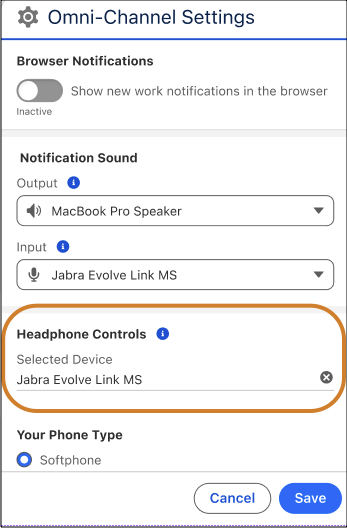
          1. In the Omni-Channel settings, select the headset you want to connect with the device.Select headset
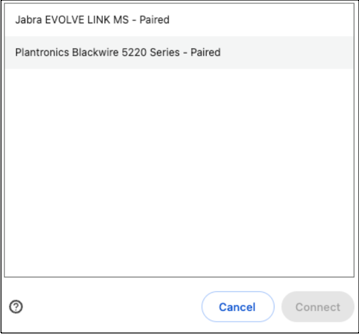
          2. Select the headset from the list in the browser window and click Connect. The browser shows only the supported and compatible headsets.Connect headset
            Mozilla Firefox doesn’t support headset call controls. Google Chrome and Microsoft Edge support headset call controls.

            You can now use the selected headset for voice calls.

          The selected headset remains paired and connected even if you switch tabs, restart your system, or log out.

          To pair and connect another headset, you must first remove the currently connected headset from the Headphone Controls section in the Omni-Channel settings or disconnect it from the browser window.

          Note
          Note Make sure to pair and connect your headset before starting a call. Connecting the headset during an active call might cause unpredictable behavior.

          Only one headset must be paired and connected at a time.

          If a native headset application or a Unified Communications application such as Microsoft Teams, Zoom, or Webex is using the headset, incoming voice calls generally connect. But you might experience unpredictable behavior.

          Replaying active calls on refresh is not supported when using a headset.

          When using a headset for call actions, wait about two seconds between two telephony actions.

          Only these HID devices are tested:

          • Jabra Evolve Link MS
          • Poly (Plantronics) Blackwire 3325 Teams
          • Poly Plantronics - Blackwire 5220
          • EPOS | Sennheiser Adapt 165 USB II

          Though not every model from these brands is tested, most of their headsets are expected to perform as required. Although the WebHID API is used to support headsets, bluetooth headsets aren't supported. If your bluetooth headset doesn't work and it has a USB adapter, it might help overcome this limitation.

          • Use a Headset Enabled by Telephony Provider
            If your telephony provider has enabled headset support in the managed package, you can use a headset for voice call, and control call actions such as accept, mute, unmute, and decline calls from the headset. You can use only the headset models and brands supported by your telephony provider.
           
          Loading
          Salesforce Help | Article
