Create a Rule in Amazon Connect That Identifies Intelligence Signals
Create one or more rules that Salesforce Voice can subscribe to and use to trigger
real-time recommendations or auto-launched flows in Salesforce. Create a rule using one or more
conditions that are based on uttered keywords, sentiments, customer attributes, or other
criteria.
Tip To perform exact keyword matching without any other conditions, create a
rule that automatically triggers an action based on detected keywords.
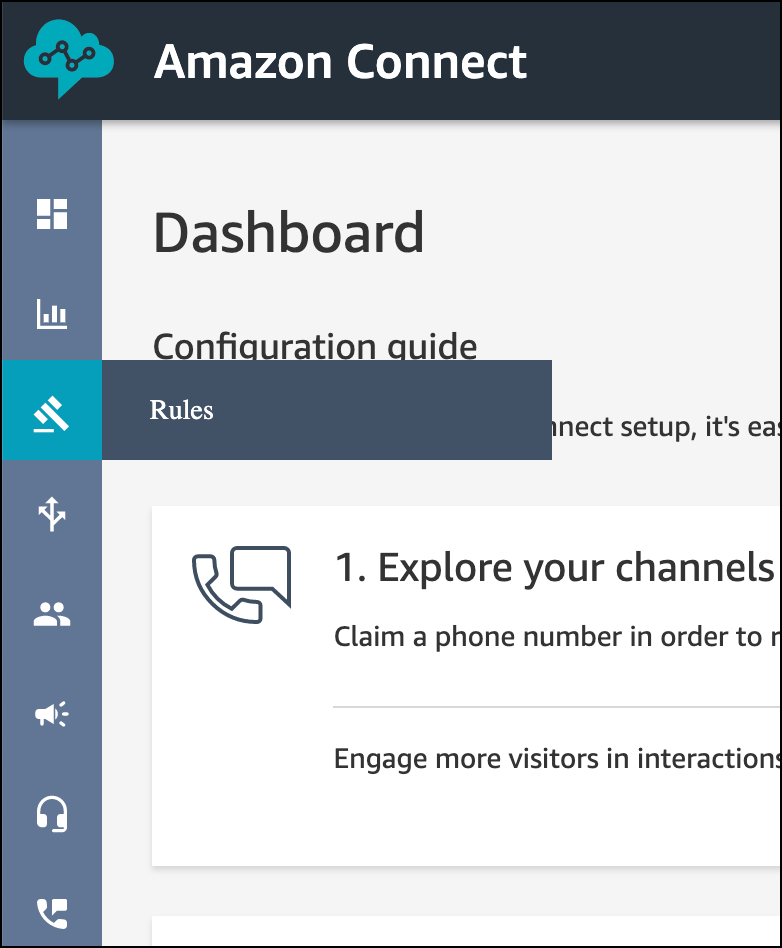
In Amazon Connect, click Rules.
Click Create a rule | Contact lens.
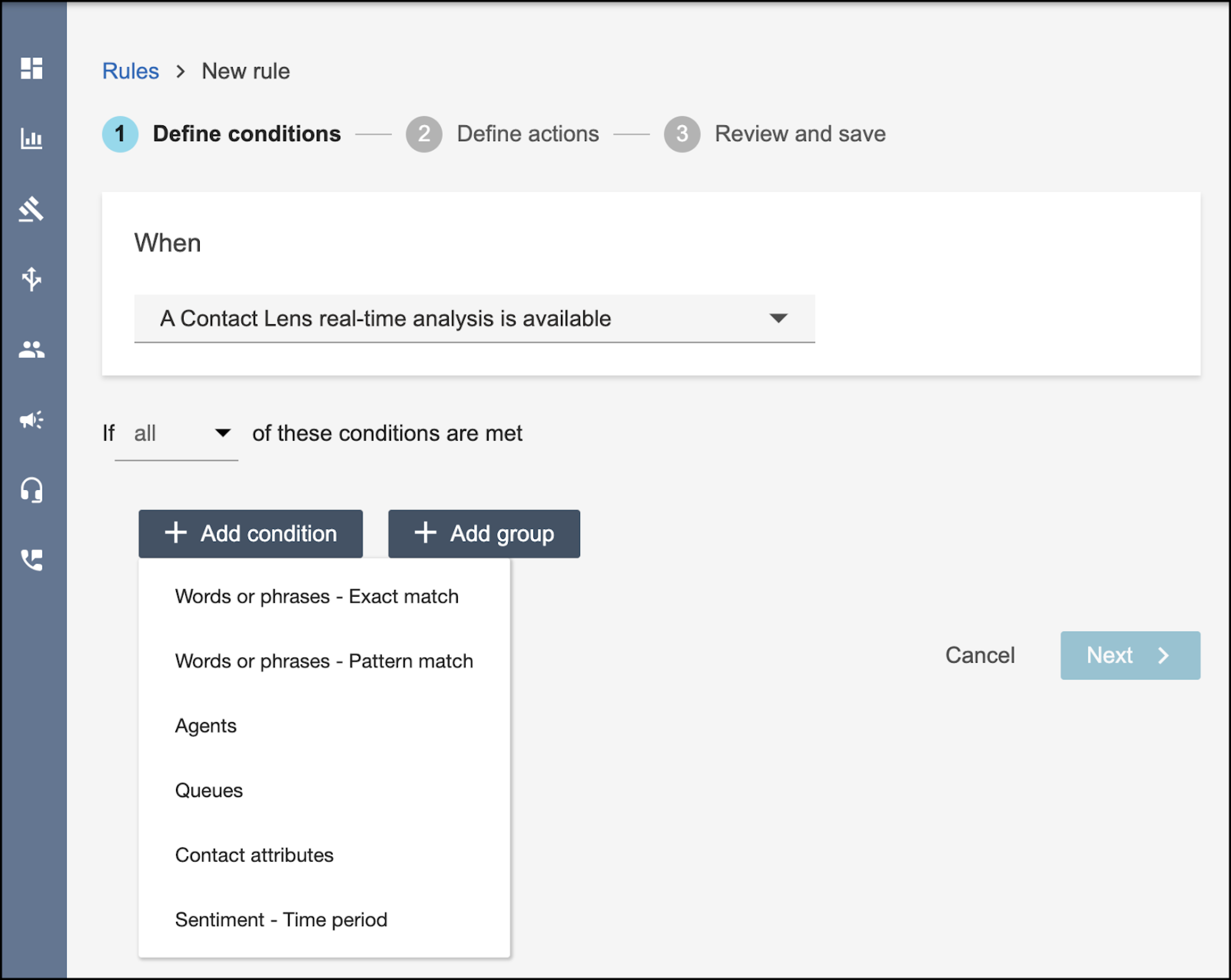
From the When dropdown, select A Contact Lens real-time analysis is
available.
Salesforce Voice with Telephony Providers (formerly Service Cloud Voice) doesn't
support Contact Lens Post-Call Analysis.
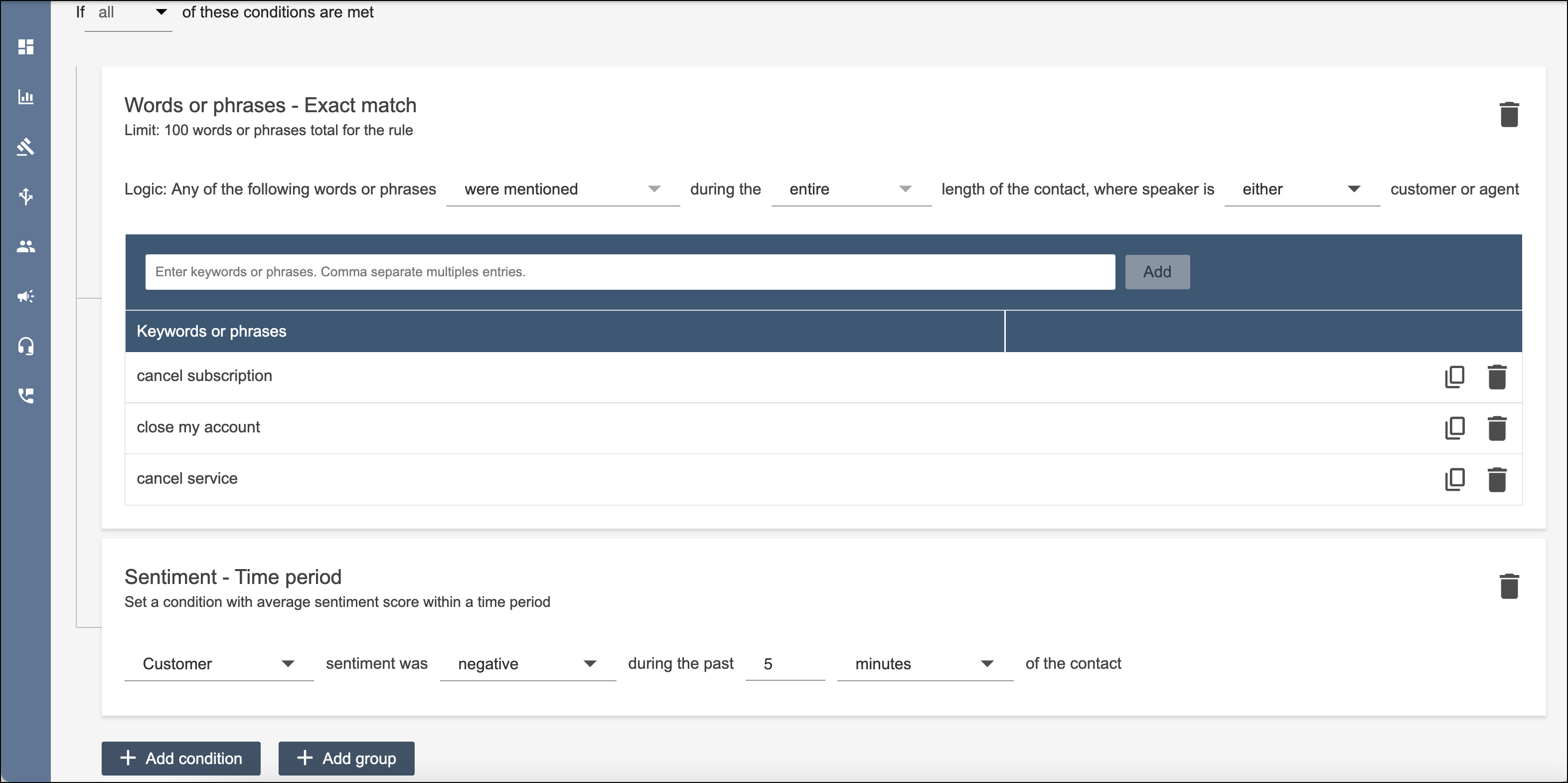
To define a condition, click Add condition, select the condition
type, and then enter the condition.
Add more conditions if needed. If you add multiple conditions, specify whether any or all
conditions must be met.
Click Next.
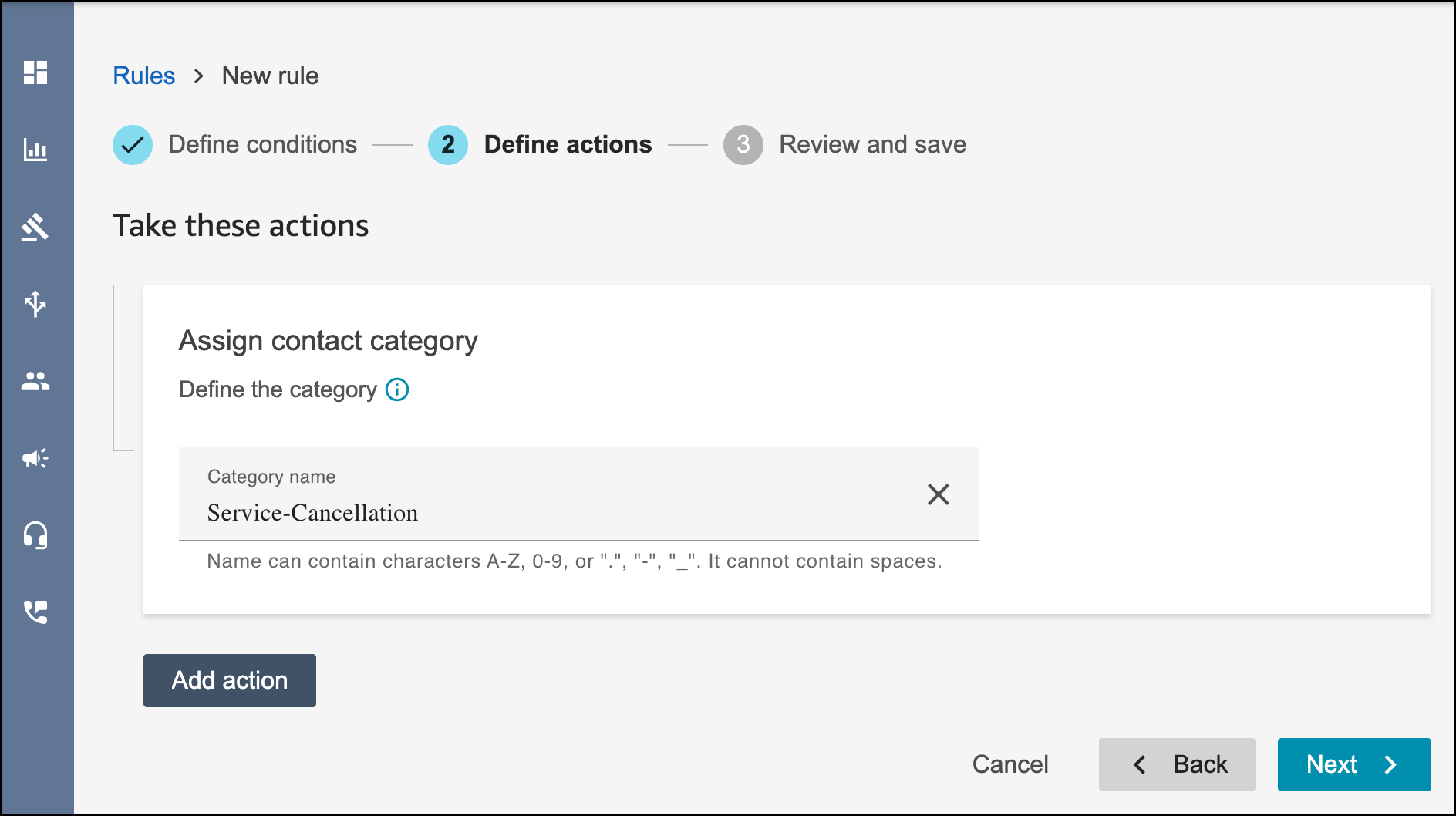
Enter a descriptive name of the category, such as
Service-Cancellation. The category name is the signal value that’s sent
to the custom component when a rule is detected.
Tip Don’t add an action in Amazon Connect. Instead, in a later step, you set up
and trigger an action in Salesforce based on this category.
Click Next.
Review the rule, and then click Save and publish.
A new rule applies only to contacts that occur after the rule is added.
We use three kinds of cookies on our websites: required, functional, and advertising. You can choose whether functional and advertising cookies apply. Click on the different cookie categories to find out more about each category and to change the default settings.
Privacy Statement
Required Cookies
Always Active
Required cookies are necessary for basic website functionality. Some examples include: session cookies needed to transmit the website, authentication cookies, and security cookies.
Functional Cookies
Functional cookies enhance functions, performance, and services on the website. Some examples include: cookies used to analyze site traffic, cookies used for market research, and cookies used to display advertising that is not directed to a particular individual.
Advertising Cookies
Advertising cookies track activity across websites in order to understand a viewer’s interests, and direct them specific marketing. Some examples include: cookies used for remarketing, or interest-based advertising.