
You are here:
Configure Callbacks for Omni-Channel Unified Routing
Don’t make your customers wait on hold. Give them an option to request a callback from a rep. Salesforce uses contact requests to store callback information for voice calls that are routed with Omni-Channel Unified Routing.
Required Editions
This article applies to:
- Salesforce Voice with Amazon Connect
- Salesforce Voice with Partner Telephony from Amazon Connect
| View supported editions. |
| User Permissions Needed | |
|---|---|
| To view the Amazon Contact Centers page: | Customize Application AND Manage Call Centers |
| To create and manage a contact center: | Salesforce Voice Contact Center Admin |
Before you begin, Configure Omni-Channel Unified Routing for your contact center.

When a rep becomes available, the contact request is pushed to the rep in the Omni-Channel utility. If the rep accepts the request, Omni-Channel either initiates the callback by automatically dialing the customer’s number or the rep has time to preview the contact request before clicking to dial the number. Optionally, if a customer requests a callback for a specific time, routing the contact request to a rep happens after a specified delay.
Set Up Callbacks in Salesforce
Start by setting up callbacks in Salesforce. Either route to a queue or route to an Omni-Channel flow. With a queue, there is one callback attempt made to the customer. With a flow, optionally configure a delay between attempts and number of retry attempts if the callback call isn’t connected. Also optionally configure whether the rep can preview the callback or whether Omni-Channel dials the customer immediately.
Before you begin:
- Create a service channel that supports routing the Contact Request Salesforce Object, or edit an existing service channel to route contact requests.
- Define a routing configuration or edit an existing
routing configuration.
- Set Routing Model to Most Available or Least Active. The External Routing selection isn’t compatible with Omni-Channel Unified Routing.
- Because the routing configuration is for a queue that handles callbacks as outbound voice calls, set Percentage of Capacity to 100%.
- Create a Salesforce queue or edit an existing queue, and add Contact Request as a Supported Object. Associate the queue with the routing configuration and add contact center users to the queue. Reps that are part of the queue must have access to a presence status where they are available to receive and make voice calls and handle contact requests.
-
To route callbacks using an Omni-Channel flow, create an Omni-Channel flow with an Update Records
action and Route Work action.
Skip these flow-related steps if you’re routing with a queue.
-
Add variables for the Omni-Channel flow in the Manager tab.
- Add a recordId variable and mark it as available for input.
- Add an input_record variable for the Contact Request object and mark it as available for input and output.
-
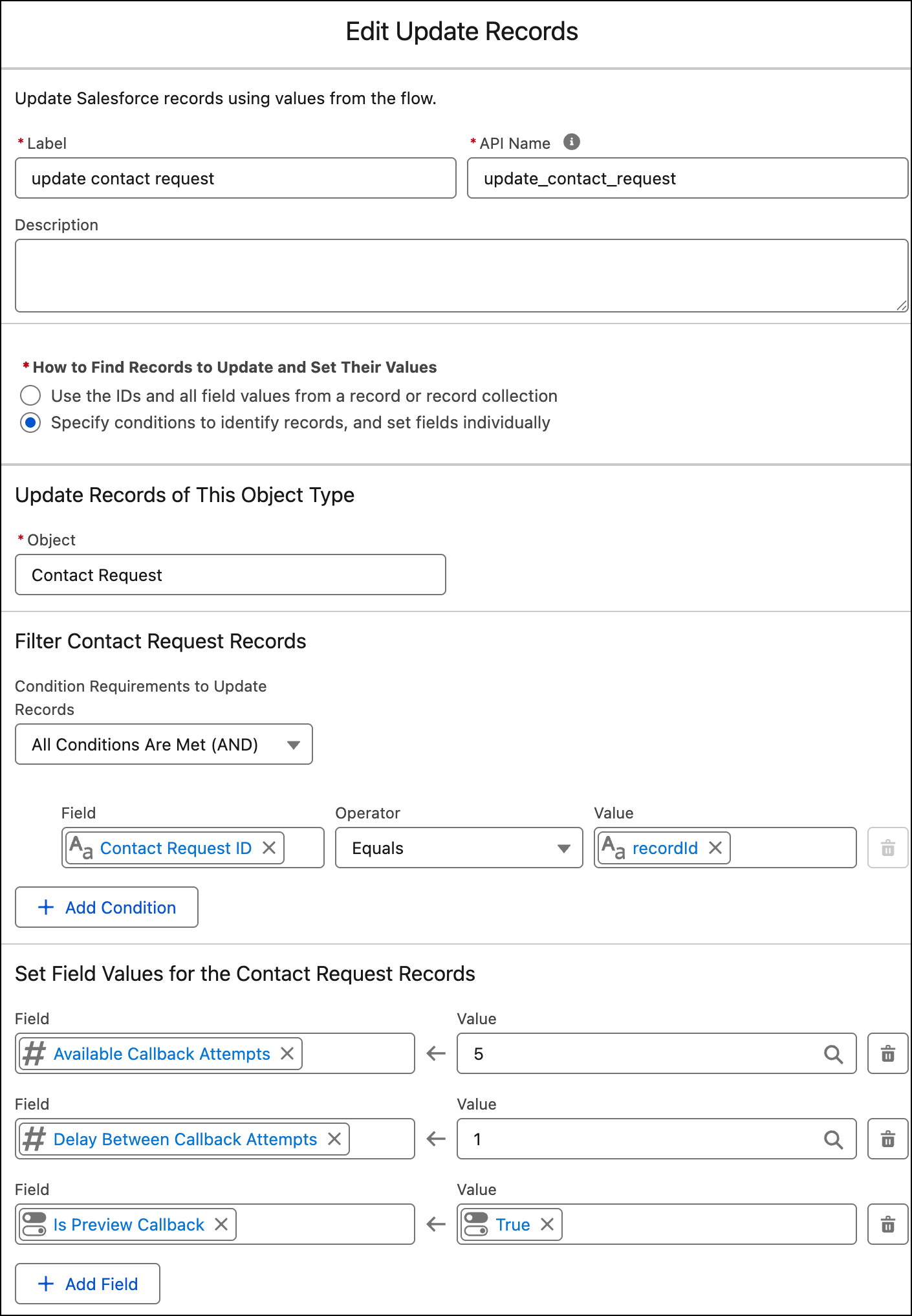
To configure the Update Records action:
- Select Contact Request as the object.
- Add a filter condition where Contact Request ID equals recordId.
- To specify the number of callback attempts and delays between callback attempts, in the Set Field Values section, add the Available Callback Attempts and Delay Between Callback Attempts fields and set their values. Maximum for callback attempts is 5. Maximum for delays between callback attempts is 10,080 minutes (7 days).
- To provide reps with the option to review a contact request and then start an outbound call manually, add the Is Preview Callback field, and set it to True. If this field isn’t added or is False, Omni-Channel starts the call as soon as the rep accepts a contact request.
-
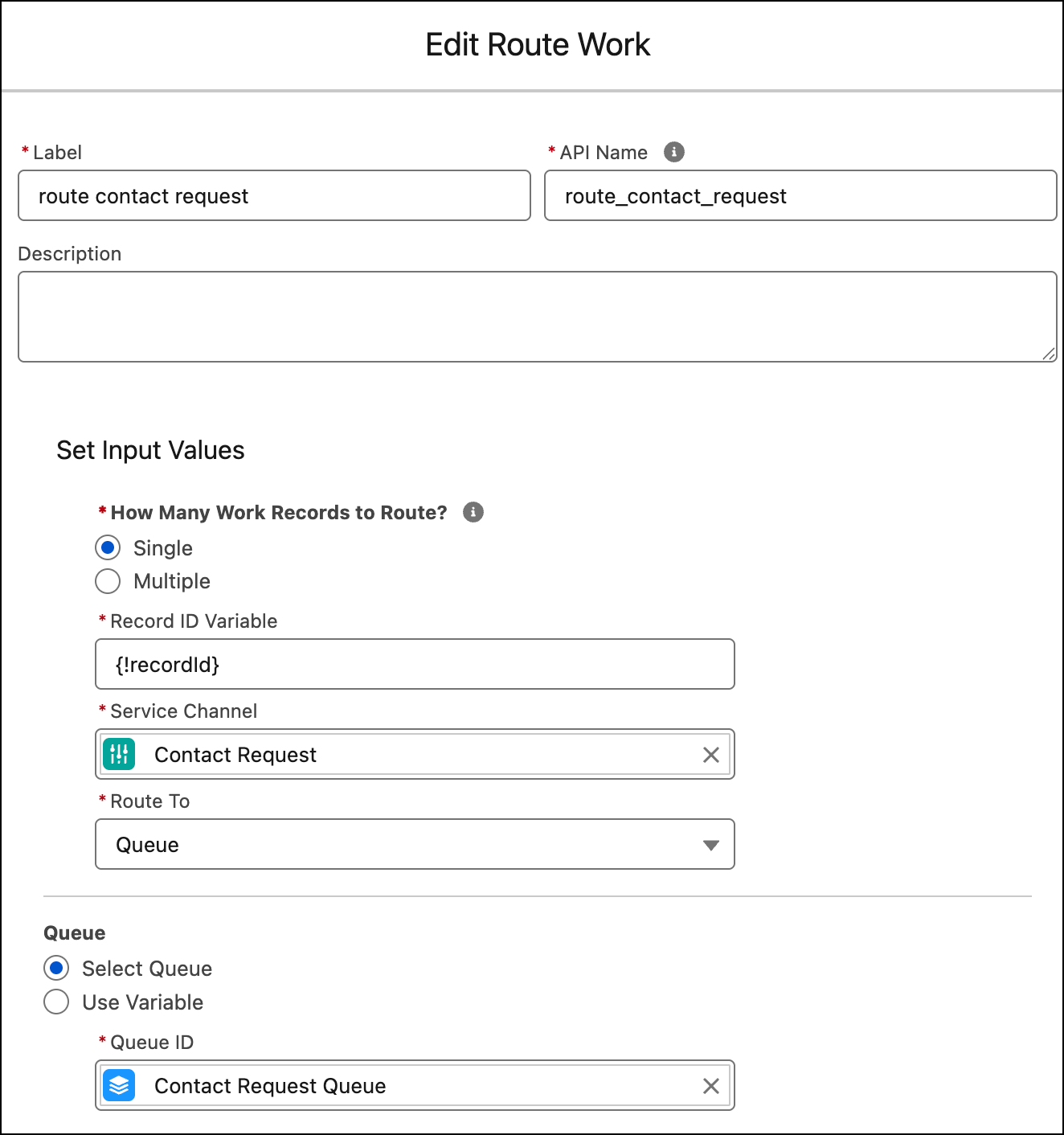
To configure the Route Work action:
- In the How Many Work Records to Route field, select Single.
- In the Record ID Variable field, enter {!recordId}.
- Select the service channel that routes contact requests.
- In the Route To field, select a destination.
- Save and activate the Omni-Channel flow.
- Return to the Quick Find box in Setup and enter Amazon Contact Centers.
- Select your Amazon Connect Contact Center.
-
Go to the Contact Center Channels section, and create a Contact Center Channel or edit an existing
channel.
-
To route callback requests to a specific queue, select Queue in
the Callback Routing Type field, and then enter the name of the Salesforce queue that you
want to route callback requests to.
Note If you route to a queue, there’s only one callback attempt. You can’t set a delay between attempts or number of retry attempts if the callback call isn’t connected.
-
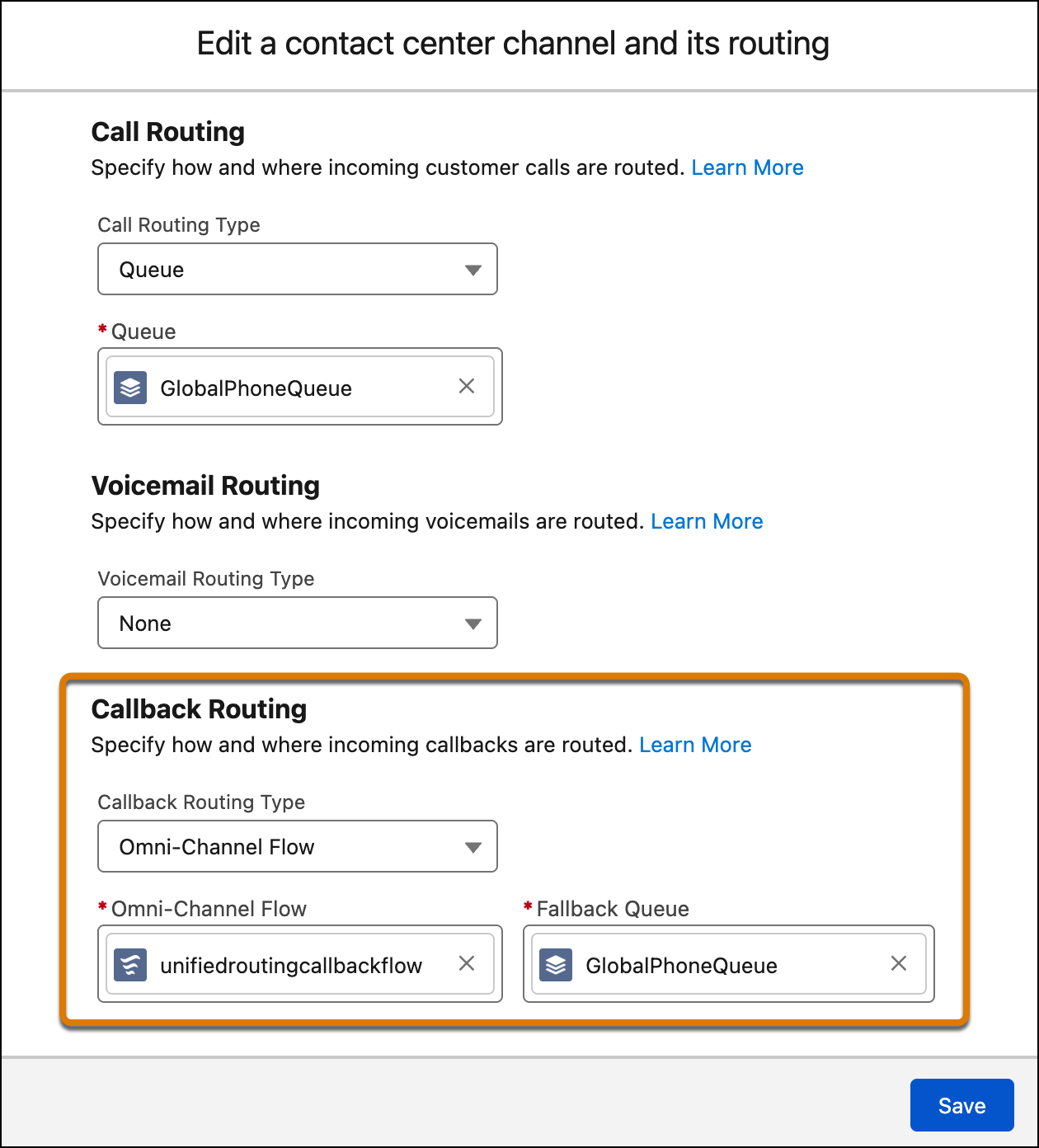
To route callback requests with an Omni-Channel flow, select Omni-Channel
Flow in the Callback Routing Type field, and then enter the names of the
Omni-Channel flow and fallback queue.
-
To route callback requests to a specific queue, select Queue in
the Callback Routing Type field, and then enter the name of the Salesforce queue that you
want to route callback requests to.
Set Up Callbacks in Amazon Connect
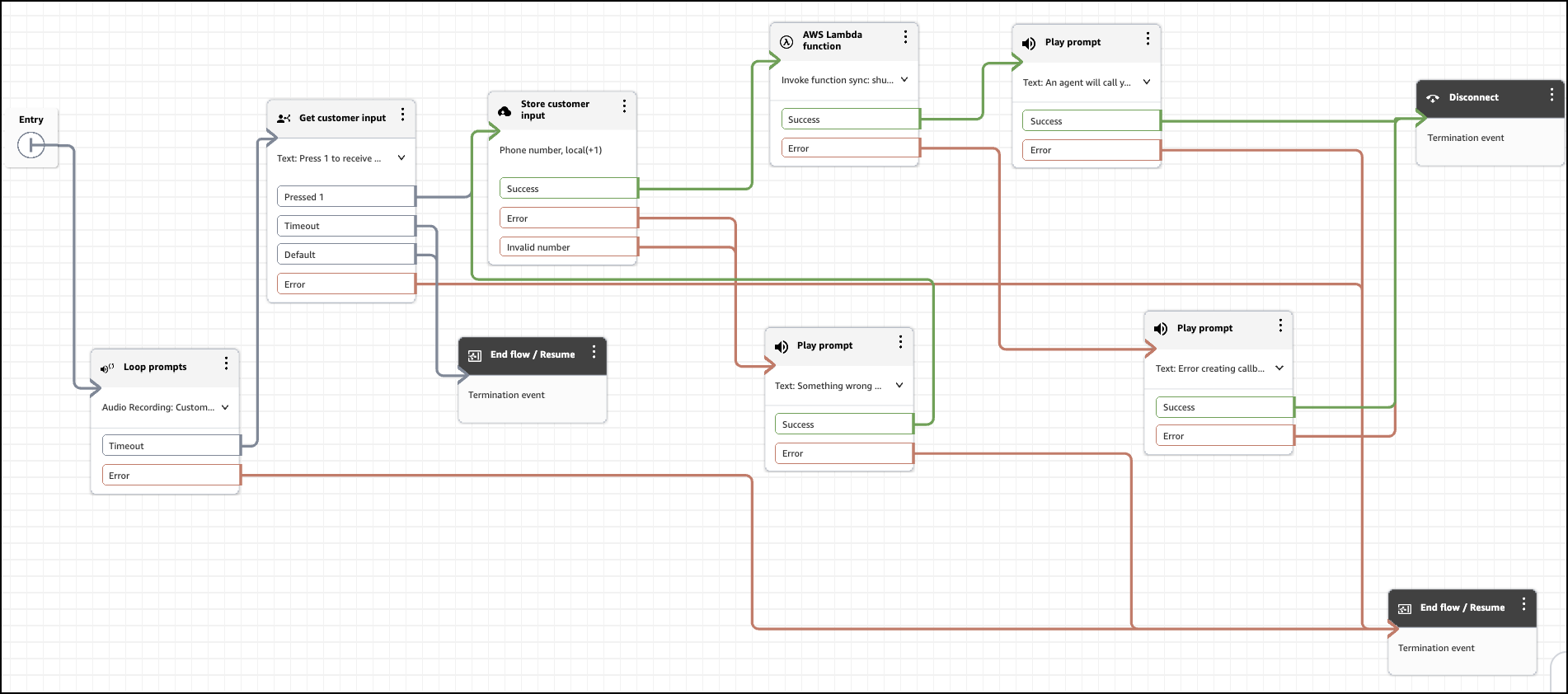
Finish callback setup in Amazon Connect. An Amazon Connect flow defines the interactive voice response (IVR) and asks the caller whether they want a callback after an interruption period has passed. If the caller opts for the callback, the IVR asks the caller to enter a callback phone number. This number gets passed into Salesforce by using the Request a Callback API.
- To go to the Amazon Connect Admin Dashboard associated with your contact center, navigate to the Contact Center Details section in Salesforce and click Telephony Provider Settings.
- In Amazon Connect, select Routing, then Flows.
- Open the Default Customer Queue flow or the flow in your setup that contains a Loop Prompts block while a customer is waiting in a queue.
- To give a customer the option to request a callback, add a Get Customer Input block with a condition that indicates whether a customer wants a callback. For example, call the customer back if they press 1.
- To request and store the callback phone number, add a Store Customer Input block and select Phone number in the Customer Input field.
- Optionally, to capture a customer’s scheduled callback time preference, use a Store Customer Input block or Get Customer Input block.
-
In the AWS Lambda function block, make these selections.
- In the Select an Action field, select Invoke Lambda.
- In the Function ARN field, select Set manually, and then select the InvokeTelephonyIntegrationAPIFunction for your contact center.
- In the Execution Mode field, select Synchronous mode.
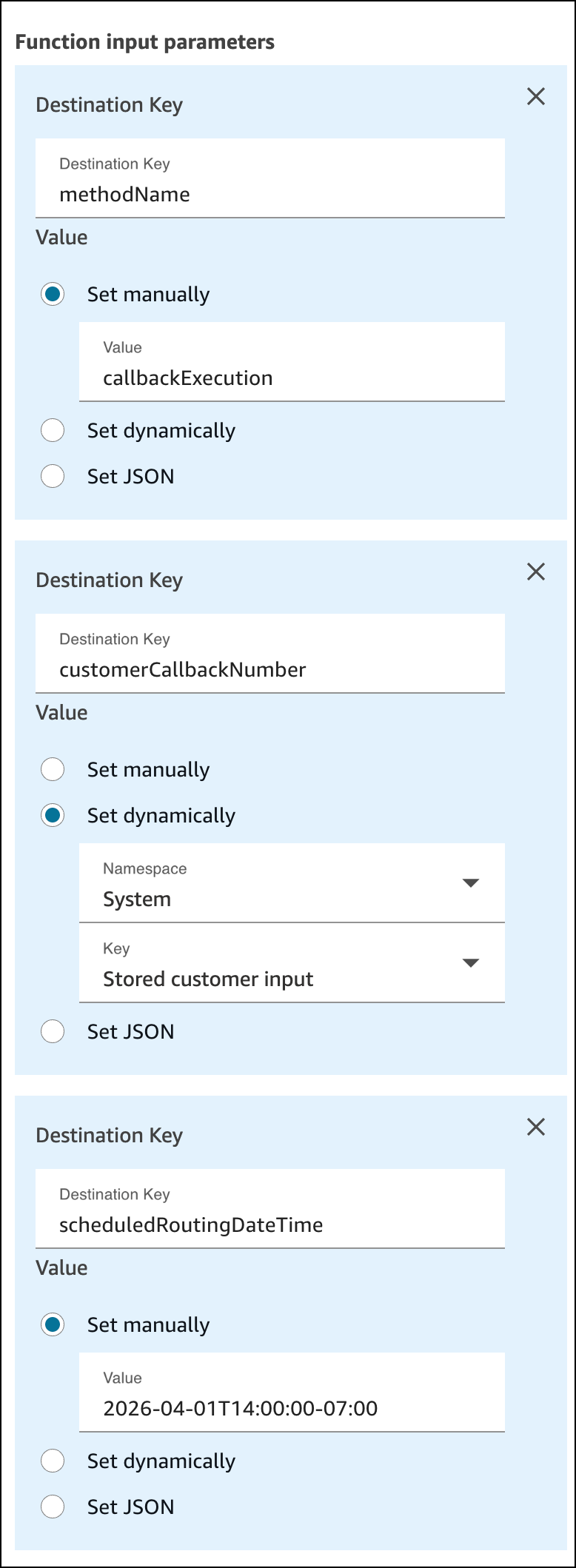
- Add Function input parameters. Name the first destination key methodName and manually set its value to callbackExecution.
- Name the second destination key customerCallbackNumber. For the second, select Set Dynamically, and then select System for the Namespace field and Stored customer input for the Key field.
-
Optionally, to schedule the callback, add a third destination key and name it
scheduledRoutingDateTime. For production implementation, select
Set Dynamically, and use the value gathered from the Store Customer
Input block or Get Customer Input block earlier in the flow. The value of the scheduled time
is a dateTime object in ISO 8601 format. For testing purposes the screenshot example shows
selecting Set Manually and setting to a specific time.
- Save and publish the flow.
Here’s an overview of an example flow configuration.
Configure Related Records
Salesforce creates the outbound callback’s Voice Call record with Contact Request ID set as the RelatedRecord ID. Don’t manually set the RelatedRecord ID to another value.
To allow reps to access the related contact request from an outbound callback voice call record, in Setup, go to Object Manager. Edit the Voice Call object’s page layout to include the Related Record field.
