You are here:
Transfer Voice Calls with Omni-Channel Unified Routing
Transfer voice calls from one rep to a rep, queue, or Omni-Channel flow. Transferring to a flow allows you to use complex business logic and skill-based criteria within the flow to determine the next transfer target. Use Salesforce for last-mile routing with Omni-Channel Unified Routing instead of routing calls with Amazon Connect.
Required Editions
This article applies to:
- Salesforce Voice with Amazon Connect
- Salesforce Voice with Partner Telephony from Amazon Connect
| View supported editions. |
| User Permissions Needed | |
|---|---|
| To view the Amazon Contact Centers page: | Customize Application AND Manage Call Centers |
| To create and manage a contact center: | Salesforce Voice Contact Center Admin |
Before you begin, Configure Omni-Channel Unified Routing for a contact center. For call transfers, your contact center must have a holding queue in Salesforce that’s mapped to a working queue in Amazon Connect.
Configure Call Transfers with Omni-Channel Flows in Amazon Connect
First, take the next steps to configure voice call transfers with Omni-Channel Unified Routing in Amazon Connect.
- To go to the Amazon Connect Admin Dashboard associated with your contact center, navigate to the Contact Center Details section in Salesforce and click Telephony Provider Settings.
-
In Amazon Connect, select Routing, then
Flows.
 Note
Note- New contact centers include access to Unified Routing sample flows directly in Amazon Connect. For preexisting contact centers, download JSON files from the Sample Salesforce Voice flows page in GitHub and import them into your Amazon Connect instance. Select Create flow to import instead of selecting a specific flow type. For instructions on how to import flows, see the Import/export flows page in the Amazon Connect Administrator Guide. After importing, make sure to update Invoke AWS Lambda function blocks by selecting a lambda that matches your contact center instance.
- These instructions reference sample Amazon Connect flows for admins setting up Omni-Channel Unified Routing in a brand new contact center. For a contact center with preexisting flows, interpret the steps and referenced flows according to your current setup.
-
Edit the Sample SCV Transfer Flow For Omni Routing Transfers flow or your preexisting
transfers flow according to your business needs.
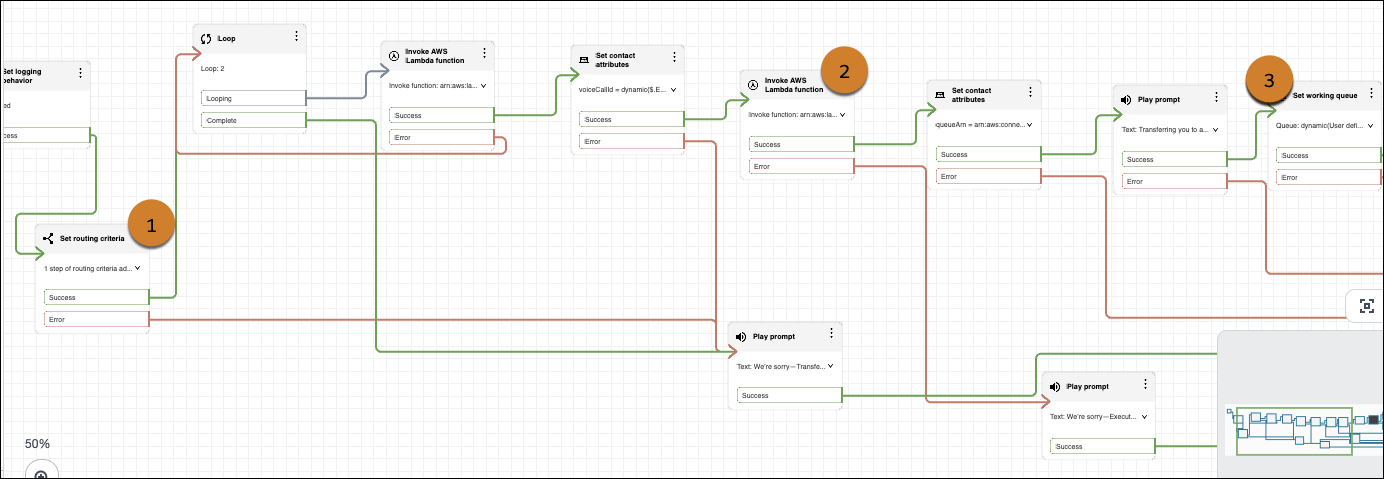
While Salesforce provides sample Amazon Connect flows as a reference, each organization usually adds unique business logic to their flow implementations. If you are updating an Amazon Connect flow to enable transfers with Omni-Channel Unified Routing, reference the example flow (Sample SCV Transfer Flow For Omni Routing Transfers) and keep these considerations and requirements in mind.
-
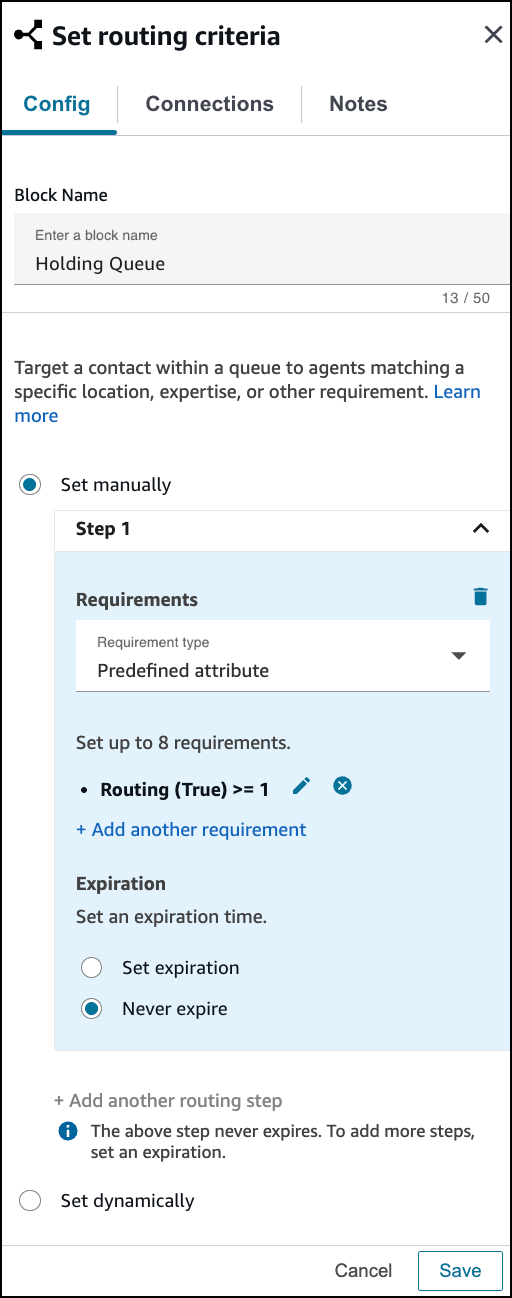
Include a Set routing criteria block (1) before the Invoke AWS
Lambda function block that invokes the routeVoiceCall method.
Note If you’re an existing Omni-Channel Unified Routing customer and you use the executeOmniFlow method to transfer to a rep or queue, we recommend migrating to the routeVoiceCall method. The routeVoiceCall method supports transfer to flow as well as transfer to rep and queue.
-
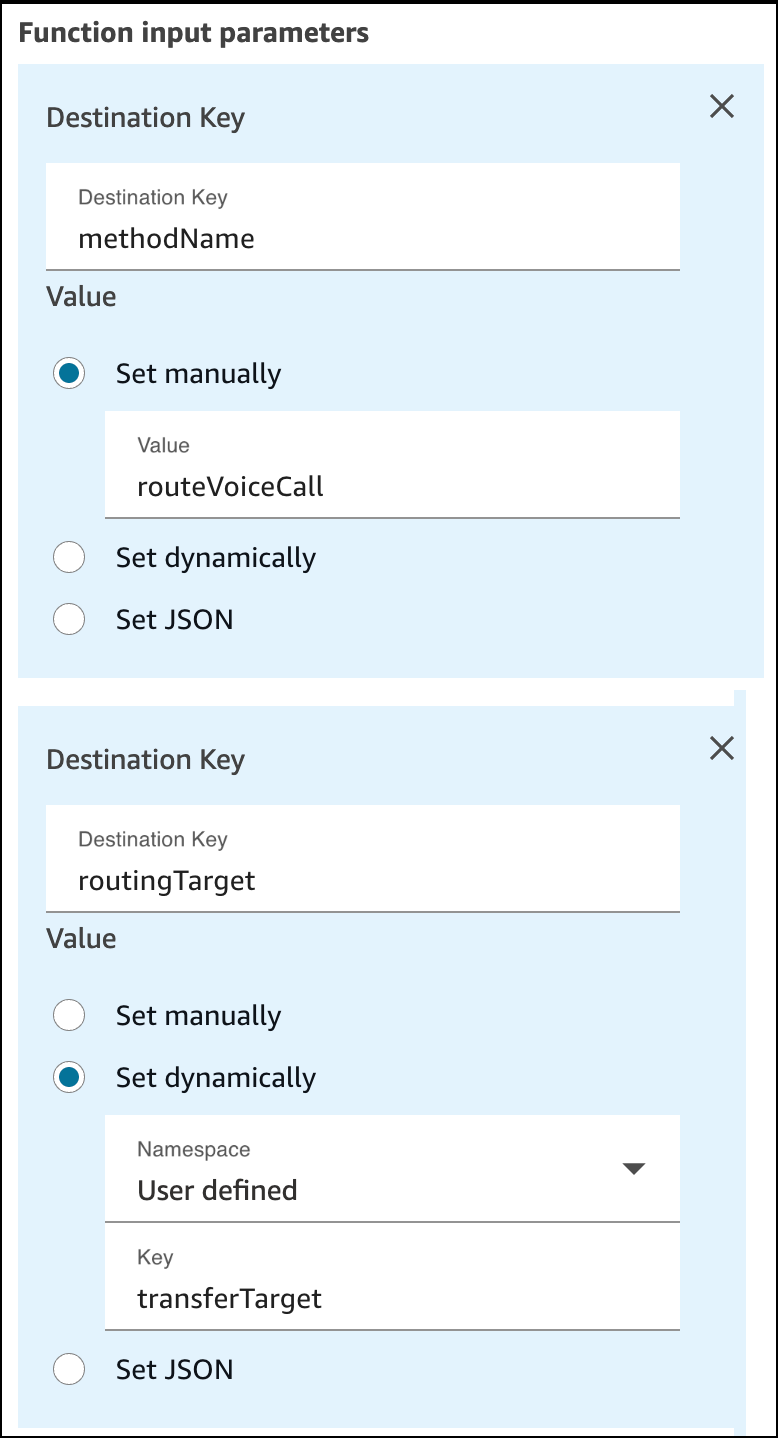
The Invoke AWS Lambda function block should call the routeVoiceCall method for the
InvokeTelephonyIntegrationAPIFunction for your contact center. The block should have a
Destination Key of routingTarget set
dynamically to a Namespace of User-defined and Key of
transferTarget. We automatically populate the transfer target value
based on the rep’s selected transfer target.
-
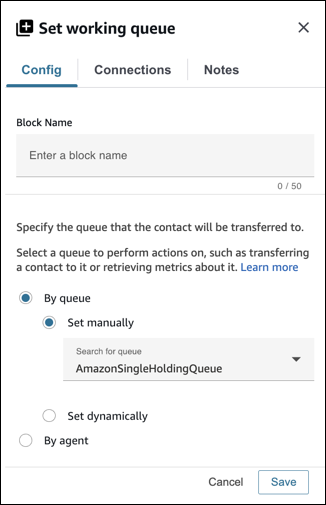
To use the holding queue approach that we recommend, the Set working
queue block (3) should be set By Queue manually to the
working (holding) queue.
-
Include a Set routing criteria block (1) before the Invoke AWS
Lambda function block that invokes the routeVoiceCall method.
- Save your work and publish the flow.
- In Amazon Connect, select Routing and then select Quick connects.
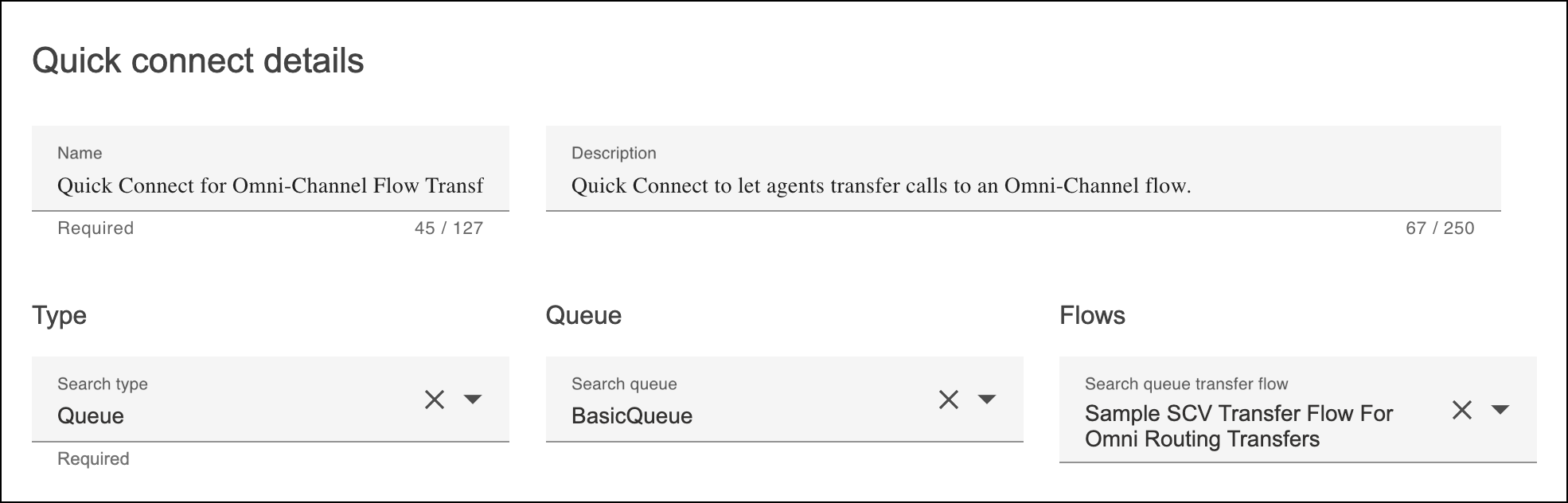
- Select Quick Connect for Omni-Channel Flow Transfers.
-
In Quick connect details, under Flows,
select the name of the Amazon Connect contact flow that you edited in Step 4:
Sample SCV Transfer Flow For Omni Routing Transfers.
- To configure external phone numbers to show up as transfer targets so reps can transfer voice calls to external contacts outside of your Salesforce org, add a quick connect for each external phone number and add these to the queues.
Finalize Call Transfers with Omni-Channel Flows in Salesforce
Configure the final steps for voice call transfers with Omni-Channel Unified Routing in Salesforce.
-
From Setup, enter and select
Amazon Contact Centers. Select your Amazon Connect Contact Center. -
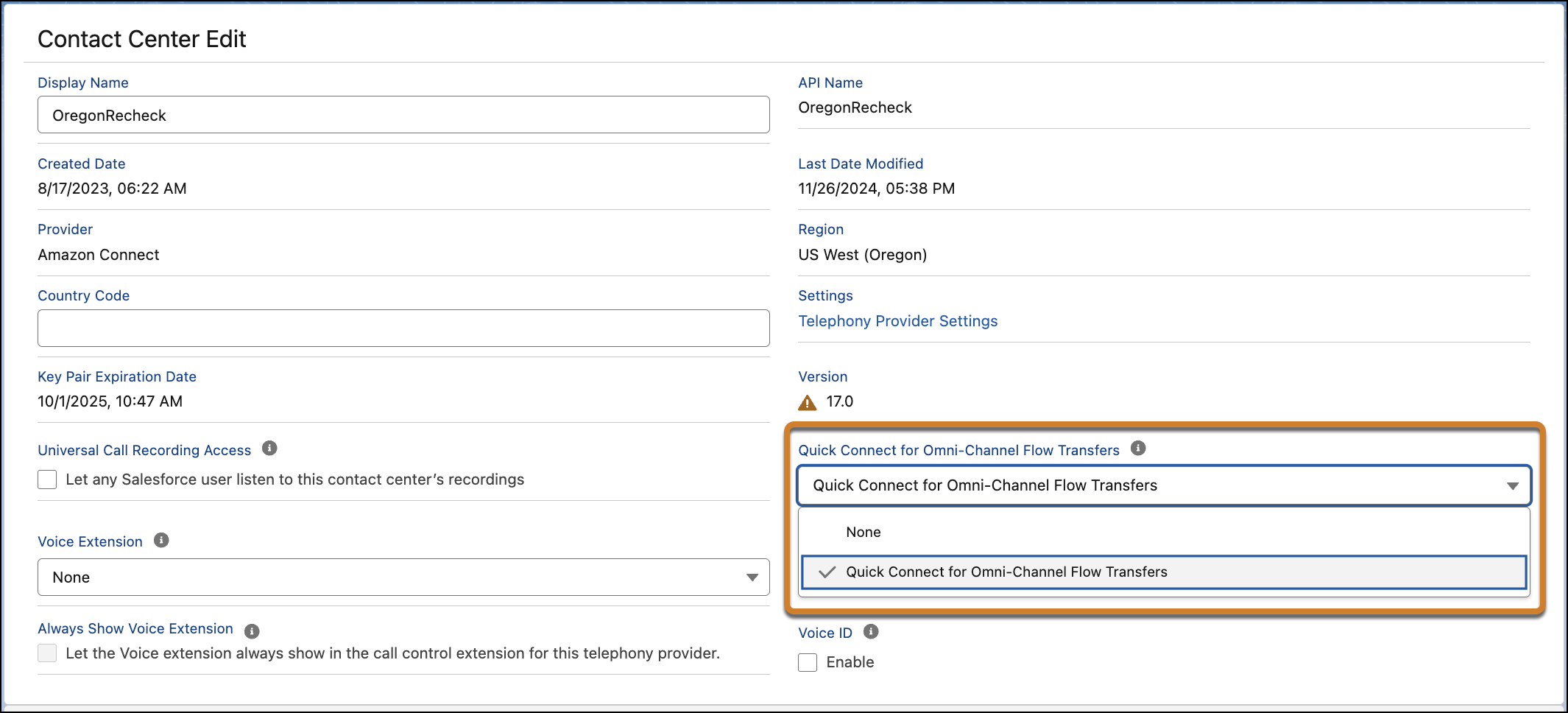
In the Contact Center Details section, in the Quick Connect for Omni-Channel
Flow Transfers field select the Quick Connect for Omni-Channel Flow
Transfers Amazon Connect quick connect.