
You are here:
Reach Your Customers Using High-Volume Outbound Calls
Don’t waste time or money on another tool to handle your outbound calls to prospects and customers. Instead, contact millions of people with Amazon Connect Outbound Campaigns. For example, use this feature to remind customers about service appointments, deliveries, and payments due. Or use it to market new products and services.
Required Editions
This article applies to:
- Salesforce Voice with Amazon Connect
- Salesforce Voice with Partner Telephony from Amazon Connect
| View supported editions. |


- Enable High-Volume Outbound Calls
Before you can use High-Volume Outbound Calls in Salesforce Voice with Telephony Providers (formerly Service Cloud Voice), you must enable it in Salesforce and your Amazon Connect instance. - Create a Contact Flow to Transfer High-Volume Outbound Calls
When a human answers your outbound call, transfer the call to a rep. To set up the transfer, create a contact flow in Amazon Connect. - Create an Autolaunched Flow to Make the Calls
To make the outbound calls, create an autolaunched flow that calls each phone number in a list. To call a number, add an SCV Outbound Call action to the flow. To perform the action on each phone number in the list, add a Loop element to the flow. - Get the Phone Numbers and Start the Flow
Get the list of phone numbers to call, and then trigger the autolaunched flow that makes the outbound calls. Set up this process using whatever method you prefer. For example, you can set up this process using an Apex class, the Marketing Cloud Engagement API, or a third-party API.
Enable High-Volume Outbound Calls
Before you can use High-Volume Outbound Calls in Salesforce Voice with Telephony Providers (formerly Service Cloud Voice), you must enable it in Salesforce and your Amazon Connect instance.
- Verify that the outbound campaigns feature is available in your Amazon Connect region. See Availability of Amazon Connect services by Region: Outbound Campaigns.
- To make high-volume outbound calls, contact Amazon Web Services to increase the service quota for outbound campaigns based on your requirements. See Amazon Connect Service Quotas.
Create a Contact Flow to Transfer High-Volume Outbound Calls
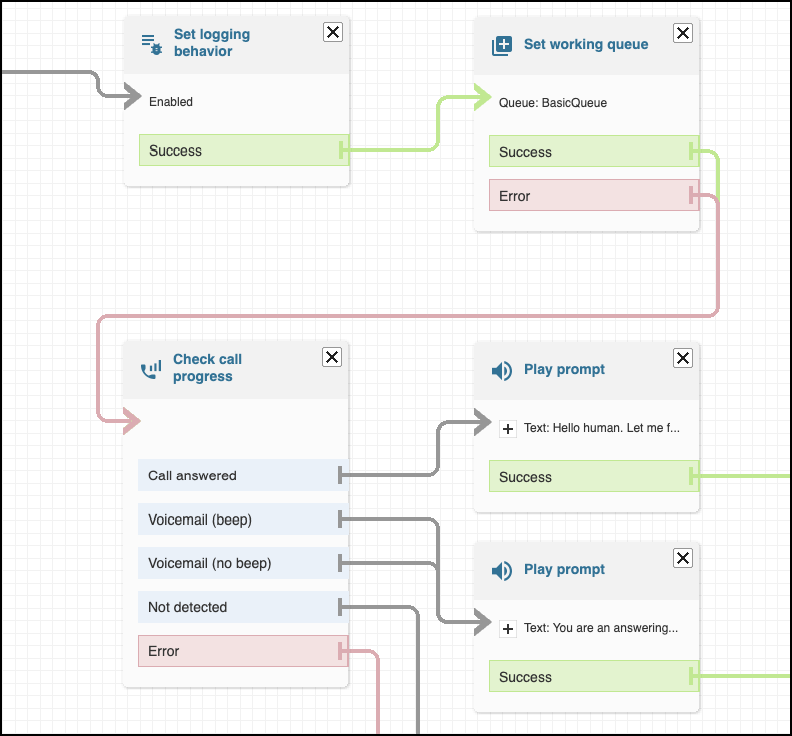
When a human answers your outbound call, transfer the call to a rep. To set up the transfer, create a contact flow in Amazon Connect.
For example, you can add a “Check call progress” block to the flow to check if an answering machine or a human picks up the call. If a human picks up the call, transfer the call to a rep via the specified queue. If an answering machine picks up the call, leave a message using the “Play prompt” block and then disconnect the call.
Create an Autolaunched Flow to Make the Calls
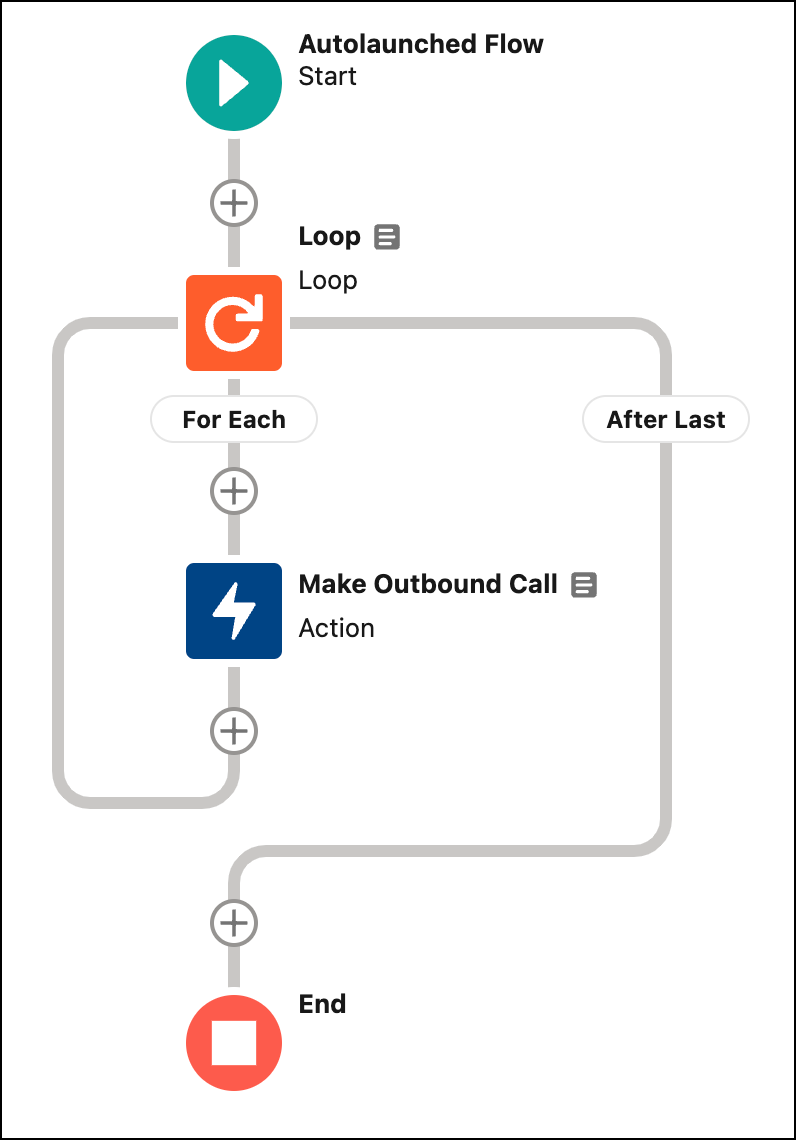
To make the outbound calls, create an autolaunched flow that calls each phone number in a list. To call a number, add an SCV Outbound Call action to the flow. To perform the action on each phone number in the list, add a Loop element to the flow.
- In Flow Builder, create the autolaunched flow.
-
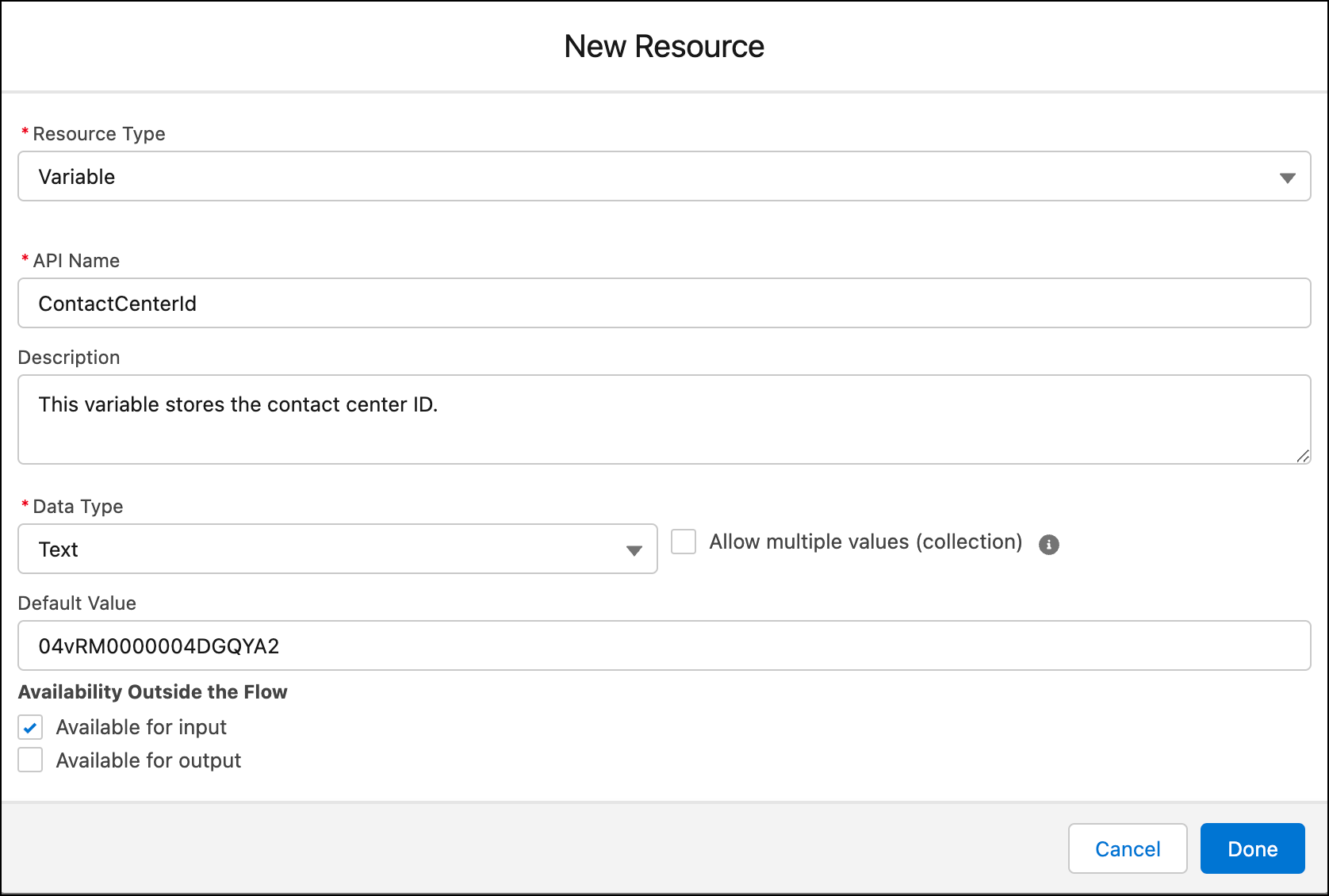
Create text variables for the required inputs. Mark each variable as available for input.
In the next step, you provide these input values.
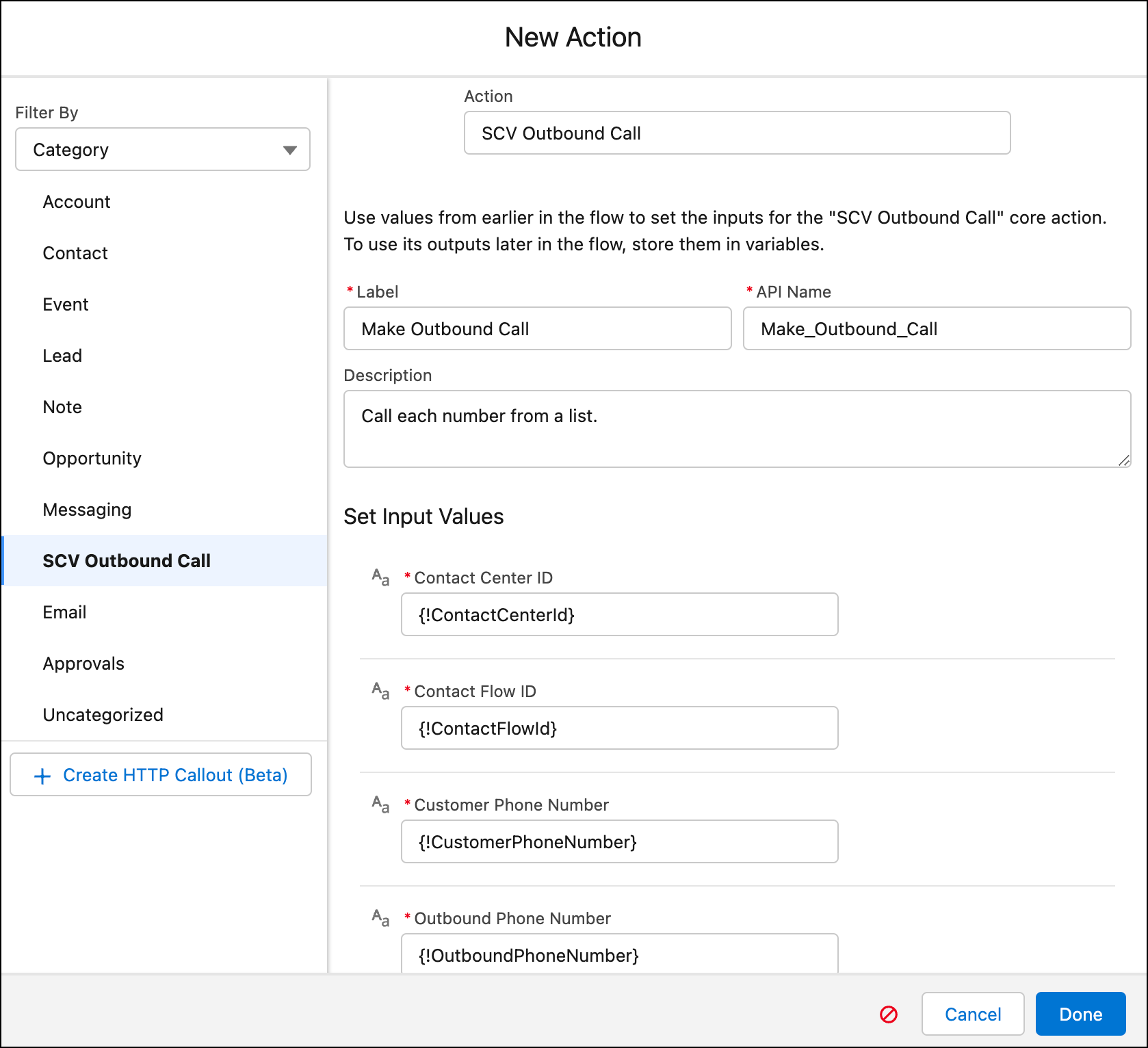
Input Description Contact Center Id ID of your Salesforce contact center. Get this value from Salesforce. Contact Flow Id The ID of the contact flow–not the full ARN. Get this value from your Amazon Connect instance. Use the ID of the contact flow that you created in the previous step. Customer Phone Number The phone number that you want to call. Outbound Phone Number The phone number used to make the outbound call, such as your Customer Service phone number claimed by your Amazon Connect Instance. Get this value from your Amazon Connect instance. Queue Id The ID of the queue to which you want to transfer these outbound calls. For the value, you can use the Salesforce queue ID or AWS Connect Queue ARN. If you provide the Salesforce queue ID, provide the queue ID, not the queue name. If you provide the AWS Connect Queue ARN, provide the full queue ARN. For example, create a variable for the contact center ID. For information about creating variable resources in a flow, see Flow Resources.
- To make multiple outbound calls, one for each phone number in the list, add a Loop element to the flow.
-
Add an SCV Outbound Call action to the flow. This action calls the provided phone number
and returns the contactId as output.
-
Save the flow.
Get the Phone Numbers and Start the Flow
Get the list of phone numbers to call, and then trigger the autolaunched flow that makes the outbound calls. Set up this process using whatever method you prefer. For example, you can set up this process using an Apex class, the Marketing Cloud Engagement API, or a third-party API.
To understand how to set up the process, see this Apex class. This class gathers the list of phone numbers, provides values for all expected flow input parameters, and then starts the flow to make the outbound calls.
Map<String, Object> params = new Map<String, Object>();
List<String> phoneNumberList = new List<String> {'<test_phone_number1>', '<test_phone_number2>', '<test_phone_number3>'};
params.put('customerPhoneList',phoneNumberList);
params.put('contactCenterID','04vxx0000004C92AAE');
params.put('contactFlowId','7f05b071-8991-4dd2-ae9c-c449bc360bce');
params.put('queueID','00Gxx000000s4dgEAA');
params.put('outboundPhoneNumber','+15555555555');
Flow.Interview.<FLOW_API_NAME> myFlow = new Flow.Interview.<FLOW_API_NAME>(params);
myFlow.start();
Make sure that the resource names of the input parameters in the SCV Outbound Call action in the flow match the names of the keys passed from this Apex class.
