
You are here:
Add and Remove Contact Center Users
After you create a contact center, you can add more users to it or remove users who no longer need access.
Required Editions
This article applies to:
- Salesforce Voice with Amazon Connect
- Salesforce Voice with Partner Telephony
- Salesforce Voice with Partner Telephony from Amazon Connect
| View supported editions. |
| User Permissions Needed | |
|---|---|
| To view the Amazon Contact Centers page: | Customize Application AND Manage Call Centers OR Salesforce Voice Delegated Contact Center Admin |
| To create and manage a contact center: | Salesforce Voice Contact Center Admin OR Salesforce Voice Delegated Contact Center Admin |
| To view the Partner Telephony Contact Centers page: | Customize Application AND Manage Call Centers OR Salesforce Voice Delegated Contact Center Admin |
| To create and manage a contact center: | Salesforce Voice Contact Center Admin (Partner Telephony) OR Salesforce Voice Delegated Contact Center Admin |

- Don’t use custom code to sync users.
- (For Salesforce Voice with Partner Telephony only) Salesforce and the partner telephony providers don’t automatically sync users. Manually create users and then add them to your telephony provider’s call center and the Voice contact center. To use single sign-on (SSO) to authenticate service reps, the username must be the same for both Salesforce and the telephony partner.
You can add reps who have the right permission set. If your org has multiple contact centers, each Salesforce user can be a member of only one contact center.
- Verify that each contact center user has the required permission set.
- From Setup, enter Contact Centers in the Quick Find box, then select Partner Telephony Contact Centers or Amazon Contact Centers, depending on your telephony model.
-
Click the contact center name for which you want to add users.
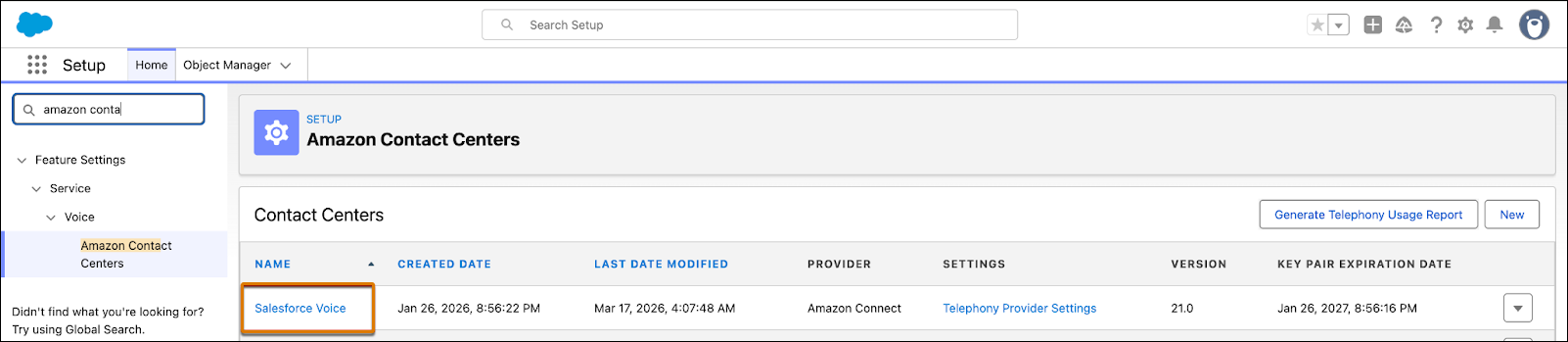
- In the Contact Center Users section, click Add.
-
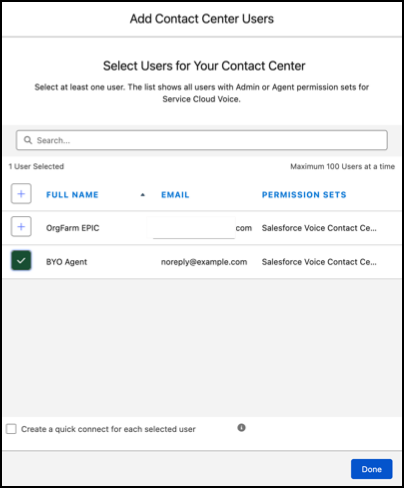
Select the users that you want to add to this contact center. You can add up to 100
users at a time.
The list shows only users who have the Salesforce Voice Contact Center Admin or Salesforce Voice Contact Center Rep permission sets and don’t belong to a call center. If you don’t see users that you want to add, make sure that they have the right permission sets and try adding them again. Sales Dialer permission sets don’t work.
-
To create quick connects automatically in Amazon Connect, select Create a
quick connect to each selected user.
Amazon quick connects let reps quickly dial other reps and view their availability statuses when they transfer calls.
- Click Done.

If a user no longer needs access to your contact center, remove them. Removing a user takes away their ability to access the contact center. It doesn’t delete the user or change their ability to access other parts of Salesforce.
- In the Contact Center Users section, select the user that you want to remove.
- Click Remove | OK.
- For partner telephony users, work with your telephony provider to remove the user from their telephony system.
Updating the alias of the Salesforce user breaks AWS single sign-on. To change the alias, remove the Salesforce user in the Contact Center detail page, change the alias, and then add the user back to the contact center.
