
You are here:
Create the Voice Call Record Page
The Voice Call record page shows the rep information about the call. Add Salesforce Voice (formerly Service Cloud Voice) components to the page so reps can easily access Voice features such as the softphone call features, related records, call recording, and call transcription.
Required Editions
This article applies to:
- Salesforce Voice with Amazon Connect
- Salesforce Voice with Partner Telephony
- Salesforce Voice with Partner Telephony from Amazon Connect
| View supported editions. |
| User Permissions Needed | |
|---|---|
| To create and save Lightning pages in the Lightning App Builder: | Customize Application |
As a best practice, configure the Voice Call record page so that reps see relevant information during the call and when looking at completed call records. We suggest arranging the components as described in the screenshot and table, but you might want to configure it differently based on your business processes. The screenshot shows a record page with the Header and Three-Column template.
You can use different page templates, but some components, such as the Call Recording Player and Enhanced Conversation, can fit only on medium and large areas on the template.
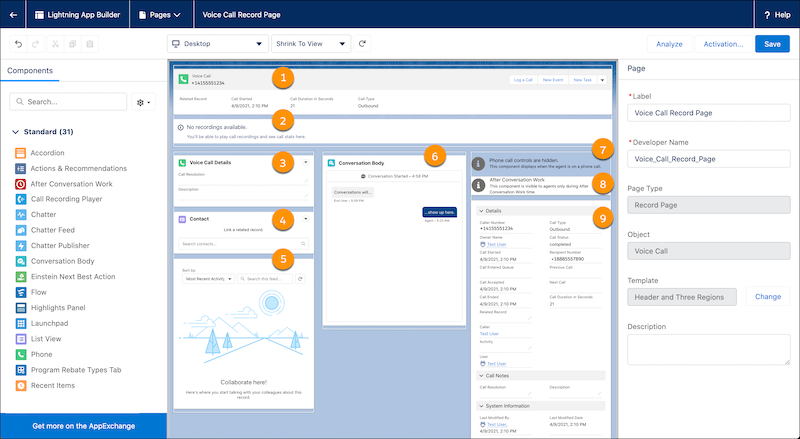

If you already have a Voice Call record page, you can edit it to add or reorganize these components. Navigate to the Voice Call record page, click the gear icon, and click Edit Page to open it in the Lightning App Builder.
- From Setup, enter Lightning App Builder in the Quick Find box, then select Lightning App Builder.
- Click New.
- Click Record Page, then click Next.
- For Label, give the page a name such as Voice Call Record Page.
- For Object, select Voice Call, then click Next.
-
In the Create a new Lightning page window, select a page template from the
Choose Page Template menu.
For example, the screenshot shows the Header and Three Regions page template.
- Click Done.
-
Select a component and drag it to the page. Repeat until you’ve added the components that
you want to your page.
 Tip To filter the component lists, enter the name of the component in the search bar.
- Select the Phone component onto the page, and drag it to the upper left side or upper right side of the page.
- Select the Call Recording Player component and drag it to the page.
- Select the Enhanced Conversation component and drag it to the page, and put it in a medium or large area of the page layout.
- If you plan to enable After Conversation Work in your voice call or messaging channels, drag the After Conversation Work component onto the upper left side or upper right side of the page.
- Optionally add more components to the page.
- Save your work, then click Activate.
- In the Activation window, select the App Default tab. Click Assign as App Default, then select Service Console, and click Next.
- In the Select Form Factor window, select either Desktop or Desktop and Phone, then click Next.
- Review the app default assignments, and then save your work. The record page is now available in the Lightning Service Console.
