
You are here:
Automatically Trigger an Action Based on Detected Keywords
Create a Conversation Intelligence rule to trigger an action when an support rep or customer speaks or types a keyword on the phone or in a message. Sample actions include sending notifications to a supervisor and an support rep, displaying recommendations to support reps, and running processes in the background. For example, create an action that recommends that the support rep offer a discount if the support rep says “cancel your service.”
Required Editions
| View supported editions. |
| User Permissions Needed | |
|---|---|
| To create Conversation Intelligence rules: | Customize Application, MAD user, Salesforce Voice Contact Center Admin, or Configure LiveMessage |
Keyword detection works when the support rep and customer are both on the call or participating in the message. For example, keywords aren’t detected until the support rep answers the inbound call or message.
Conversation Intelligence detects keywords using a case-insensitive, exact match method. For example, if the specified keyword is “Cancel your service,” the action triggers if the support rep says or types, “Are you sure you want to cancel your service?” The action doesn’t trigger if the support rep says, “If you cancel the service, this change takes effect immediately.”
When a keyword is matched, the recordId and a list of matched keywords are passed to the Next Best Action or autolaunched flow. To simplify the scenario where multiple keywords are used to generate a single Next Best Action recommendation or trigger a business process, pass the Conversation Intelligence rule as input to the Recommendation Strategy or autolaunched flow. To use the rule as input, enable the Pass the Conversation Intelligence Rule Name as Input to a Flow release update.
This feature is available in these channels: Voice, Enhanced Chat, enhanced Facebook Messenger, and enhanced WhatsApp.

- From Setup, in the Quick Find box, enter Conversation Intelligence Rules, and then select Conversation Intelligence Rules.
- To create a rule, click New.
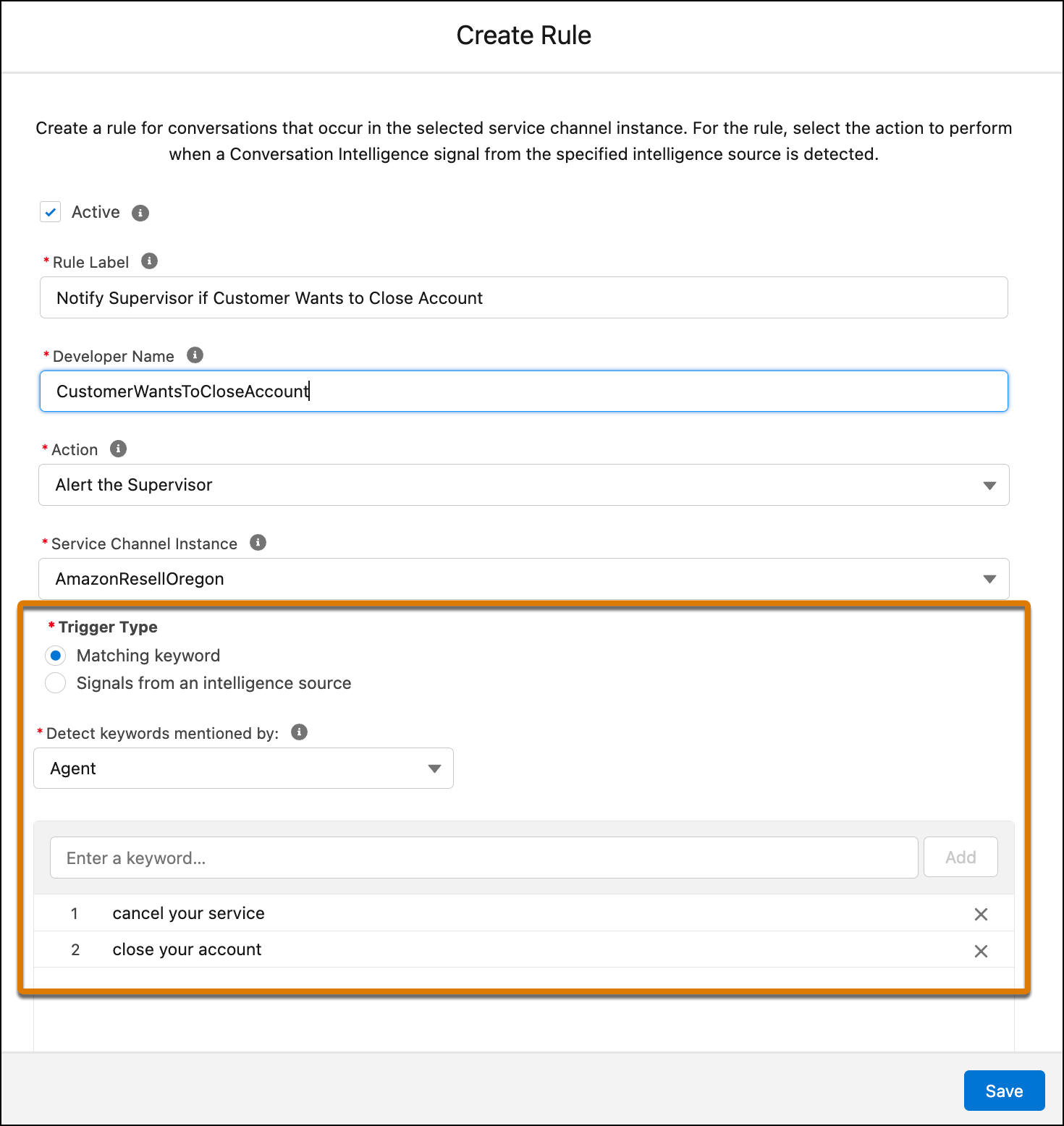
- Enter the rule details.
-
Select one of these actions.
Action Description Update Next Best Action Recommend the next best action to the service rep. See Set Up a Next Best Action. Run Autolaunched Flow If you choose Run Autolaunched Flow, you must select an autolaunched flow. Only active autolaunched flows appear in the selection dropdown. If an autolaunched flow is deactivated or deleted after creating the rule, the flow is removed from the rule. No action is taken until you update the rule with another flow. See Set Up an Autolaunched Flow. Alert Supervisor Send an alert to the supervisor. Alert Support Rep and Supervisor Send an alert to the support rep and the supervisor. -
In the Service Channel Instance field, select the service channel.
For matching keywords, you can select a Voice, Enhanced Chat, Facebook Messenger (enhanced only), and WhatsApp (enhanced only) service channel instance.
-
To trigger the action based on a keyword:
- In the Trigger Type field, select Matching keyword.
- In the Detect keywords mentioned by field, select Customer, Agent, or Either.
-
Add one or more keywords.
Tip You can enter up to 25 keywords, where each keyword has a 255-character limit. Keywords don’t support punctuation. Conversation Intelligence ignores punctuation when matching words.
- Save the rule.
