
You are here:
Use Voicemail Drop for Outbound Calls
Save time on outbound calls by automatically leaving pre-recorded voicemail messages. When you reach a user’s voicemail, you can end the call immediately, and proceed to your next work item. Salesforce Voice plays your default message for the user without disconnecting the call.
Required Editions
| View supported editions. |
Applies to these telephony models
- Salesforce Voice with Amazon Connect
| User Permissions Needed | |
|---|---|
| To record and use voicemails: | Use Voicemail Drops |
| To make calls: | Salesforce Voice Contact Center Rep |

You can manage your own library of pre-recorded messages. You can upload or record up to 10 voicemail messages. One message is always selected as the default. If you haven’t set a default recording, the first message is automatically selected as the default.
- From your profile, go to settings.
-
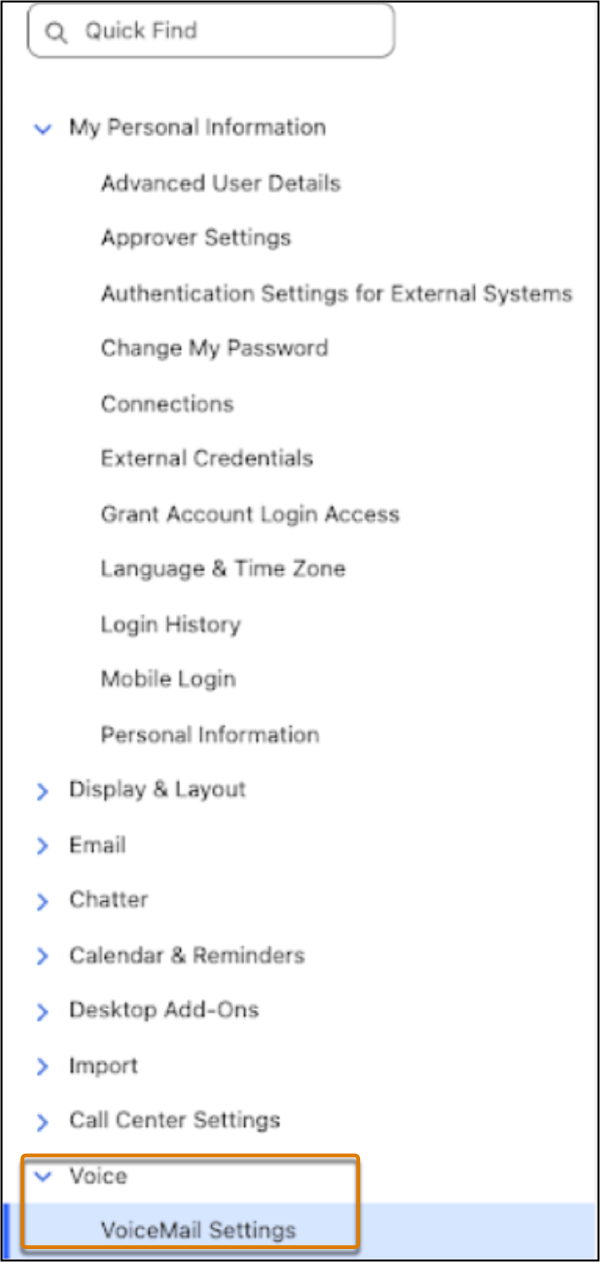
In the Quick Find box, enter Voice, and select Voicemail Settings.
-
To add a voicemail drop, click Add Voicemail Drop.
- Enter a name for the recording.
-
Upload a file or Record an Audio from your
preferred input device to create the voicemail message.
To upload an audio file, the audio file must be in .wav format with an 8 kHz sample rate and mono channel.
-
Save your changes.
Your voicemail messages are listed in the Outbound Voicemail Drops table. From here, you can reorder the list to change their priority.

Use the Set Default option to set a recording as the default message. Use the Download or Delete option to download or delete the recording.
If you created the S3 bucket and added it to your Amazon Connect instance manually, you must attach the following CORS configuration to the bucket:
[ { "AllowedHeaders": ["Content-Type"], "AllowedMethods": ["PUT"], "AllowedOrigins": ["https://yourdomain.lightning.force.com"], "ExposeHeaders": ["ETag", "x-amz-request-id", "x-amz-id-2"], "MaxAgeSeconds": 300 } ]While
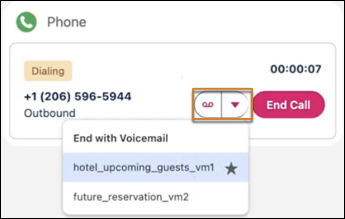
making a call from the service console, you can click the  icon to drop your default voicemail or select a more suitable message by using the
drop-down icon. Click End Call to end the call without dropping a
voicemail message. The sequence of recordings in the drop-down list is determined by their order
in the Outbound Voicemail Drops table.
icon to drop your default voicemail or select a more suitable message by using the
drop-down icon. Click End Call to end the call without dropping a
voicemail message. The sequence of recordings in the drop-down list is determined by their order
in the Outbound Voicemail Drops table.
Limitations of Voicemail Drop
Keep these limitations of voicemail drop in mind.
- You can’t delete a default recording. To delete your current default, first set a different recording as the default.
- You must access the Voice and Voicemail Settings tabs directly from a Lightning page. Otherwise, the uploads to the S3 bucket might be rejected due to Cross-Origin Resource Sharing (CORS) errors.
- To upload an audio file, the audio file must be in .wav format with an 8 kHz sample rate and mono channel.
