
You are here:
Create Facility Plans
Manage plans for your buildings and facilities as the COVID-19 crisis evolves. Using the guidance from your local government and health departments, define the workplace’s reduced density requirements. Use the arrival calculator to get a recommendation for how many people can safely come to the building at the same time.
Required Editions
| Available in: Lightning Experience |
| Available in: Enterprise and Unlimited Editions |
| Shift Management is available as an add-on license with Work.com and Workplace Command Center. |
| User Permissions Needed | |
|---|---|
| To schedule and assign shifts: | Workplace Shifts Shift Planner custom permission set |
| To manage facility plans and service territory locations: | Workplace Shifts Workplace Manager custom permission set |
Add Facility Plans—Facility plans apply to a location and its sublocations. Because the situation can change rapidly, plans cover one week. Define the reduced occupancy in the facility plan to set the planned occupancy in each sublocation. Create facility plans ahead of time so that your employees have adequate time to confirm the schedule.
- From the App Launcher, select Facility Plans.
- Select a location and a date. When you choose a date, we show the plan for the week that the day falls within.
- Click Show Facility Plan.
- Click Add Facility Plan.
- Select managed or self-service scheduling. Click Next.
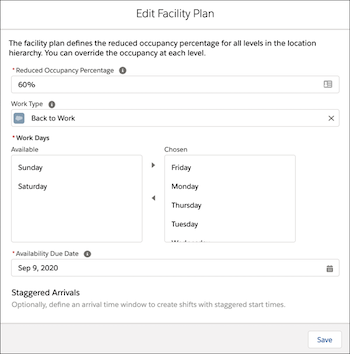
- For the Reduced Occupancy Percentage, enter the percentage of the location’s maximum occupancy that your workplace plan allows.
- Optionally, select a work type. If you use a custom work type, we recommend using a default shift length between five and eight hours. You can't choose a work type that creates service appointments automatically. Make sure that custom work types don't have Auto-Create Service Appointment selected.
- Select the work days at this location.
- Managed scheduling only: Set the availability due date. Employees can edit their availability until the response date. After the due date, they can review and confirm any assigned shifts.
-
Optionally, fill out the Staggered Arrivals fields.
Define a time window and occupancy per interval that’s used to calculate staggered shifts. If your location has entrances, lobbies, or elevators that are likely to get crowded, staggered arrivals help you manage the flow of employees.
For self-service scheduling plans, the staggering process runs when you generate shifts. We add arrival start and end times to the shifts, stored as Service Appointments. For managed scheduling plans, a scheduled job runs each day to stagger the confirmed shifts for the next day.
-
Save the facility plan.
- To calculate a recommended occupancy per arrival interval using the Arrival Calculator, enter the number of elevators at the location.
- Choose the approximate size of the average elevator.
- Set the average round-trip time for the elevators.
- Click Calculate. Make a note of the recommended value to use in the facility plan.
- To start the calculation over, click Change Inputs.
- Review Existing Plans—To see a list of recent facility plans, click Brows All Plans. Select a plan, then click Show This Plan.
- To open a specific plan, select a location and a date, then click Show Facility Plan.
- To open the plan, click Edit Facility Plan or View Facility Plan. You can't edit plans after shifts have been generated.
