
You are here:
Data in an Omni-Channel Queue-Based Workflow
Workforce Management analyzes past customer interactions to help you plan for the future. For Omni-Channel queue-based workflows, Workforce Management extracts interaction details from queue configurations and each queue’s work items.
Required Editions
| View supported editions. |
Data in a Workload or Intelligent Forecast
Your past customer interactions are the key ingredients in a workload. Because a forecast is based on a workload, past interactions also help Workforce Management predict future work volume.
For each interaction in your contact center, Workforce Management considers these factors.
- Where—The queue where the interaction occurred
- When—The interaction’s date and time
- Who—The queue member, an agent who’s assigned to the queue, or who participated
- How long—The interaction’s duration
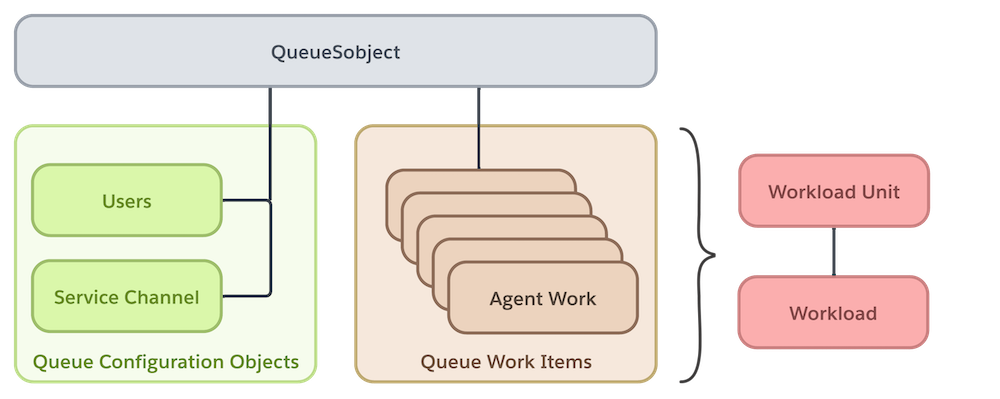
Here’s a simplified view of a Workforce Management configuration and the underlying object records required in a workload history or forecast.
| Object Name | Description |
|---|---|
| QueueSobject | You select one or more queues as inputs to a workload. When you set up Omni-Channel, you create queues and a routing configuration for each queue. |
| AgentWork | AgentWork records represent work items that are routed to queue members. Workforce Management uses this object to gather details about interactions, including timestamps, durations, and agents assigned to work items. Average handle times also are calculated from these records. When you create a workload or forecast, you choose the date time field such as AcceptDateTime, CreatedDateTime, or ClosedDateTime that determines which AgentWork records fall within the workload timeframe. If there are no AgentWork records within that range, there are no past customer interactions to learn from.  Note Omni-Channel uses AgentWork objects internally, so you can’t upload data into
these objects. |
| ServiceResource | Every service resource maps to a Salesforce user. When you set up a queue, you create service resources of type Agent, and add these users as queue members. Be sure that you assign the Workforce Engagement Agent permission set to these users. |
| ServiceChannel | Workforce Management identifies the service channel for a queue by matching the queue’s associated object types in QueueSobject to the service channel’s related entity. Although a queue can be associated with multiple object types, we recommend that only one object type per queue maps to a service channel, for accurate workload analysis. |
Aggregation
When you create a workload or a forecast, Workforce Management aggregates data about interactions in the specified date range. The Salesforce Analytics app accumulates volumes for past and future workloads and calculates average handle times. To speed time-to-results, the app analyzes multiple chunks of data simultaneously. For example, given multiple weeks of queue data, the app can analyze a week’s data in parallel with other weeks, or in parallel with other queues. When aggregation is completed, Workforce Management displays the results for the full timespan and selected queues. The results reflect the time zone of the service territory that you specify in the workload.
After initial creation, you can sync a workload to append new AgentWork records and update aggregation results with the latest interaction data. This allows you to keep workloads current without recreating them.
Workforce Management stores aggregation results in the Workload and WorkloadUnit objects. A Workload record is a time series that represents aggregated work volumes and average handle times. WorkloadUnit records contain counts for past or predicted interactions and average handle times for a time interval. You can access Workload and WorkloadUnit objects programmatically, but not through the object manager.
Data in a Capacity Plan
A capacity plan predicts the coverage required in a service territory in a given timeframe. It uses Workload records to retrieve forecasted work volumes and average handle times.
To create the capacity plan, Workforce Management considers work characteristics that you specify for each job profile.
- The maximum work units that an agent can handle at one time, and how the units are distributed between associated queues.
- A shrinkage percentage that represents nonworking time, such as breaks or training time.
- Service level agreement goals. You specify the percentage of requests to be completed in a given time period.
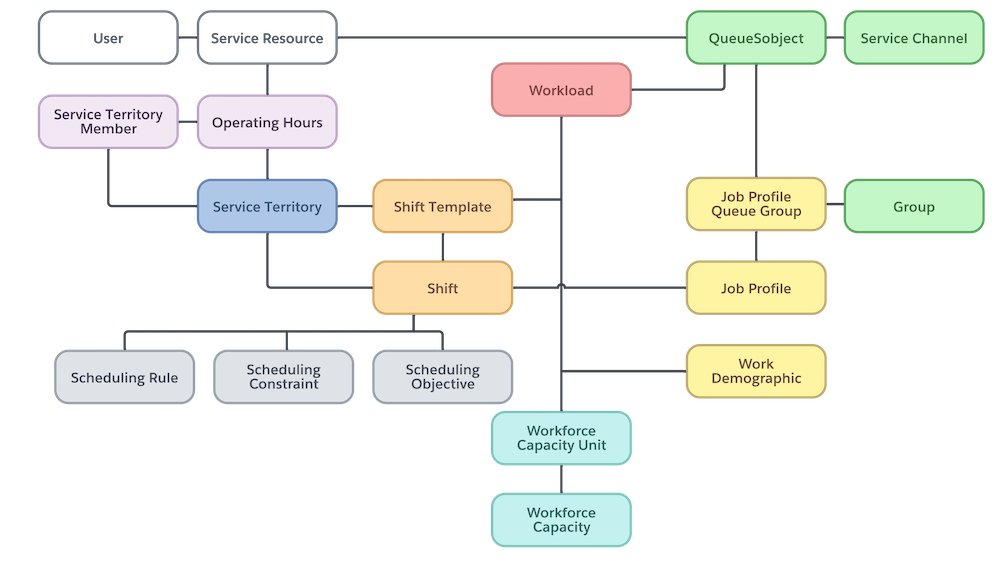
These characteristics are stored in JobProfileQueueGroup and WorkDemographic records. You use the Workforce Engagement Configuration App to map each job profile to one or more queues. A JobProfileQueueGroup record represents each mapping, which must be unique.
Before you create a capacity plan, define shift templates for the time periods when agents are at work in your call center. Then you can create a plan to predict how many shifts are necessary to meet service level goals in the plan's date range.
Workforce Management iteratively calculates staffing requirements using the forecasted volume, average handle times, job profile work characteristics, and shift templates. This simplified data model shows object records that are required to create a capacity plan.
| Element | Object and Description |
|---|---|
| Forecast results |
|
| Queue Details |
|
| Who (Agents) |
|
| Where |
|
| What type of expertise is needed |
|
| When work takes place |
|
Capacity plan results are available in the public objects WorkforceCapacity and WorkforceCapacityUnit. WorkforceCapacity records represent a time series that describes the capacity needed in the specified date range. WorkforceCapacityUnit records describe how many resources are allocated or needed for forecasted work within an interval.
Data Used in Intraday Management
Team leads can use real-time adherence to monitor when agents aren’t doing their assigned work. For example, if an agent is working on chats but is assigned to work on emails, the agent is considered out of adherence after a specified amount of time. A red out-of-adherence flag is added to the agent’s shift segment on the Team Management View of the Intraday Management dashboard. The agent is alerted via an error message in Agent Home.
To flag that an agent is out of adherence, two things must be true at the same time.
- The agent selected a service presence status in the Omni-Channel widget that doesn’t match the status associated with the agent’s assigned shift segment.
- The adherence threshold associated with the shift segment has passed. The adherence threshold is either 0, 5, 10, or 15 minutes long.
Behind the scenes, two systems are at work to determine when an agent becomes out of adherence.
- When an agent changes their Service Presence Status in their Omni-Channel widget, the system checks if it matches the Service Presence Status of their currently assigned shift segment.
- A cron job runs every 5 minutes to compare the agent’s Service Presence Status in their Omni-Channel widget to the Service Presence Status of their currently assigned shift segment.
In either case, the comparison yields these results.
Data Used in Shift Creation and Scheduling
If you create a capacity plan, you can create shifts in bulk directly from it. To add shifts in bulk, Workforce Management uses the capacity plan in a WorkforceCapacity record. It also uses shift templates and information about your call centers, queues, agents, and the work to be done.
The object records used in shift creation and scheduling are similar to records used in a capacity plan. This similarity exists because a capacity plan estimates the number of shifts needed but doesn’t create them.
Scheduling Criteria
The scheduling tools—batch assignment, get candidates, and mass shift update—identify service resources for shifts based on scheduling rules, constraints, and objectives. Scheduling rules and constraints impose hard limits when matching candidates to shifts. Objectives are guidelines that the scheduling logic considers.
| Object Name | Description |
|---|---|
| SchedulingRule | The scheduling logic uses scheduling rules to match agents to shifts. A Match Territory rule is always required. If you’re using a queue-based workflow, create a Match Queue rule. Scheduling considers a shift’s job profile and matches it to the queue for that job profile. It then assigns the shift to a service resource who’s a member of that queue. |
| SchedulingConstraint | Scheduling constraints limit when work happens and how much work is done. For example, a MaxWorkingHoursPerDay constraint with a Work Limit rule restricts how many hours an agent can work daily. You can set constraints on service resources or on service territories. |
| SchedulingObjective | Scheduling objectives apply business goals to the scheduling logic. For example, a scheduling objective of type Balance Shifts tries to balance the number of shifts in a time period across all agents. |
| ServiceResourcePreference | You can set a scheduling objective that considers a user’s preference for when they work. A Service Resource Preference record stores a user’s preferred operating hours. |

If you’re using a queue-based workflow, set a Match Territory and a Match Queue rule. Add an Availability rule to check if agents have shift assignments or absences, or if operating hours in their primary territory don't cover shift durations.
You can also create a Work Limit rule that restricts agents to a maximum of 40 hours per week. Define two scheduling constraints.
- Full-Time to set the maximum working hours per day to eight hours.
- Part-Time to set the limit to four hours per day.
On Service Resource records, specify the appropriate constraint for full-time and part-time agents.
Then set a Balance Shifts scheduling objective so that scheduling distributes shifts evenly across your agents within a timeframe, such as 15 days before and after a shift.
