Add or Edit Picklist Values
Add new values or rename existing values in a custom picklist from the fields area of an object. If the picklist uses a global picklist value set, you can change its values only by editing the global value set. Your changes affect all picklists that inherit their values from that global value set.
Required Editions
| Available in: both Salesforce Classic and Lightning Experience |
| Available in: All Editions |
| User Permissions Needed | |
|---|---|
| To change picklists: | Customize Application |

Note
You can view changes to picklist values in Setup
Audit Trail. To see the audit history: From Setup, in the Quick Find box, enter
View Setup Audit Trail, and then select View Setup
Audit Trail.
To modify Campaign Member Status picklist values, see the list of considerations at the end of this topic.
-
For Lightning Experience:
- From Setup, click the Object Manager tab. If you don’t see the Object Manager tab, in the Quick Find box, enter Objects, and then select Objects.
- Click the object name.
- Click Fields & Relationships.
For Salesforce Classic:- From Setup, in the Quick Find box, enter the name of the object, and then select the object from the menu.
- On the object page, select Add a custom field in objectname.
- Click the name of the picklist field to update.
-
In the Values section, next to a value, click Edit.
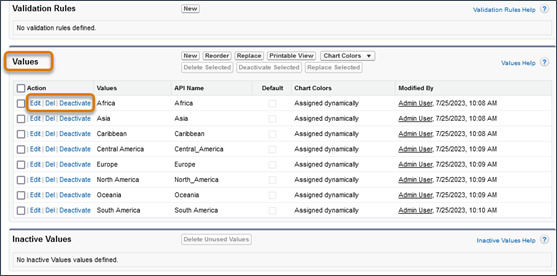
- Change the value’s name, and optionally make the value the default for the master picklist.
-
Assign a color to use in charts by clicking
 and then select how to assign colors to values.
- Assign fixed colors to all values assigns a fixed color to each value from the standard set of chart colors. The Chart Colors column shows the assigned colors. For example, if you want Closed Lost values always to be red in charts grouped by Opportunity Stage, assign red to that picklist value.
- Assign colors to values dynamically assigns colors when you
generate a chart. For example, manually assign colors only to the picklist values that
need a fixed color. The remaining values are dynamically assigned.
Chart colors aren’t available for multi-select picklists, currency picklists, or Task Subject, Event Subject, Knowledge Validation Status, and Opportunity Competitor picklists.
- Click Save. New or edited picklist values don’t sort automatically. Reorder the picklist values yourself.
- To require a picklist, click Edit at the top of the detail page, and then select Always require a value in this field in order to save a record.
- To change the picklist from unrestricted to restricted or vice versa, adjust the Restrict picklist to the values defined in the value set setting.
- To open an easy-to-print list of your picklist values, click Printable View.
Note Not seeing your new or modified picklist values on records? See Troubleshoot Missing Picklist Values.
Keep these considerations in mind when you add or edit picklist values.
- If you use record types, see Considerations for Creating and Updating Record Types and Picklists.
- For the Campaign Member Status picklist, edit values directly from campaign records rather than in Setup. See Campaign Member Statuses.
- For Ideas, setting the default value of the Categories or Status picklists doesn’t affect the default value on the Ideas pages.
- Renaming a picklist value removes it from any associated filter criteria. For example, if your report contains a filter where Lead Source equals Email or Web and you change the picklist value Web to Referral, your report filter changes to Lead Source equals Email. If the changed value was the only filter criterion, the filter remains but displays an error.
- If dashboard widget grouping relies on a picklist field that includes a fixed color value, dashboard themes don’t apply to the widget. Picklist values with fixed colors retain their assigned colors, while values with dynamically assigned colors use the default color palette.
- If your org uses the Translation Workbench and you change picklist values, let your translators know about the impact to translated values.
See Also
- Picklist Limitations
- Dependent Picklists
- Define Default Field Values
- Manage Inactive Picklist Values
- Replace a Picklist Value
- Deactivate, Reactivate, or Remove a Single Picklist Value
- Delete, Deactivate, Replace, or Activate Multiple Picklist Values
- Remove a Picklist Value
- Considerations for Creating and Updating Record Types and Picklists
- Protect Picklist API Names for Formulas and Integrations
Did this article solve your issue?
Let us know so we can improve!
