
You are here:
Edit Your Email Settings
Specify your preferred address and name for emails sent from Salesforce, add a professional signature, and select your email composer. You can also opt to automatically copy yourself on emails sent from Salesforce and subscribe to email alerts.
Required Editions
| Available in: Salesforce Classic and Lightning Experience |
| Available in: all editions except Database.com |
| User Permissions Needed | |
|---|---|
| To select an email composer: | Send Email |
- From your personal settings, in the Quick Find box, enter My Email Settings, then select My Email Settings.
- For Email Name, enter the name to use as the sender in outgoing emails.
-
For Email Address, enter the email address to use as the return email address on emails
that you send from Salesforce.
 Note A change to this field isn’t effective until you verify the change by clicking a link sent to the email address shown on the My Email Settings page. Your new email address appears on the My Email Settings page only after you verify the change through the link in the confirmation email and refresh the page.
 - To send a blind carbon copy (BCC) version of every email you send from Salesforce to your email address, select Yes for Automatic Bcc. Otherwise, select No.
-
For Email Signature, enter up to 1,333 characters to append to every email you send from
Salesforce.
The signature field can include HTML links. Add the
<a>tag with anhrefattribute that starts with https://. For example,<a href="https://www.example.com">My Company</a>Note Signatures aren’t added to emails that use Lightning email templates or email template builder templates. To include a signature in those emails, use Sender merge fields in the template. In Personal and Developer editions, a Salesforce-specific tag line is added below your personal signature on all outbound emails. -
In the Composer section, select an email composer.
- Salesforce Email Composer—Use the Salesforce email composer to send emails without leaving Salesforce. With this option, sent emails are logged in Salesforce and appear on the activity timeline. This is the default.
- Default Email Application—Leave Salesforce to use your computer’s default email client.
- In the Subscriptions section, select the subscription emails that you want to receive.
- Save your changes.
-
If you changed your return email address, verify the change via your previous
email.
Salesforce sends a confirmation email to the email address on the My Email Settings page. Your new return email address takes effect when you click the link in that email.
To resend the verification email for a change to your current return email address, from My Email Settings, click Resend Verification Email.
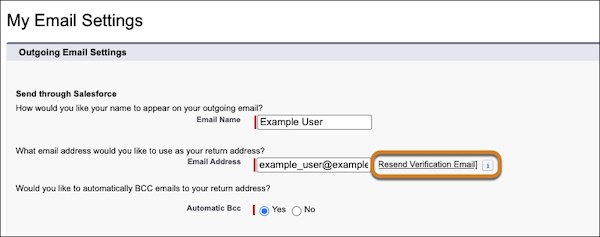
If you no longer have access to the email on the My Email Settings page, contact your Salesforce admin.
Did this article solve your issue?
Let us know so we can improve!
