You are here:
Sharing Records with Manager Groups
Share records up or down the management chain using sharing rules or manual sharing.
Required Editions
| Available in: both Salesforce Classic and Lightning Experience |
| Available in: Professional, Enterprise, Performance, Unlimited, and Developer Editions |
The role hierarchy controls the level of visibility that users have into your organization’s data. You can use manager groups to share records with your management chain, instead of all managers in the same role based on the role hierarchy. Manager groups can be used wherever other groups are used, such as in a manual share or sharing rule. But they can’t be added to other groups and don’t include site or portal users. Manager groups can contain Standard and Chatter Only users only.
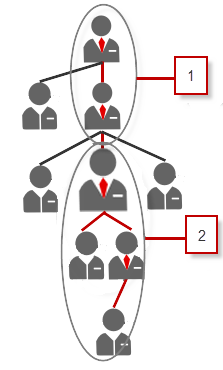
Every user has two manager groups—Managers Group (1) and Manager Subordinates Group (2)— where Managers Group includes a user’s direct and indirect managers, and Manager Subordinates Group includes a user and the user’s direct and indirect reports. On a sharing rule Setup page, these groups are available on the Share with dropdown list.
To find out who a user’s manager is, from Setup, in the Quick Find box, enter Users, then select Users. Click a user’s name. The Manager field on the user detail page displays the user’s manager.
To enable users to share records with the manager groups, follow these steps.
- From Setup, in the Quick Find box, enter Sharing Settings, then select Sharing Settings.
- On the Sharing Settings page, click Edit.
- In Other Settings, select Manager Groups and then click Save.

With manager groups, you can share records to these groups via manual sharing, sharing rules, and Apex managed sharing. Apex sharing reasons isn’t supported. For Apex managed sharing, include the row cause ID, record ID, and the manager group ID. For more information, see the Lightning Platform Apex Code Developer's Guide.
Inactive users remain in the groups of which they’re members, but all relevant sharing rules and manual sharing are retained in the groups.

