Check for API Versions
Not sure whether your org has Apex classes, Apex triggers, and Visualforce pages? Each has a list in Setup that includes the version number.
Required Editions
| Available in: both Salesforce Classic and Lightning Experience |
| Available in: all editions |
| User Permissions Needed | |
|---|---|
| To define, edit, delete, set security, and set version settings for Apex classes: | Author Apex |
| To run Apex tests: | View Setup and Configuration |
| To view Apex triggers: | View Setup and Configuration |
| To edit Apex triggers: | Author Apex |
- To see your Apex classes, from Setup, in the Quick Find box, enter Apex Classes, and then select Apex Classes.
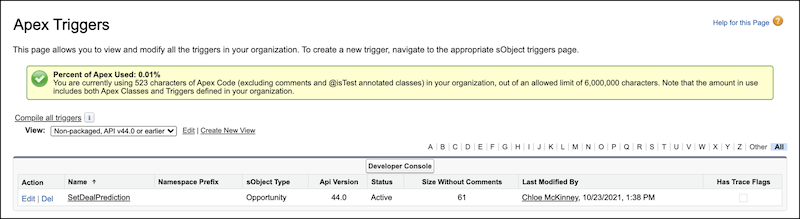
- To see your Apex triggers, from Setup, in the Quick Find box, enter Apex Triggers, and then select Apex Triggers.
- To see your Visualforce pages, from Setup, in the Quick Find box, enter Visualforce Pages, and then select Visualforce Pages.
The version number is shown in the Version field. If a list is empty, you don’t have any of those items.
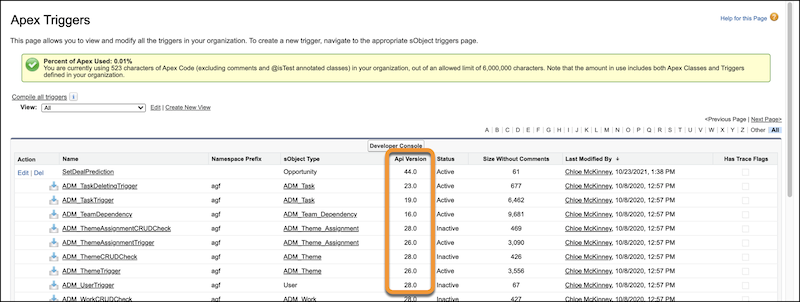
In this example, a user created the first Apex trigger in the list, SetDealPrediction, and the other triggers were included in a managed package. How can we tell? The other triggers have a Namespace Prefix, which indicates that they’re part of an installed package.
To quickly identify the items on API version 44.0 or earlier that you can modify, create a view. This example shows creating a filter for the Apex Triggers list. You can use the same process for the Apex Classes list and the Visualforce Pages list.
- Click Create New View.
- In View Name, enter a view name. For example, Non-packaged, API v44 or earlier.
- In View Unique Name, enter a unique name to identify this view for the API. For example, apex_triggers_nopackage_api44_or_earlier.
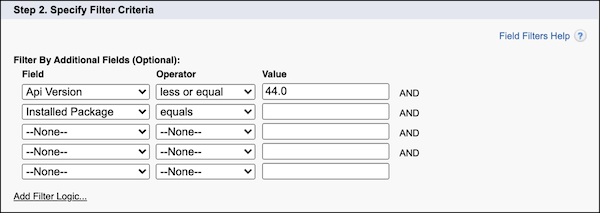
- On the first line, for Field, select Api Version. For Operator,
select less or equal. And for Value, enter 44.0.
On the second line, for Field, select Installed Package. For Operator,
select equals, and leave Value blank.If you’re a partner or developer who owns a managed package, for Value, enter your Installed Package name. Or you can filter on your Namespace Prefix.
- Optionally, select the fields to display in the list.
- In Step 4. Restrict Visibility, specify whether you want this view to be visible to only you, to all users, or to certain groups of users.
- Save your changes.
The list now shows items with an API version of 44.0 or earlier that aren’t part of an installed package. Or, if you specified an Installed Package in your filter, the list shows only items included in that package.