Errors, while unfortunate and hopefully uncommon, are a normal part of using
Salesforce, or any software system. Here’s an explanation of the various types of errors that
you can encounter, and various options for handling them.
Required Editions
Available in: Lightning Experience
First, there are “expected” errors, such as a validation error for a form field, or a feature
configuration that isn’t possible. When you encounter these kinds of errors, they’re usually
accompanied by explanations in the user interface. The explanation tells you what’s wrong, and
often how to fix it.
As a Salesforce admin, when you run into these errors, if the error message doesn’t provide
enough information, consult Salesforce Help.
Find Relevant Documentation in Salesforce Help
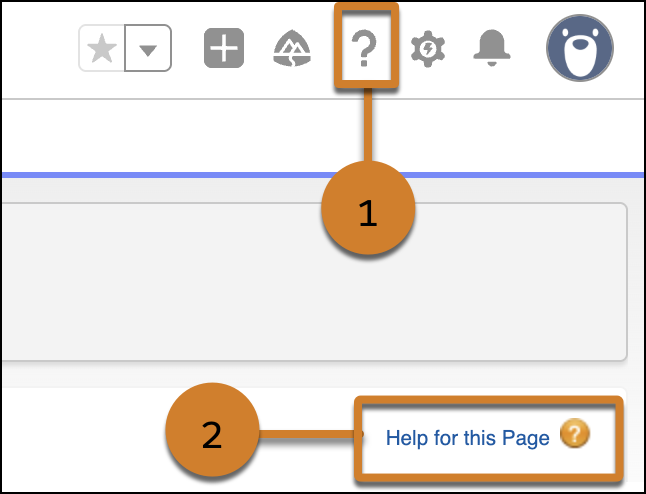
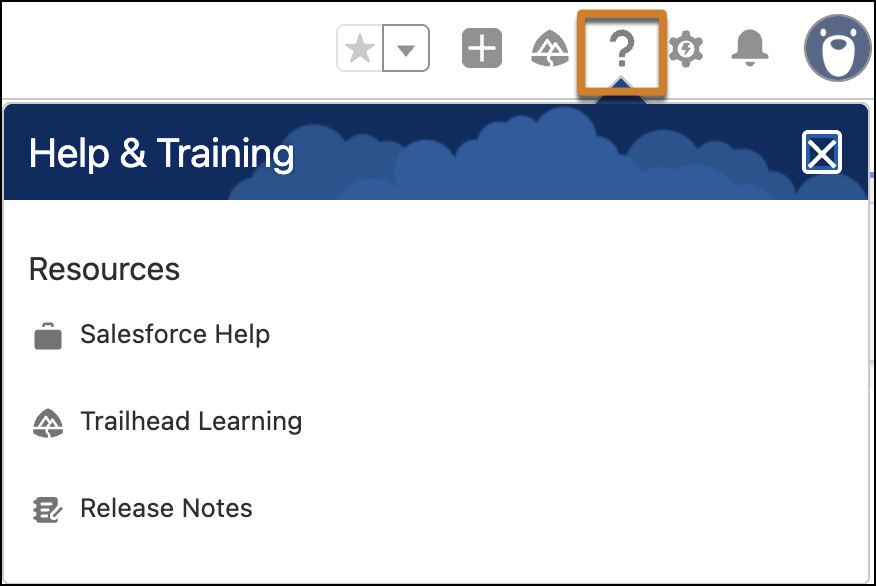
You can access Salesforce Help directly from the Lightning Experience header (1). The "Help
for this Page" option (2) is available in both Lightning Experience and Salesforce
Classic.
If you’re an end user, we encourage you to try Salesforce Help. But don’t hesitate to reach
out to your Salesforce admin if the answers aren’t easy to find.
Unexpected Errors
The second major type of error is unexpected, when Salesforce runs into a problem it can’t
provide guidance for. These errors are generally the result of programming errors, either
due to edge cases previously not anticipated, or errors in custom apps your organization has
created.
Lightning Experience presents these errors in two different ways, depending on how you
configure your org. Error
windows interrupt your work for all errors, while the Error Console
interrupts you only for fatal errors.
View Errors in Error Windows Before Spring ’26, and by default, Lightning Experience shows runtime errors in an error window.
View Errors in the Error Console When enabled, the Error Console captures and shows component and page errors without interrupting your work in Salesforce. The console collects non-fatal errors so you can see them when it’s convenient for you, and they don’t require interaction. Fatal errors still show in error windows that you must dismiss before continuing. The Error Console also collects fatal errors for later inspection.
Enable the Error Console in Setup Enable or disable the Error Console for your users. The console collects warnings and non-fatal errors so you can see them when it’s convenient, instead of being an interruption. The Error Console setting applies to all users of your org.
Did this article solve your issue?
Let us know so we can improve!
Loading
Salesforce Help | Article
Cookie Consent Manager
Cookie Consent Manager
General Information
Required Cookies
Functional Cookies
Advertising Cookies
General Information
We use three kinds of cookies on our websites: required, functional, and advertising. You can choose whether functional and advertising cookies apply. Click on the different cookie categories to find out more about each category and to change the default settings.
Privacy Statement
Required Cookies
Always Active
Required cookies are necessary for basic website functionality. Some examples include: session cookies needed to transmit the website, authentication cookies, and security cookies.
Functional Cookies
Functional cookies enhance functions, performance, and services on the website. Some examples include: cookies used to analyze site traffic, cookies used for market research, and cookies used to display advertising that is not directed to a particular individual.
Advertising Cookies
Advertising cookies track activity across websites in order to understand a viewer’s interests, and direct them specific marketing. Some examples include: cookies used for remarketing, or interest-based advertising.