You are here:
View Errors in the Error Console
When enabled, the Error Console captures and shows component and page errors without interrupting your work in Salesforce. The console collects non-fatal errors so you can see them when it’s convenient for you, and they don’t require interaction. Fatal errors still show in error windows that you must dismiss before continuing. The Error Console also collects fatal errors for later inspection.
When a non-fatal error or warning occurs, the Error Console appears in the bottom-right corner of the page.

You can keep on working in Salesforce. The Error Console continues to collect errors and warnings, remaining collapsed until you open it.
To learn more about errors and warnings, expand the console window.
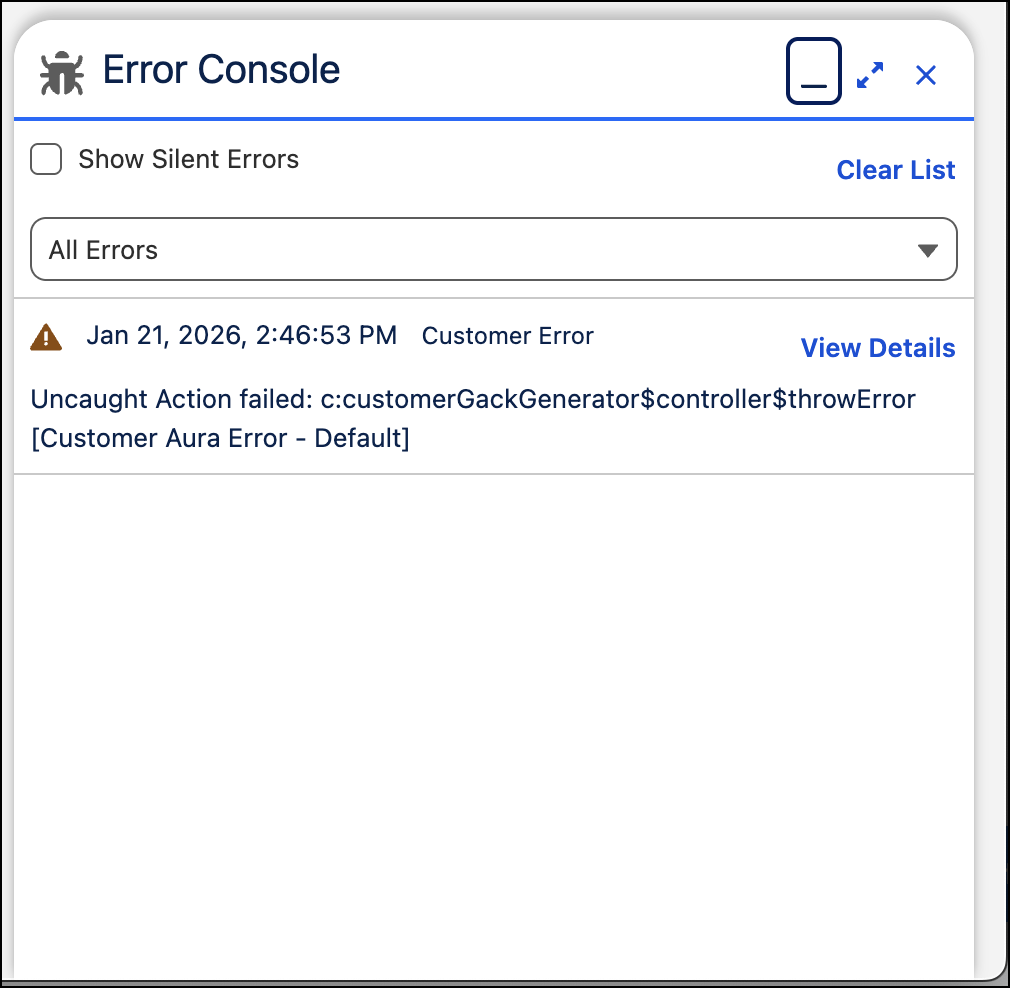
The Error Console shows all recent errors and warnings in a list. This list includes fatal errors, which also appear in an error window. Click View Details to see more technical details of the error. These details are the same as those that appear in the Technical Stuff section of error windows.
Error Console Visibility
The Error Console becomes visible only after the first error occurs. The Error Console shows errors for the current logged in user only. Admins can't see errors encountered by other users in the Error Console. When a user closes it, it stays closed until the next error occurs.
The Error Console is visible to all users in Lightning Experience, with behavior differences when debug mode is turned on.
When debug mode is disabled, only fatal errors trigger an error dialog that requires you to dismiss it. Alerts (warnings) and quiet (silent) errors are logged in the Error Console.
When debug mode is enabled, fatal errors and alerts trigger an error dialog that requires you to dismiss it. Quiet errors are hidden in the console unless you select Show Silent Errors.
Filter Errors
To filter the errors in the console, select one of these options in the dropdown menu.
- All Errors: Shows both customer errors and system errors
- Customer Errors: Shows errors from a customer component, which is associated with a unique namespace
- System Errors: Shows errors from a system component, which is a Salesforce-authored component in a namespace like force or lightning.
Errors are sorted by timestamp with the newest error first. By default, silent errors are filtered out from the console. When Show Silent Errors isn't selected, only fatal errors and warnings are shown.
To enable silent errors, select the Show Silent Errors checkbox. A silent error doesn't affect your interaction with the page and is quietly logged for diagnostics by Salesforce.
Error Types
Customer errors and system errors can have different severity levels.
- Fatal errors: Represented by red error icons, fatal errors are critical and can break functionality.
- Alert errors (alerts): Represented by yellow warning icons, alerts are recoverable errors that need user attention.
- Silent errors: Represented by gray info icons, silent errors are non-critical, diagnostic, or telemetry errors that are used for internal logic or background failures. Silent errors prevent error dialogs by suppressing low-level exceptions and background errors.
- Fatal errors
- Here are several example scenarios that trigger fatal customer errors.
-
- Apex exception in a custom controller: A custom Apex controller throws an unhandled exception or a custom LWC component calls an Apex method that returns an exception
- JavaScript runtime error in a custom component: A type error in customer's LWC JavaScript code or a null reference in the customer's Aura component controller
- App initialization failure: Salesforce can't load due to issues such as record layout failure
- Fatal system errors include:
-
- Salesforce platform internal error: The Lightning framework failed to load or the Aura engine failed to initialize
- Missing component definition: A required Salesforce system component missing or component hydration failure
- Alerts
- Here are several example scenarios that trigger warnings for customer errors.
-
- Server action errors resulting in AuraHandledException: A custom Apex throws AuraHandledException
- Validation error: An Apex validation fails with friendly message - GenericEventException: Server event processing error
- Default server error handling: A custom
@AuraEnabledmethod returns an error or a server-side validation failure from a custom component
- Alert warnings for system errors include:
-
- XHR creation failure: Unable to create XMLHttpRequest for server communication or a JWT token setting failure
- Network or communication errors: Server timeout or a connection issue with Salesforce
- Unavailable component: A requested system component isn’t loaded yet or a remote dependency fetch failed
- Silent Errors
- Here are several example scenarios that trigger silent customer errors.
-
- Handle lifecycle and initialization failures: An error occurs during the rendering phrase of initialization or after initialization
- Descriptor Normalization: An invalid string or configuration object caused the definition descriptor to fail normalization
- Here are several example scenarios that trigger silent system errors
-
- Hydration failure: An invalid hydration process occurs when linking the client-side JavaScript to server-rendered HTML and the execution of the exporter code fails
- Enforce internal XHR rules: An attempt is made to add an action that already exists in the queue or the number of XHRs is less than the required minimum
- Missing location change event: The event specified on the app for the location change event is missing
Usage Considerations
Keep the following guidelines and limitations in mind when you use the Error Console.
- Silent errors never open the Error Console but do refresh the list if the console is already open.
- The Error Console logs Aura and LWC errors only. Errors from Visualforce or Flow aren’t logged in the Error Console.
