Identify Object Records that You Want to Archive
Select an object and apply filter conditions. You can archive records that meet any condition, all conditions, or a custom set of conditions in Legacy Salesforce Archive.
Required Editions
| Available in: Developer, Enterprise, Performance, and Unlimited Editions. Requires the Salesforce Archive license. |
| User Permissions Needed | |
|---|---|
| To create, edit, and schedule Archive Policies: | Manage Archive Policies |

-
On the policy details page, click Configure Object.
If you don't see a standard or custom object in the Available Objects panel, check with your admin to make sure that you have the correct user permissions.
-
Under Available Objects, select an object.
Note You can't select the User object because User records can't be deleted.
- Enter an optional description for the object, and then click Next.
-
Under Apply Policy, select an option.
Conditional Logic Function Example To All Records Archives every record on the object. No filter is applied. -- When All Conditions Are Met Archives records that meet all of the conditions you set. Set a condition that the Account Source equals Web, and set another condition that the Created Date equals January 1. If a record's source is Web and the record was created on January 1, then the record is archived. When Any Condition Is Met Archives records that meet any of the conditions you set. Set a condition that the Account Source equals Web, and another condition that the Created Date equals January 1. If a record's source is Web or the record was created on January 1, then the record is archived. Custom Archives records according to boolean condition logic that you enter.
Limitations:
- If you add a cross-object query to your custom filter, you can't have multiple
queries for the same parent and child relationship. For multiple cross-object queries
on the same parent object, use custom logic and different child objects. You can't use
ANDorORlogic for queries on the same child object. For example, create cross-object queries in the same policy from the Contact object to theContact.PrimaryAccountandContact.SecondaryAccountchild objects. - When you apply a custom logic, filter conditions aren't supported on cross-object queries. While configuring the cross-object query, under Apply Policy, select To All Records.
Set the first condition as the Account Source equals Web, the second condition as the Created Date equals January 1, and the third condition as the Primary field equals True. Then set the conditional logic to capture your desired combination of these conditions, such as (1 OR 2) AND 3.
You can also filter for records that don't meet a certain condition by adding ! in your conditional logic. For example, (1 OR 2) AND !3 filters for records that meet either condition 1 or 2 and don't meet condition 3.
If you selected To All Records, the remainder of this task doesn't apply to your configuration.
- If you add a cross-object query to your custom filter, you can't have multiple
queries for the same parent and child relationship. For multiple cross-object queries
on the same parent object, use custom logic and different child objects. You can't use
- Click Add Condition, and then select values for the Object Field, Operator, and Criteria fields.
- Optionally, click Add Parent Condition.
Parent conditions check the value of a field that's up to five levels above in the object hierarchy to determine whether a record is archived. For example, set a parent condition that Case records are archived if the Case > Contact > Account > Billing Zip/Postal Code field has a value of 94105.
- Optionally, click Add Cross-Object Query.
Cross-object queries filter records on the current object using conditions that you apply to a related object. For example, you can archive records on the Account object where the Case child object doesn't have any new records in the last six months. In the Cross-Object Query for Case, add a condition with the object field set to Created Date, the operator set to is after, and the number of days set to 186. You can cross-object query to only one level down in the hierarchy of related objects.Note You can't apply cross-object queries to polymorphic fields, such as the Owner, Who, or What fields. For more information, see Understanding Relationship Fields and Polymorphic Fields.
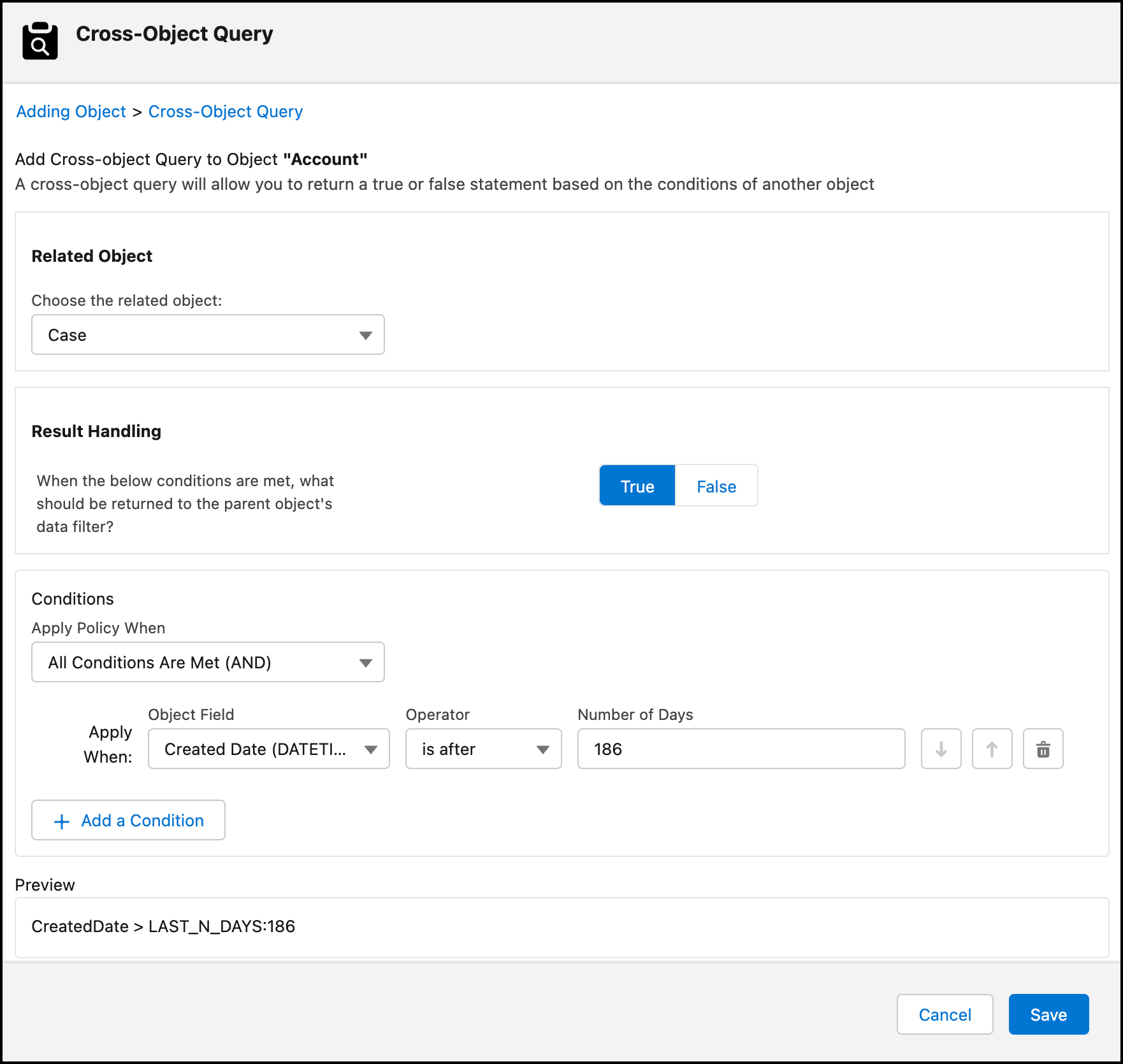
- From the dropdown list, select a related object to query. Next to the related object's name is the field that associates the two objects.
- Under Add Result
Rule, select True if you want records that meet your conditions to be
processed, or False if you don't want the records to be processed.
Note Records on the related object that you query are never processed by the policy.
- In the Filter Conditions section, follow the steps to set conditions for the related object.
- When you're finished adding filter conditions, click Next.
You're ready to define how related files and attachments are handled when their records become archived.
