You are here:
Apply Advanced Restore Filters in Salesforce Backup
Refine your search beyond the required filters and return a targeted set of records by selecting an object and setting filter conditions. You can process records that meet all conditions, any condition, or a custom arrangement of conditions.
- From the Restore & Export tab, after you select the required filters for your search, click Advanced Filters.
-
Under Filter Conditions, select the conditional logic that you want to use to
return a set of records that match those conditions.
Conditional Logic Function Example When All Conditions Are Met Applies your filter to records that meet all set conditions. Set a condition that the Account Source equals Web, and set another condition that the Created Date equals January 1. If a record’s source is Web and the record was created on January 1, then the record version appears in the search result. When Any Condition Is Met Applies your filter to records that meet any of the conditions you set. Set a condition that the Account Source equals Web and another condition that the Created Date equals January 1. If a record’s source is the Web or the record was created on January 1, the record version appears in the search result. Custom Applies your filter according to the boolean condition logic that you enter. Set the first condition as the Account Source equals Web, the second condition as the Created Date equals January 1, and the third condition as the Primary field equals True. Then set the conditional logic to capture your set combination of these conditions, such as (1 OR 2) AND 3.
You can also filter for records that don’t meet a certain condition by adding ! in your conditional logic. For example, (1 OR 2) AND !3 filters for records that meet either condition 1 or 2 and don’t meet condition 3.
-
Click Add a Condition, and then select values for the
Object, Operator, and Criteria fields.
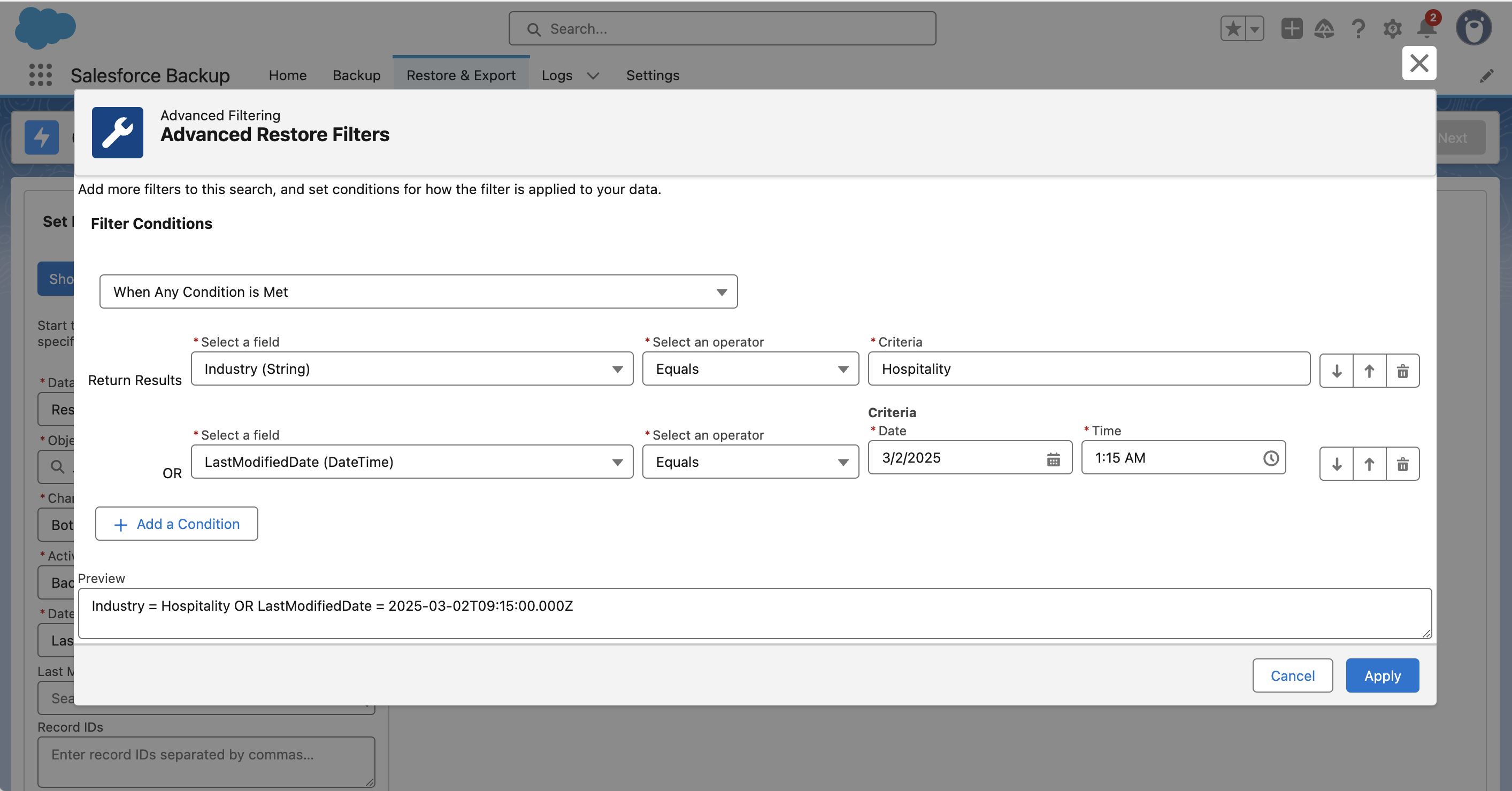
- When you’re finished adding filter conditions, click Apply.
You’re ready to view the record set from your backup that matches your advanced filter conditions.
