You are here:
Device Activation for Salesforce Orgs
Device activation is a security measure that helps prevent unauthorized access to your org. Device activation works by requiring extra identity verification for unfamiliar login attempts. For employees logging in to your org, device activation is automatically enabled and can't be turned off.
Required Editions
| Available in: both Salesforce Classic and Lightning Experience |
| Available in: Essentials, Group, Professional, Enterprise, Performance, Unlimited, Developer, and Contact Manager Editions |
- Overview
- Browser or Device Recognition
- Profile Login IP Ranges
- Org-Wide Trusted IP Ranges
- Strong Authentication Methods for Single Sign-On
- Behavior Differences for Non-Revenue Orgs
- Verification Methods
Overview
For UI logins in active production and sandbox orgs, device activation is required if Salesforce can't trust the login attempt by using one of these methods.

| Security Measure | Description | Device Activation Behavior |
|---|---|---|
| Strong authentication method | For username-password login, this means multi-factor authentication (MFA). For single sign-on (SSO), this means that the identity provider uses an authentication method that meets Salesforce security standards. For more information on accepted methods, see the Strong Authentication Methods for Single Sign-On section. | Logins that use a strong authentication method always skip device activation, regardless of browser or device recognition and IP ranges. |
| Browser or device recognition | Salesforce considers a browser or device to be recognized if it can be matched to information in the Salesforce Platform Cookies platform cookie. | Salesforce uses this measure to determine device activation behavior only in certain scenarios:
|
Narrow IP ranges
These limits apply to org-wide ranges, and separately to login IP ranges for a specific profile. |
You can secure your org with two types of IP ranges: Set Trusted IP Ranges for Your Org and Restrict Login IP Addresses in Profiles. | For narrow profile login IP ranges:
For narrow org-wide IP ranges:
|
Browser or Device Recognition
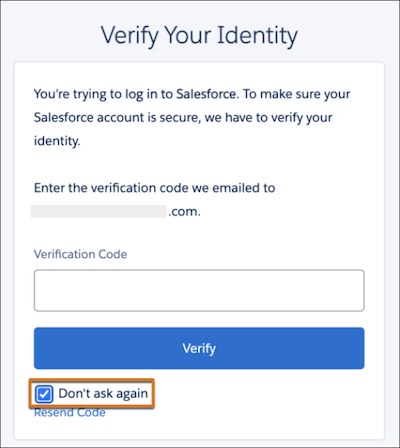
To determine whether a user's browser or device is recognized, Salesforce uses the Salesforce Platform Cookies. Salesforce creates this cookie the first time that a user completes device activation, as long as the "Don't ask again" checkbox is selected. This checkbox is selected by default. Here's the checkbox on the page where users verify their identity via email. For other verification methods, this page looks different, but still includes this checkbox.
Profile Login IP Ranges
Profile login IP ranges control whether a user can log in. If a user tries to log in from an IP address outside of their profile login range, Salesforce blocks the login, regardless of any other settings. However, if your IP ranges are too wide, users can still be challenged for device activation if they are within their profile range. The IP range limit applies to both profile login IP ranges and org-wide trusted IP ranges. For example, if the user’s profile login IP ranges are under the limit, but your org-wide trusted IP ranges exceed the limit, users can be required to complete device activation.
The IP range limit depends on the type of IP address.
| IP Address Type | Limit |
|---|---|
| IPv4 | 16,777,216 |
| IPv6 | 2^99 (2 to the power of 99) |
Private IP addresses from 10.0.0.0 to
10.255.255.255, as defined in RFC 1918 from the Internet Engineering Task Force, don’t count
toward the total.
Here's an overview of the login behavior for active production and sandbox orgs.
| IP Range Configuration | Login Behavior |
|---|---|
| Doesn’t exceed the limit for either org-wide trusted IP ranges or the profile's login IP ranges |
|
| Exceeds the limit for either org-wide trusted IP ranges or the profile's login IP ranges |
|
Here’s how Salesforce evaluates the login when profile login IP ranges are configured.
- Is the user's IP address out of range for their profile login IP ranges?
- Yes—the login is always blocked entirely, regardless of any other conditions.
- No—go to step 2.
- Does the login use a strong authentication method—MFA for username-password login or an
accepted authentication method for SSO?
- Yes—device activation is skipped.
- No—go to step 3.
- Are either the profile login IP ranges or your org-wide trusted IP ranges (if
configured) too wide?
- Yes—go to step 4.
- No—users can log in from their profile login IP range without device activation. As mentioned in step 1, logins from outside of the range are blocked entirely.
- Does Salesforce recognize the browser or device, based on the
sfdc_lv2cookie?- Yes—the device is already activated. Users can log in without completing identity verification.
- No—device activation is required. If users leave the “Don't ask again” checkbox selected, they won’t be challenged on subsequent logins, until the cookie expires.

sfdc_lv2 cookie. Upon the user's next login attempt,
Salesforce recognizes them based on this cookie, and they can log in without extra identity
verification.Org-Wide Trusted IP Ranges
Org-wide trusted IP ranges are less restrictive than profile login IP ranges. Users can still log in if they’re outside of the org-wide IP range. However, if IP ranges are too wide, users can still be challenged for device activation even if their IP address is trusted. The IP range limit depends on the type of IP address.
| IP Address Type | Limit |
|---|---|
| IPv4 | 16,777,216 |
| IPv6 | 2^99 (2 to the power of 99) |
Private IP addresses from 10.0.0.0 to 10.255.255.255, as
defined in RFC 1918 from the Internet Engineering Task Force,
don’t count toward the total.
Here’s how org-wide IP ranges work, assuming that the user’s profile doesn’t have login IP ranges.
| Org-Wide IP Range Configuration | Login Behavior |
|---|---|
| Doesn’t exceed the limit |
|
| Exceeds the limit | Device activation is required for an unrecognized browser or device (no
sfdc_lv2 cookie), regardless of whether the user's IP address is
within the org range or not. |
Here's the process that Salesforce uses to evaluate the login when org-wide ranges, but not profile login IP ranges, are configured.
- Does the login use a strong authentication method—MFA for username-password login or an
accepted authentication method for SSO?
- Yes—device activation is skipped.
- No—go to step 2.
- Are your org-wide trusted IP ranges too wide?
- Yes—go to step 3.
- No—go to step 4
- (If IP ranges are too wide) Does Salesforce recognize the browser or device, based on
the
sfdc_lv2cookie?- Yes—the device is already activated. Users can log in without completing identity verification.
- No—device activation is required, even if the user’s IP address is within the org’s trusted range. If users leave the “Don't ask again” checkbox selected, they won’t be challenged on subsequent logins, until the cookie expires.
- (If IP ranges don’t exceed the limit) Is the user within the org's trusted IP ranges?
- Yes—device activation is skipped.
- No—device activation is required if the user is out of the org’s range, even if Salesforce recognizes the browser or device.
sfdc_lv2 cookie. Upon the user's next login attempt, Salesforce recognizes
them based on this cookie, and they can log in without extra identity verification.Strong Authentication Methods for Single Sign-On
Device activation is bypassed for SSO if the login uses a strong authentication method. For strong authentication, you have two options.
- Use the Use Salesforce MFA for SSO (Salesforce Orgs).
- Work with your identity provider to use an authentication method that meets Salesforce security standards. Salesforce accepts a range of Authentication Context Class Reference (ACR) and Authentication Method Reference (AMR) values from your identity provider.
If you choose the second option, here's how Salesforce checks the authentication method during login depending on your SSO setup. In all cases, if your identity provider sends at least one strong authentication method, device activation is bypassed. For example, if your identity provider sends two authentication methods—a strong method and a weak method—users can skip device activation.
| SSO Configuration | How Salesforce Checks the Authentication Method | Implementation Steps |
|---|---|---|
| OpenID Connect SSO with Define an Authentication Provider | In the ID token: ACR or AMR claims. AMR claims are case-sensitive, but ACR claims aren’t. For more information, see the OpenID Connect specification. | Work with your identity provider to send an accepted ACR or AMR value. |
| OpenID Connect SSO with a Create a Custom External Authentication Provider | Work with your identity provider to send an accepted ACR or AMR value, and then
update your
|
|
| Security Assertion Markup Language (SAML) SSO | In the SAML response: ACR (AuthContextClassRef) or AMR values
in the AuthnContext statement. For AMR values, the attribute can be
named AMR or authmethodsreferences. ACR and AMR
values for SAML aren't case-sensitive. |
Work with your identity provider to send an accepted ACR or AMR value. |
For a list of accepted AMR and ACR values, see the accepted MFA values documented in this article.
Behavior Differences for Non-Revenue Orgs
In non-revenue orgs, such as trial orgs, device activation is required for an unrecognized browser or device, even if the user's IP address is configured as trusted in the org-wide settings or in the user's profile. This requirement is enforced even for narrow IP ranges.
| Security Measure | Device Activation Behavior In Non-Revenue Orgs |
|---|---|
| Strong authentication method (MFA for username-password login or accepted authentication method for SSO) | Logins that use a strong authentication method always skip device activation. The user is already using multiple factors to prove their identity. |
Browser or device recognition using the sfdc_lv2
cookie |
If there's no strong authentication method, Salesforce uses this measure to determine device activation behavior. |
| Org-wide trusted IP ranges and profile login IP ranges | For profile login IP ranges:
For org-wide IP ranges:
|
Verification Methods
Salesforce uses the highest-priority identity verification method available. Here's the order that Salesforce follows for verification methods:
- Built-in authenticator registered with the user’s account, such as Touch ID or Windows Hello
- U2F security key registered with the user’s account
- Push notification or location-based automated verification with the Salesforce Authenticator mobile app connected to the user’s account
- Time-based one-time password (TOTP) generated by a mobile authenticator app connected to the user’s account, such as Google Authenticator™
- One-time password (OTP) sent via SMS to the user’s verified mobile device
- OTP sent via email to the user’s registered email address
