Loading
Salesforce now sends email only from verified domains. Read More
Identify Your Users and Manage Access
Table of Contents
Select Filters

          No results
          No results
          Here are some search tips

          Check the spelling of your keywords.
          Use more general search terms.
          Select fewer filters to broaden your search.

          Search all of Salesforce Help
          Disconnect Salesforce Authenticator from a User’s Account (Salesforce Orgs)

          Disconnect Salesforce Authenticator from a User’s Account (Salesforce Orgs)

          Only one Salesforce Authenticator mobile app can be connected to a user’s account at a time. If a user loses or replaces the mobile device where Salesforce Authenticator was installed, you can disconnect the app from their account. If a user’s app stops working, reset it by disconnecting the app; then ask the user to restore the app’s connection to their account by re-registering it. It’s also a good security practice to disconnect all of a user’s verification methods if they leave your company.

          Required Editions

          Available in: both Salesforce Classic and Lightning Experience
          Available in: all editions
          User Permissions Needed
          To disconnect a user’s Salesforce Authenticator app: Manage Multi-Factor Authentication in User Interface or the System Administrator profile
          Note
          Note If a user is able to access their account, they can disconnect Salesforce Authenticator themselves. Direct them to Remove an Account from Salesforce Authenticator for guidance.
          1. From Setup, in the Quick Find box, enter Users, then select Users.
          2. Click on the user’s name.
            Don't click Edit next to the user's name. Make sure that you click directly on their name. How the name displays depends on your list view settings, but you can click on any name field that identifies the user, such as Full Name, First Name, or Last Name.
            Users page list view with user's Full Name highlighted.
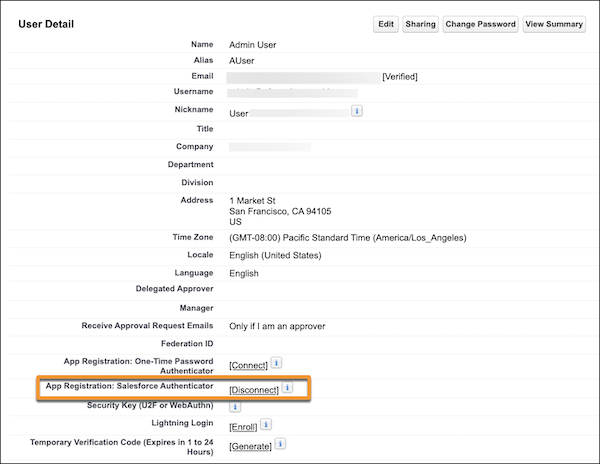
          3. On the user’s detail page, next to the App Registration: Salesforce Authenticator field, select Disconnect.
            User Detail page with setting to disconnect Salesforce Authenticator highlighted.
            If you use Essentials edition and you don't see the option to disconnect Salesforce Authenticator, switch to Salesforce Classic.

          After disconnecting Salesforce Authenticator, guide the user to re-register it. If the user is moving to a replacement mobile device, they must install a new version of the app first. Refer them to Register Salesforce Authenticator as an Identity Verification Method for guidance. Admins can’t register verification methods for users.

           
          Loading
          Salesforce Help | Article